Publish bundles of your product hazard logs through your Trust Centre, update the published logs when you approve a new version, and notify stakeholders.
Quick summary
Publishing puts a bundle of approved versions, one per product, on your Trust Centre under its own link.
A new published hazard log starts as “Private - requires access request”.
Update notifications need a privacy notice URL on your Trust Centre.
A published hazard log is a bundle of approved versions of individual product hazard logs, usually the latest of each, with its own public link.
1
Open the published hazard logs
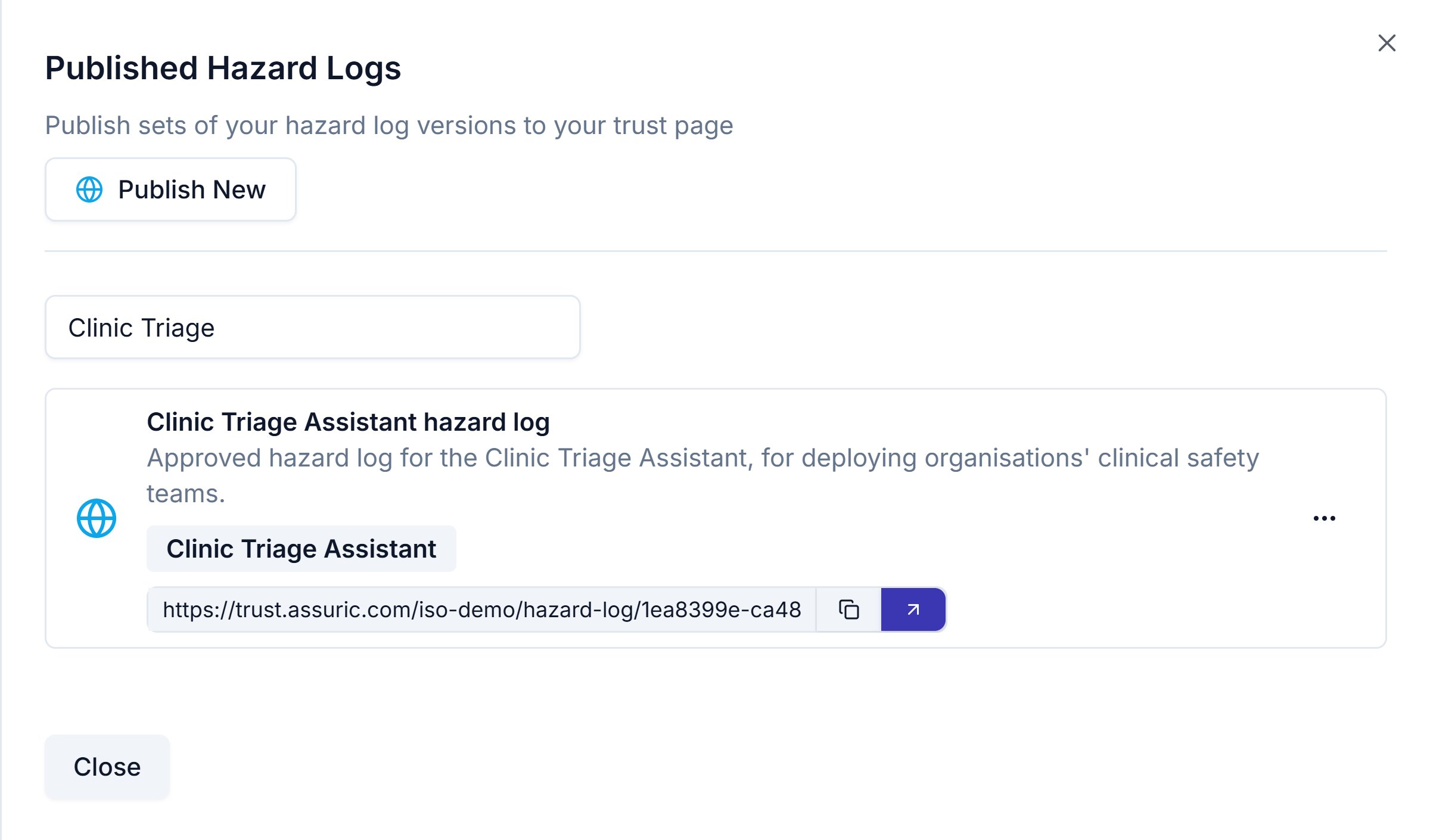
On the Hazard Log page, click Publish to open the Published Hazard Logs sheet.
The Published Hazard Logs sheet, searched for one hazard log. Each card shows the products in the bundle and its public link.
2
Pick the versions
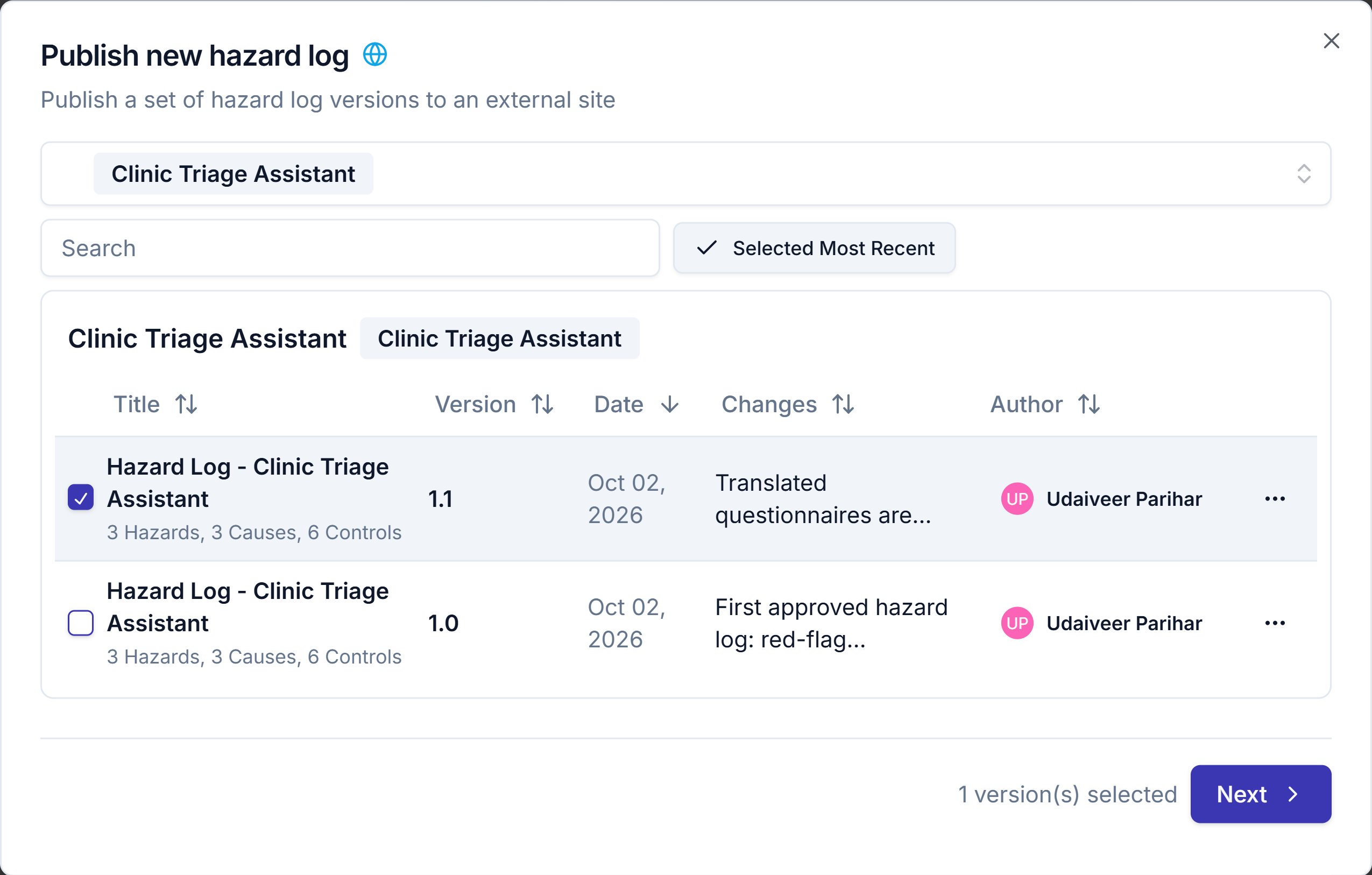
Click Publish New, then choose the products. Each product shows its 2 latest versions, and Show all lists the rest.Click Select Most Recent to tick the latest version of every product, then untick any you want to leave out. Click Next once at least one version is selected.
Choose a version for each product. Select Most Recent ticks the latest of each.
3
Create a new hazard log or update an existing one
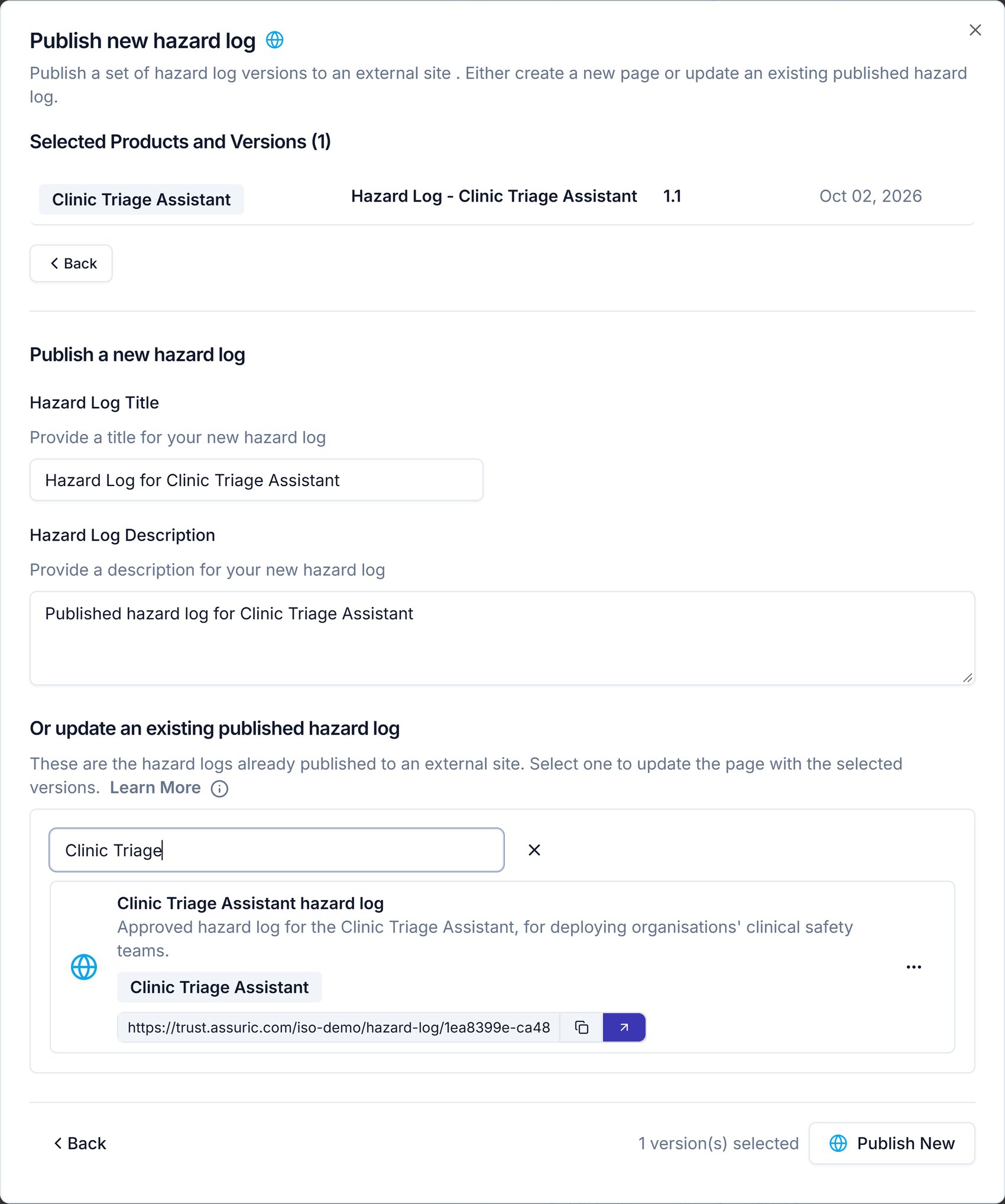
To create a new bundle, fill in Hazard Log Title and Hazard Log Description under Publish a new hazard log. Assuric suggests both from the product names. Don’t use special characters in the title.
To update a bundle you’ve already published, choose it under Or update an existing published hazard log. The button changes to Update and the title and description fill in for you.
Update replaces the versions with the ones you ticked, so tick a version for every product it should still include, not only the one that changed.Then click Publish New or Update.
Name the new hazard log, or choose an existing one to update.
4
Set who can see it
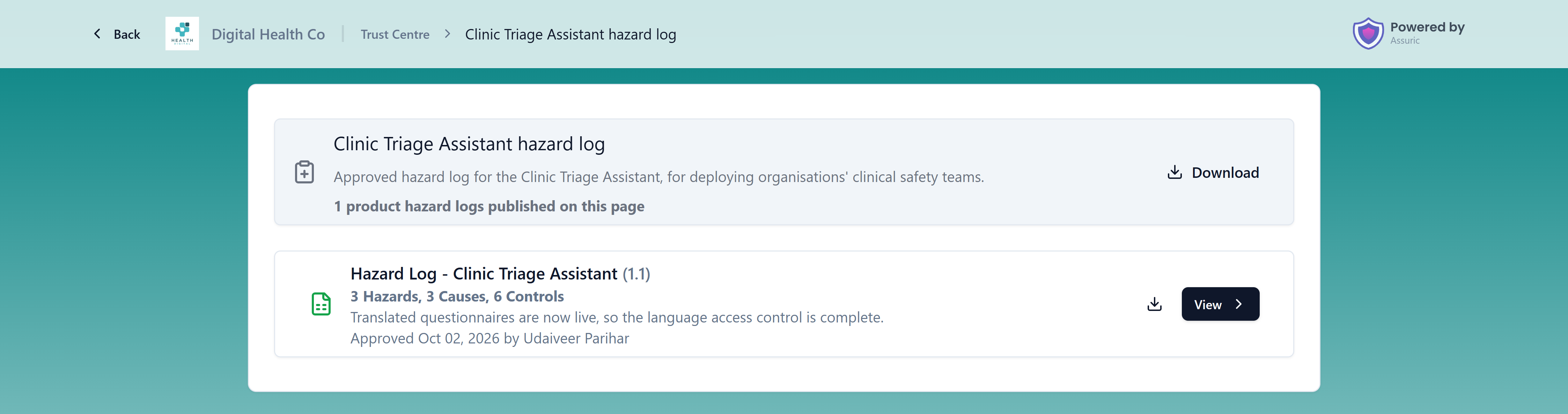
A new published hazard log starts as “Private - requires access request”. To let anyone view it, open the resource in your Trust Centre and set Public? to “Public - anyone can view”.You can also place it in a folder with Folder (Optional). See Access requests and who can see what.
On a card in Published Hazard Logs, Edit Details in the ”…” menu opens Edit Published Hazard Log Details, which changes only the Title and Description.