Quick summary
  • A task can have one or more owners, a due date and a recurring schedule.
  • You assign a task to people, not to roles or groups.
  • A recurring task’s due date moves forward by one interval each time you complete it.

Find the tasks you need

Narrow a long task list with these controls:
  • Filter tasks searches every category at once.
  • The filter row narrows the list further, and the funnel icon reveals a second row.
  • Clear all resets every filter across both rows.
  • The two view buttons switch between tasks grouped by category and one flat list.
  • View lets you reorder or hide columns.
The Tasks filter rows showing My tasks, Status, Assignee and Products filters, a second row with Frameworks, Type, Priority and Category, and a Clear all control

Both filter rows: My tasks, Status, Assignee and Products on top, Frameworks, Type, Priority and Category revealed below, with Clear all on the right.

Assign owners

Assign a task to one or more people, not roles or groups:
  • One task: use its Owners column, or Assignees on its sheet.
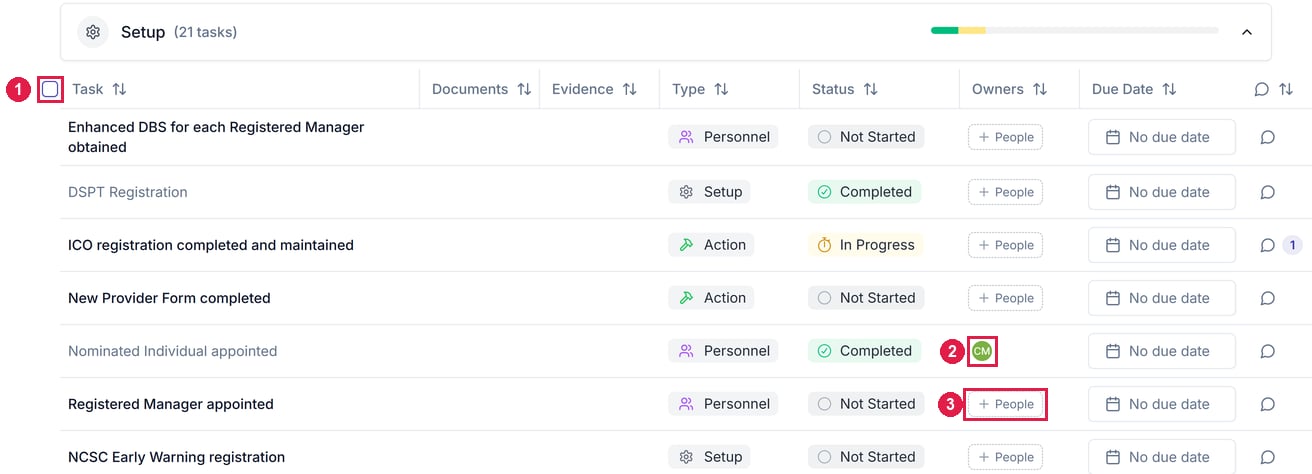
  • In bulk: use the header checkbox to select every task in a category, then apply a bulk action.
The Setup task list with the bulk-select header checkbox, an assigned owner avatar on one row, and an unassigned People button on another row

A Setup category task list. 1 The bulk-select checkbox. 2 An already-assigned owner. 3 The People control for assigning an unassigned task.

Product-specific tasks also carry the product they belong to, which is set when the task is created.

Set a due date and recurrence

Any task can have a due date, and a recurring schedule suits work that comes round again, such as a backup restore test every 6 months.
1

Open the schedule

On the task’s sheet, click the circular-arrows icon next to Due Date to open Task Schedule.
2

Pick a date and how often it repeats

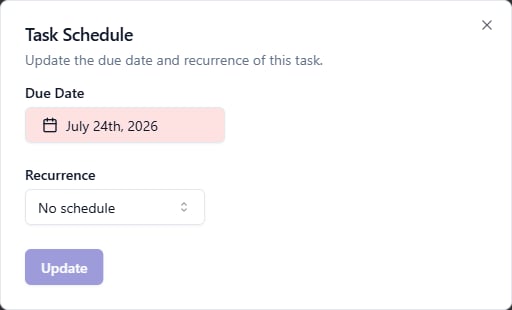
Set the Due Date, then pick a Recurrence if the task repeats. Leave it on No schedule for one-off work, then click Update.
The Task Schedule dialog with an overdue Due Date shown in red, a Recurrence dropdown set to No schedule, and an Update button

The Task Schedule dialog: a due date, and how often the task repeats.

A scheduled task’s sheet shows a Repeat row, and completing a recurring task moves its due date forward by one interval. A due date that has passed shows in red, on the sheet and in the task list.

Comment on a task

A task’s sheet shows how many comments are unresolved in Comments.
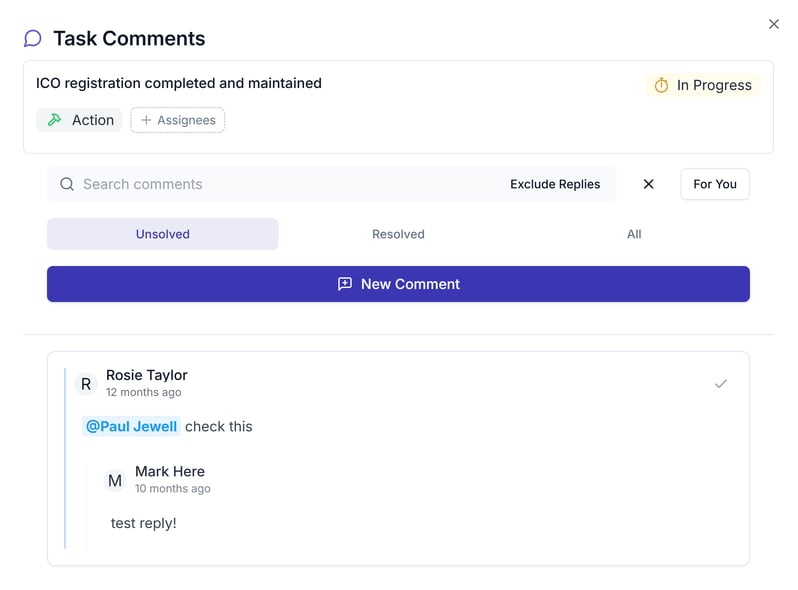
  • To write a comment, click Add comment to open the task’s comments, then New Comment.
  • Type @ to mention someone. They’re notified according to their Comments and Mentions settings.
  • To find what still needs an answer, filter the thread by Unsolved, Resolved or For You.
The Task Comments panel showing the task summary, a search box, Exclude Replies, For You, Unsolved, Resolved and All filters, a New Comment button, and a comment mentioning a teammate with one reply

A task's comments: filters for Unsolved, Resolved and For You, the New Comment button, and a thread with an @mention and a reply.

What we recommendBefore someone leaves, filter by Assignee to find their tasks and hand them on, then offboard them.

Personal notification settings

Choose how you hear about mentions, replies and overdue tasks.

Completing a task

Read the guidance and take the suggested action.