Quick summary
  • You can start a document from an Assuric template or one of your own, and it opens with your workspace details filled in.
  • You can edit your own custom templates, but not Assuric’s.
  • Which Assuric templates you see depends on the frameworks enabled in your workspace.

Assuric and custom templates

Go to Documents → Templates.
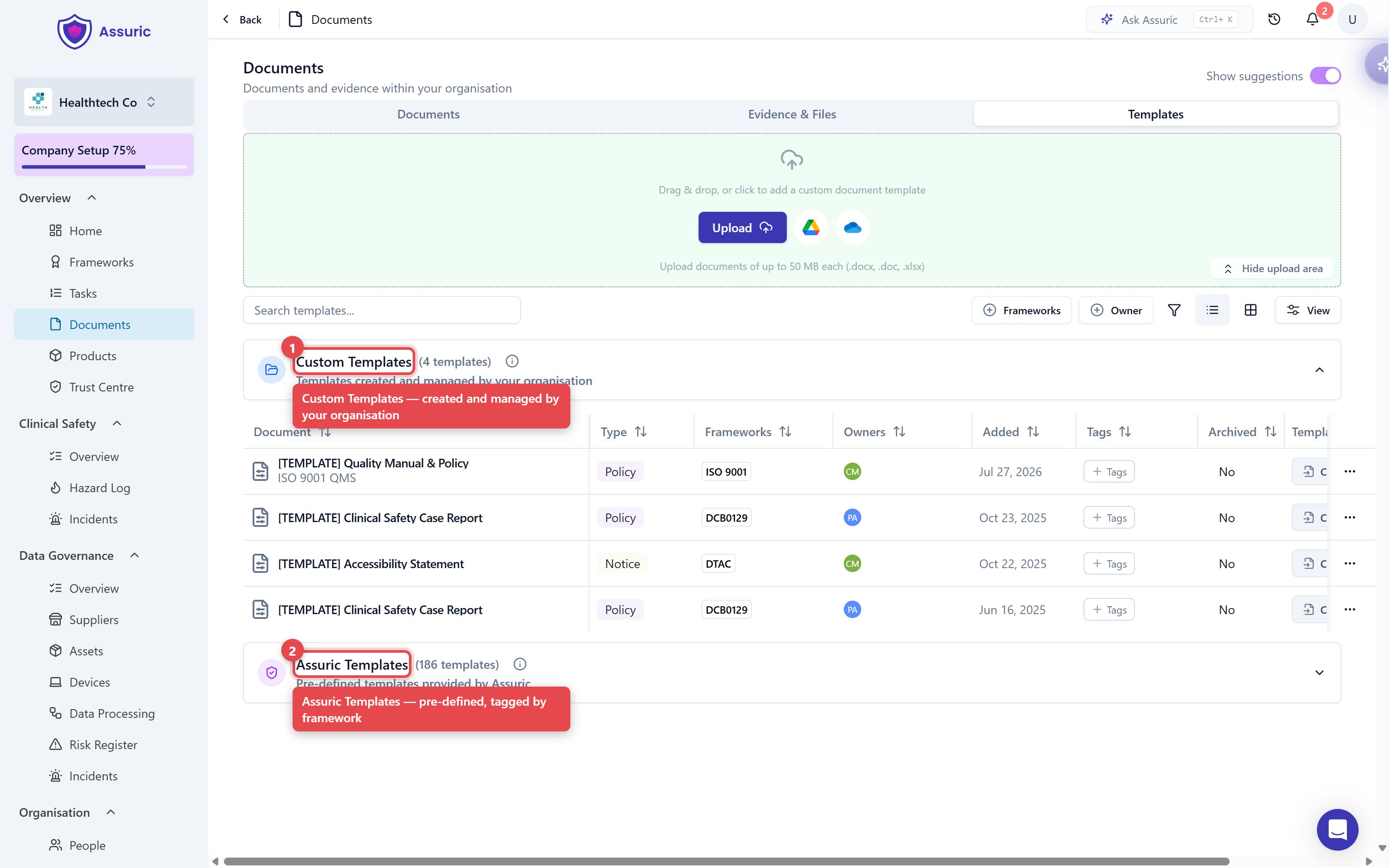
The Templates tab showing the Custom Templates and Assuric Templates groups, with template counts and framework tags

The Templates tab. 1 is Custom Templates: created and managed by your organisation. 2 is Assuric Templates: pre-defined and tagged by framework.

The set of Assuric templates depends on the frameworks enabled in your workspace, and Assuric also suggests them from your tasks.

Create a document from a template

1

Click Create from template

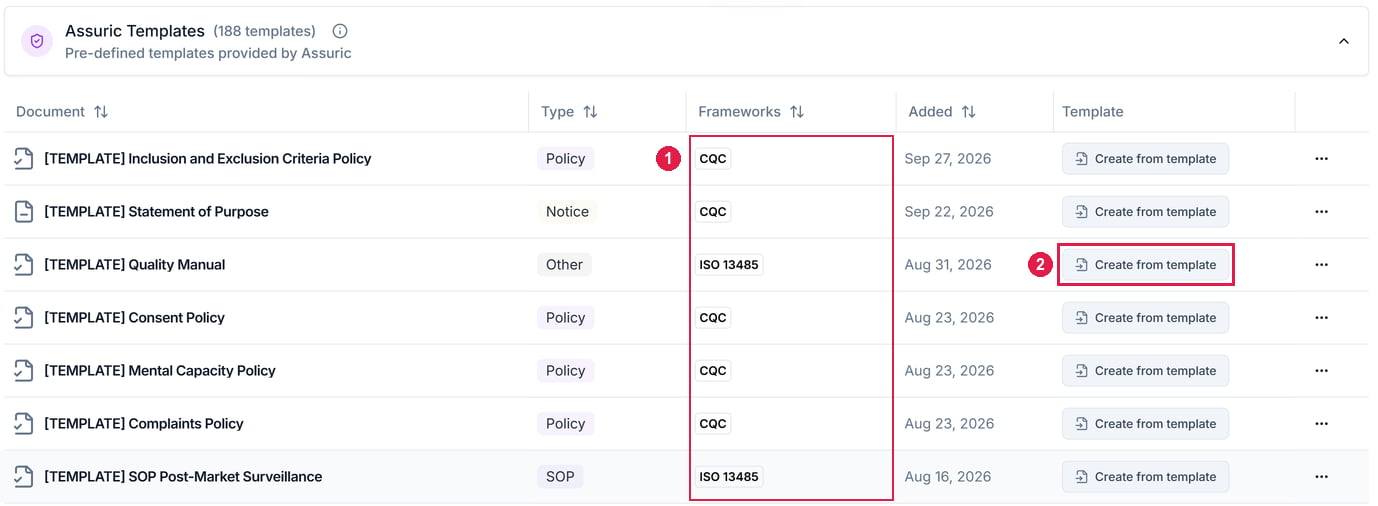
Find the template under Assuric Templates or Custom Templates and click Create from template on its row, or use New Document → From Template on the Documents tab.
The Assuric Templates group with framework tags on each row and a Create from template button highlighted

The Assuric Templates group. 1 is the Frameworks column, showing the frameworks each template covers. 2 is Create from template on a template's row.

2

Fill in the document's details

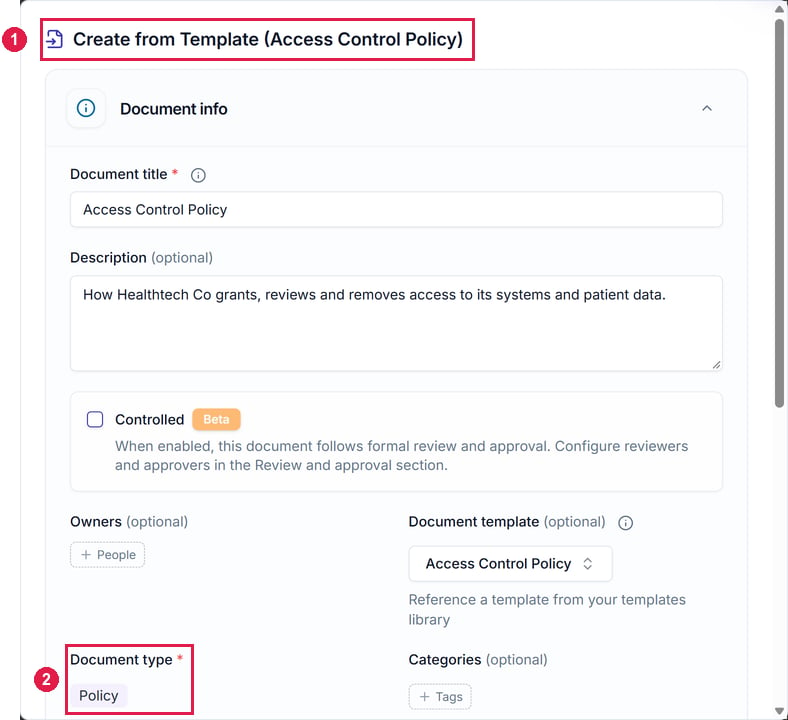
Create from Template opens with its document type filled in. Check the title, then fill in the rest as for any new document.
The Create from Template (Access Control Policy) dialog with the title, description and document type filled in

Create from Template for the Access Control Policy template. 1 is the dialog's title, named after the template. 2 is Document type, already filled in.

3

Create it

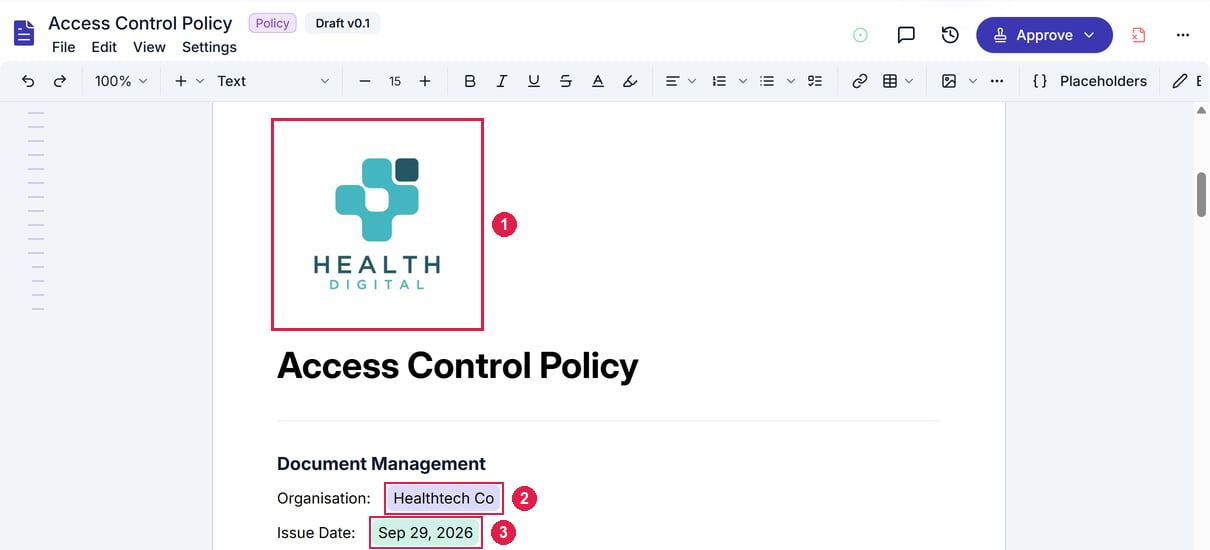
Click Create. The document opens with its placeholders filled in from your workspace.
The new Access Control Policy open in the editor with the company logo, organisation name and issue date filled in

A new document created from the Access Control Policy template. Its placeholders are already filled in from your workspace: 1 is your company logo, 2 your organisation's name and 3 the issue date.

Create a custom template

1

Click Clone to template

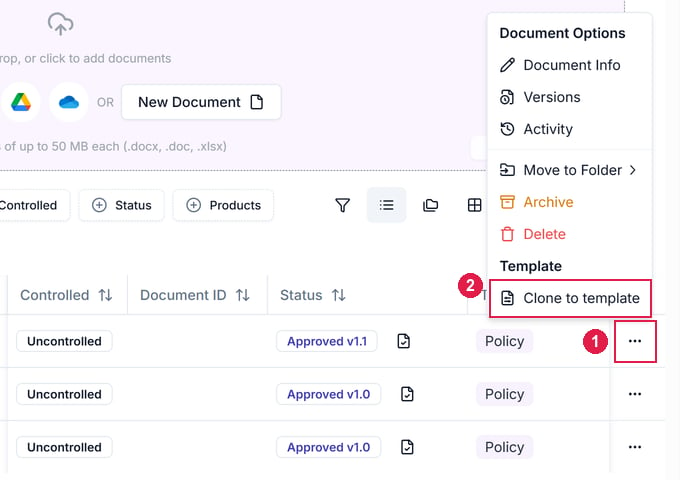
On the Documents tab, open the ⋯ menu of the document you want to reuse, like a clinical safety case report you write for each product. Under Template, click Clone to template. The template is created straight away.
A document's ⋯ menu open on the Documents tab, with Clone to template under Template highlighted

A document's ⋯ menu. 1 is the ⋯ button on the document's row. 2 is Clone to template, under Template.

2

Find and edit the template

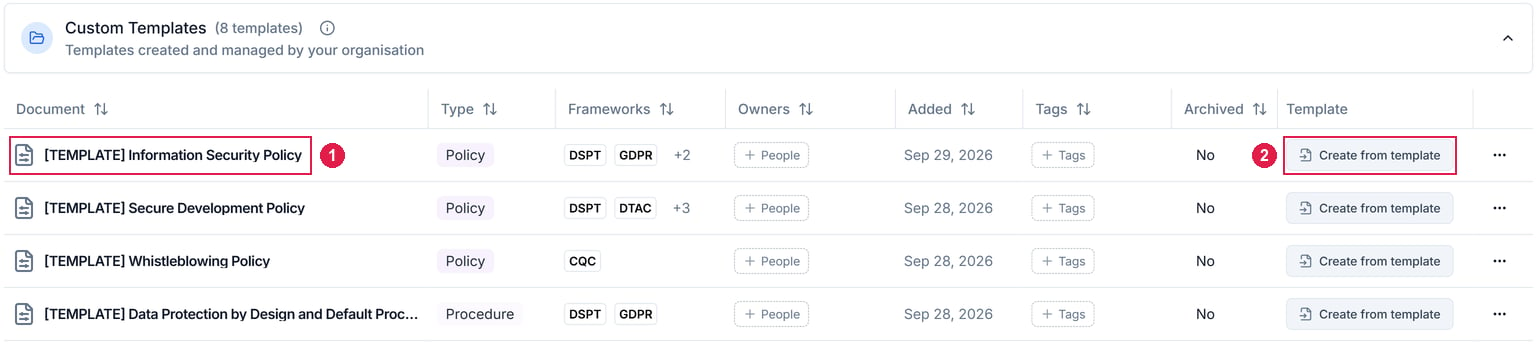
It appears in Custom Templates as [TEMPLATE] plus the document’s name, with the same type and frameworks. Open it to edit it like any other document.
The Custom Templates group with the newly cloned Information Security Policy template at the top

Custom Templates after Clone to template. 1 is the new [TEMPLATE] Information Security Policy, which kept the document's type and frameworks. 2 is its Create from template button.

The Templates tab also has an upload area for template files: .docx, .doc and .xlsx, up to 50 MB. To turn a custom template back into a document, use Clone to document in its ⋯ menu.
What we recommendStart from an Assuric template even for a policy you’ve already written elsewhere. Pasting your wording in is quicker than adding structure and placeholders later, and an assessor reading 20 of your documents will notice the consistent shape.

Create a document

Start a blank document, or upload your own.

Keep documents current with placeholders

The live values a template fills in for you.