

Quick summary
- The incident log holds every incident, whether you added it, imported it or someone reported it.
- You can customise your incident statuses, severity levels and causes, and reorder the statuses.
- Archive hides an incident and you can unarchive it. Remove deletes it for good.
Read the log
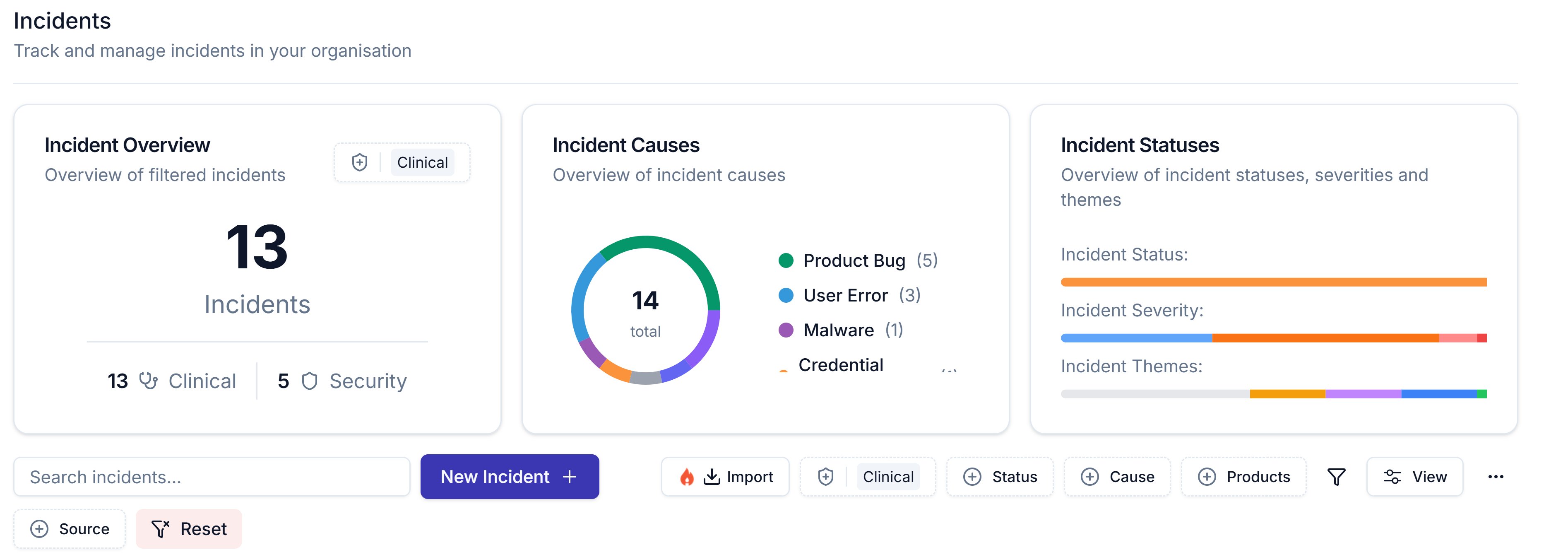
The top of the incident log: the three tiles, then the toolbar. The list sits below.
- Incident Overview: the total for the category you pick.
- Incident Causes: a chart of your causes.
- Incident Statuses: bars for Incident Status, Incident Severity and Incident Themes.
Filter and arrange the log
To import from incident.io, see Import incidents from incident.io.
Statuses
Each incident has a Status, such as Investigating or Closed. To add your own statuses, severity levels or causes, click Create New in the Status, Severity or Cause(s) field, and drag statuses to reorder them. An imported incident also shows its incident.io status. When you close an incident, record the Date Closed in Incident Information.Link an incident to hazards and risks
With Security selected, the Mapped Risks column shows each incident’s linked risks. To edit links, see Create an incident.Investigate and learn
These fields in Investigation & Response feed the log:- Incident Themes: tag incidents to spot trends. The Incident Statuses tile and Theme filter both use these tags.
- Associated Evidence: use Add Evidence to pick from your library, or add a File (Evidence and files).
Edit, archive or remove an incident
Click … at the end of a row for Edit, Archive or Remove.- Archive hides the incident from the list and tiles at once, with no confirmation.
- Remove asks “Are you absolutely sure?”, then Remove Incident deletes it for good.
- Click the funnel and set Archived to Yes, so the list and tiles show only archived incidents.
- Click … on the incident, then Unarchive.
- Set Archived back to No.
Related articles
Export your incident log
Take your incident log out of Assuric.
Risk register
The security risks your incidents link to.