

- A placeholder pulls live information into a document, so updating its source, like your registered address, updates every document that uses it.
- Changing a live table, such as a hazard log summary, affects only that table, unless you switch on Apply to all instances.
- You can’t change a custom placeholder between Pastable (a one-off copy) and Synced (stays live) without redoing every insertion.
Why placeholders
A placeholder pulls live information from elsewhere in Assuric, or holds text you define. It’s a reference rather than a copy, so updating the source, like your registered address, updates every document that uses it.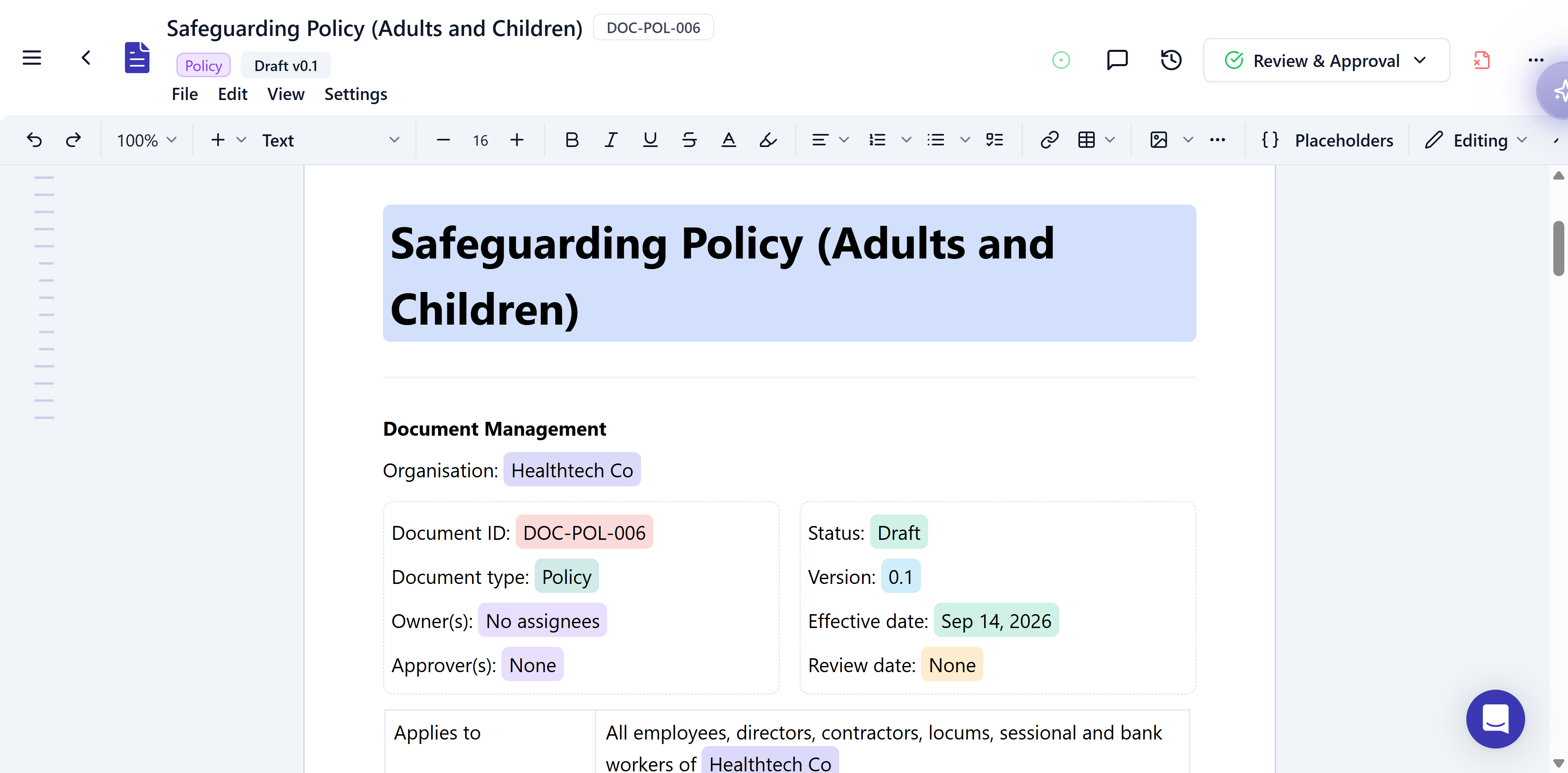
Placeholders in a draft document, highlighted so you can see at a glance what is filled in for you: organisation, document ID and a custom effective date, all shown here without you typing any of it.
Insert a placeholder
Type@ in the editor and pick a placeholder from the list. It shows highlighted while you edit.
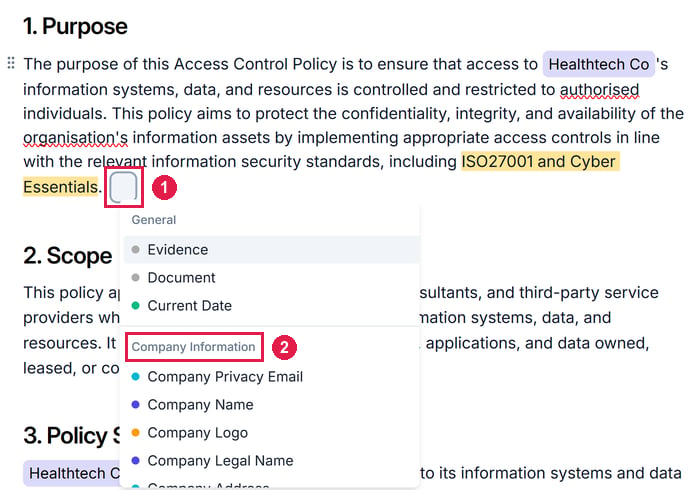
Typing @ in the editor opens the placeholder list. 1 is the search box that takes the place of the @ you typed; type in it to filter the list. 2 is one of its groups, Company Information, below General.
Cross-reference another document
To link another document by name, like your privacy notice, type@document and pick Document. The link survives renames and new versions.
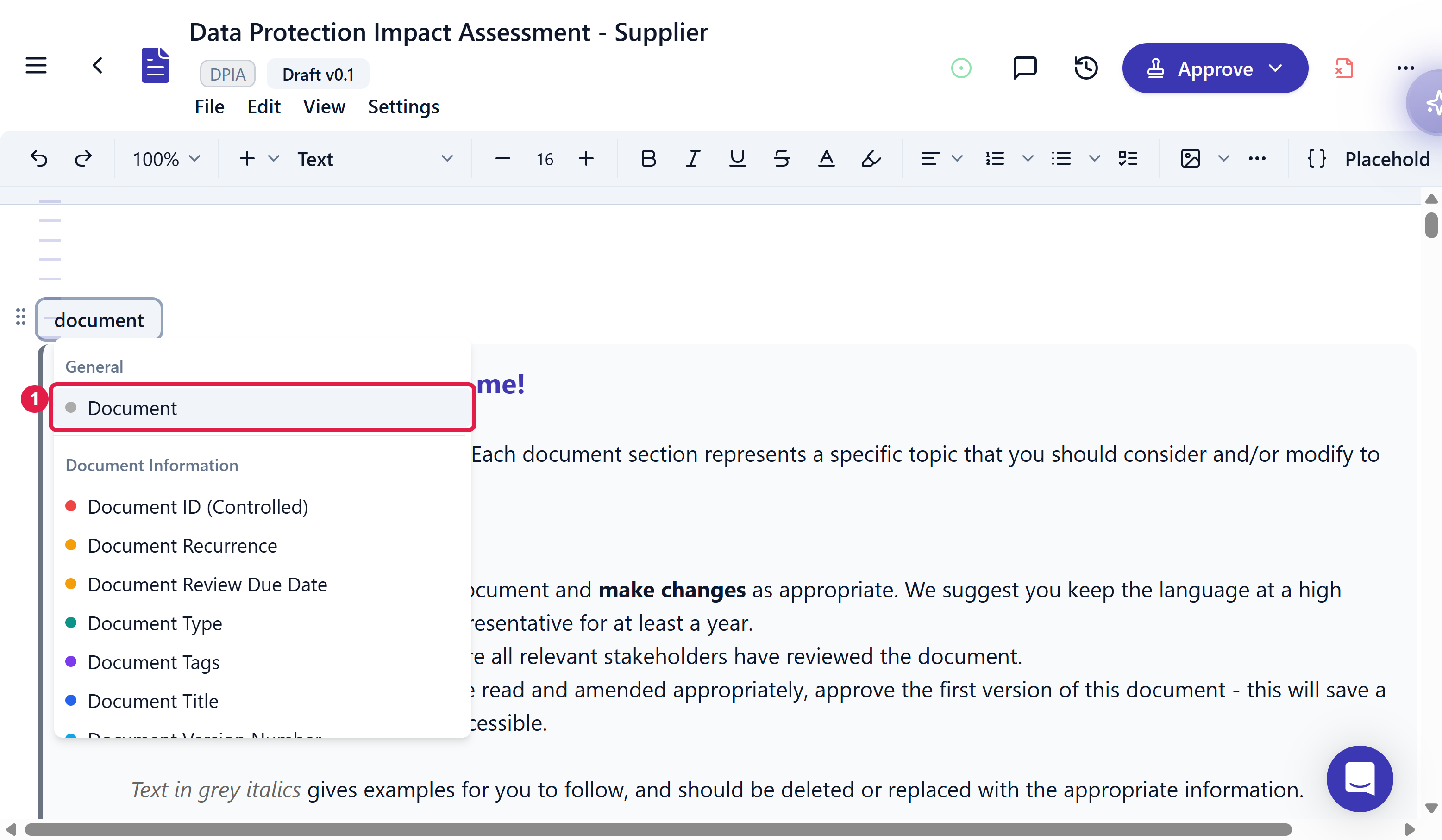
Typing @document opens the placeholder menu filtered to that word. 1 is Document under General, the cross-reference itself. Everything below it under Document Information (Document ID, Document Type, Document Tags, and so on) is metadata about the current document, not a link to another one.
Configure a live table
For what a live table shows, see Live tables.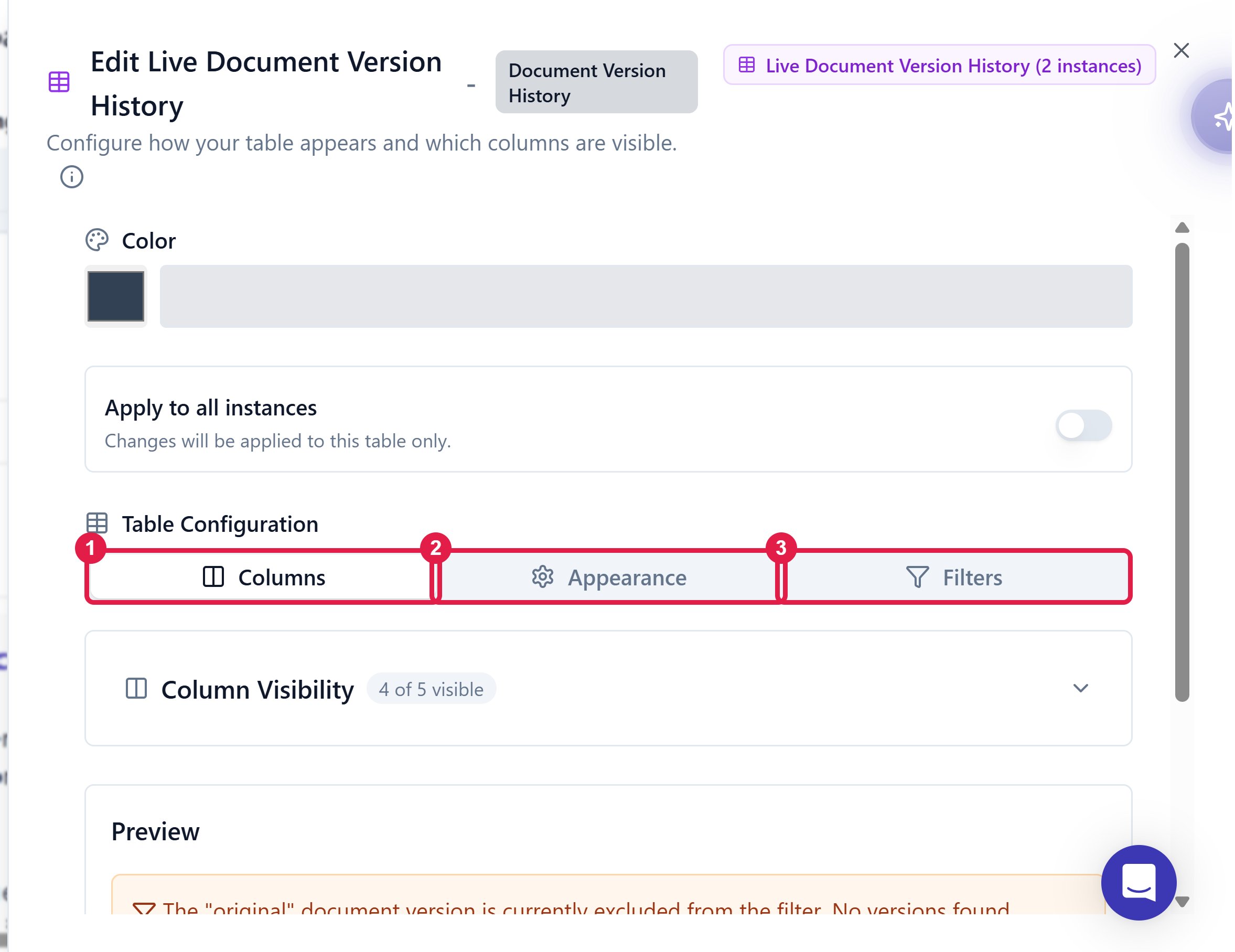
The live table configuration panel, shown here for a Document Version History table. 1 is Columns, for which fields show; 2 is Appearance; 3 is Filters.
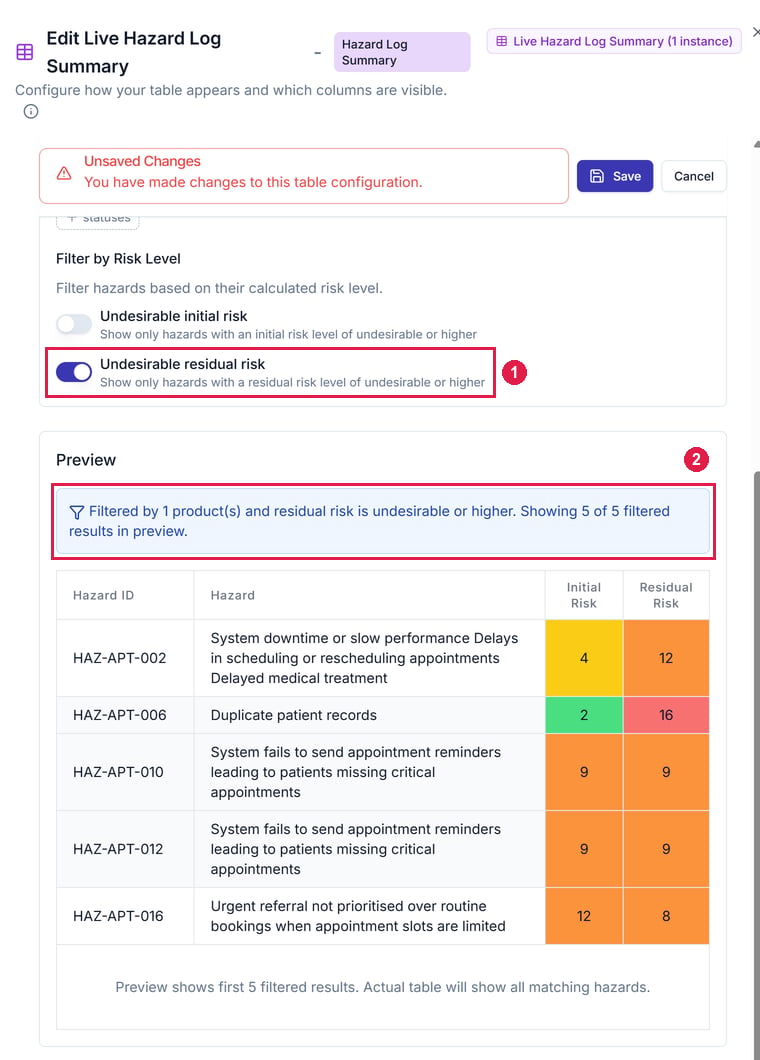
The Filters tab for a Hazard Log Summary. 1 is Undesirable residual risk, switched on. 2 is the preview's filter summary: the rows below it are only hazards for the chosen product whose residual risk is undesirable or higher.
- Preview: it shows the first 5 matching rows.
- Scope: changes apply to this table only, unless you switch on Apply to all instances to change every copy.
- Case reports: the live hazard log table covers using a Hazard Log Summary in a clinical safety case report.
Create a custom placeholder
When the defaults don’t cover a value you repeat, define your own, like “Team responsible for onboarding” with the value “HR department”.Open Placeholder Settings
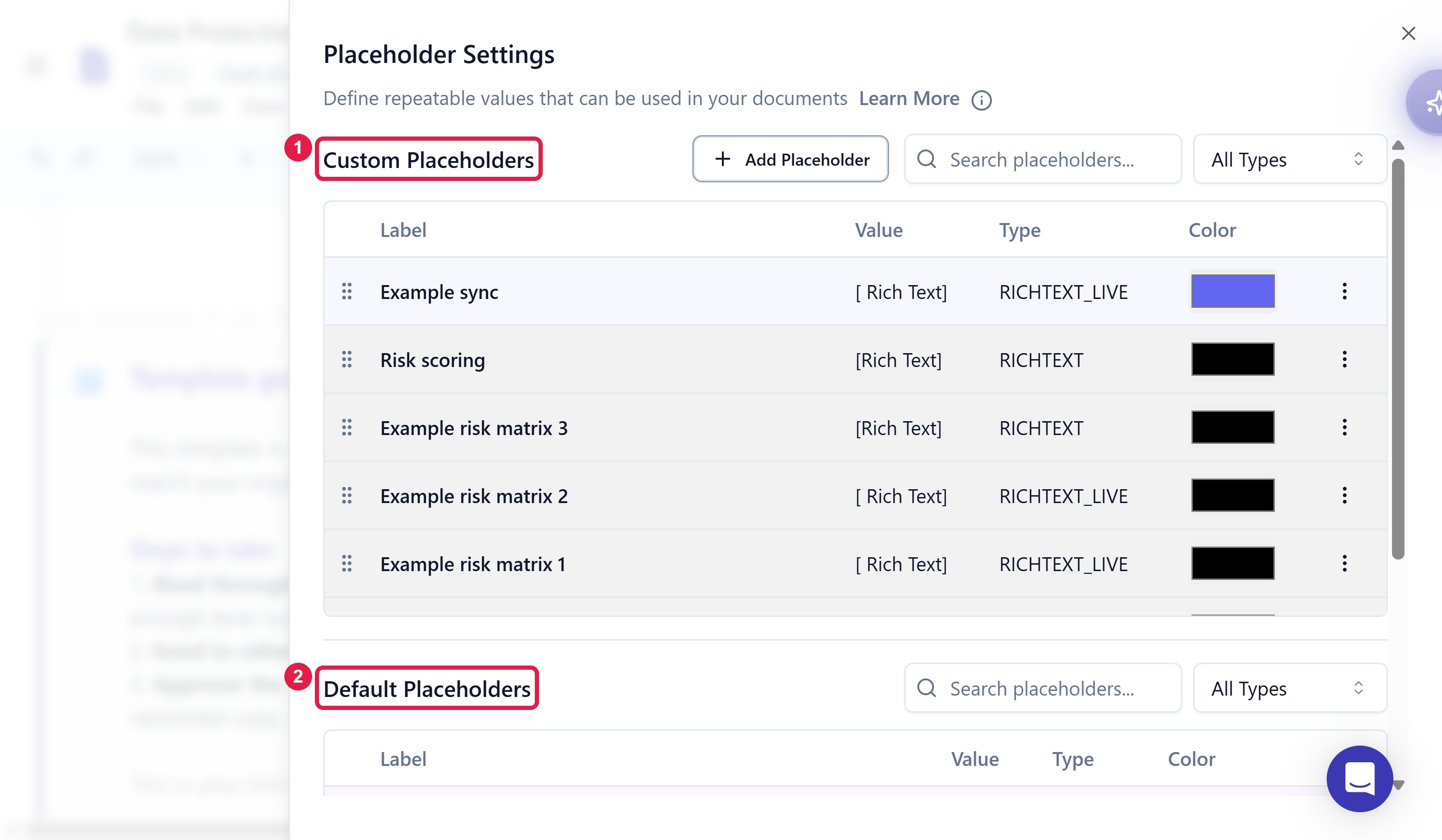
The Placeholder Settings panel. 1 is Custom Placeholders, the ones you define; 2 is Default Placeholders, the built-ins Assuric ships.
Fill in the details
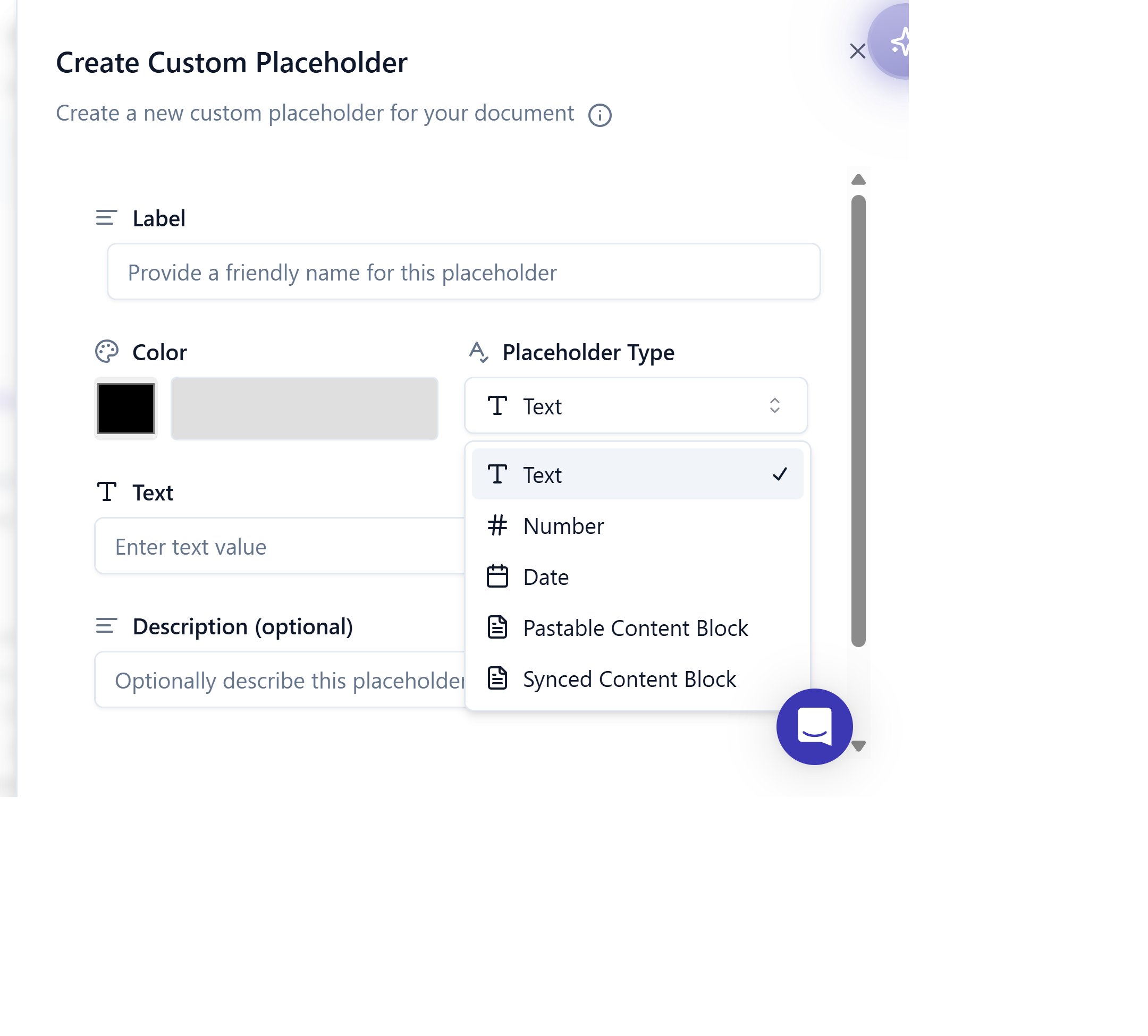
The Placeholder Type dropdown in the Create Custom Placeholder dialog, showing all five types.