

- A controlled document gets a formal review and approval cycle before each new major version is approved, and is locked while the cycle runs and once approved.
- Only the people on Must review and Must approve hold the cycle up, not the optional reviewers and approvers.
- If a reviewer requests changes, the document stays Pending Review until you click Stop review cycle, which returns it to Draft with the same draft number.
Make a document controlled
Controlled documents are switched on per workspace. If Settings → Workspace Setup → Documents doesn’t show Controlled documents as Enabled, contact support. Then tick Controlled on the document, when you create it or later from its Settings menu → Document Settings. It gets a Document ID, likeDOC-POL-010, and its Review and approval section opens up.
Start a review cycle
Open Send for review and approval
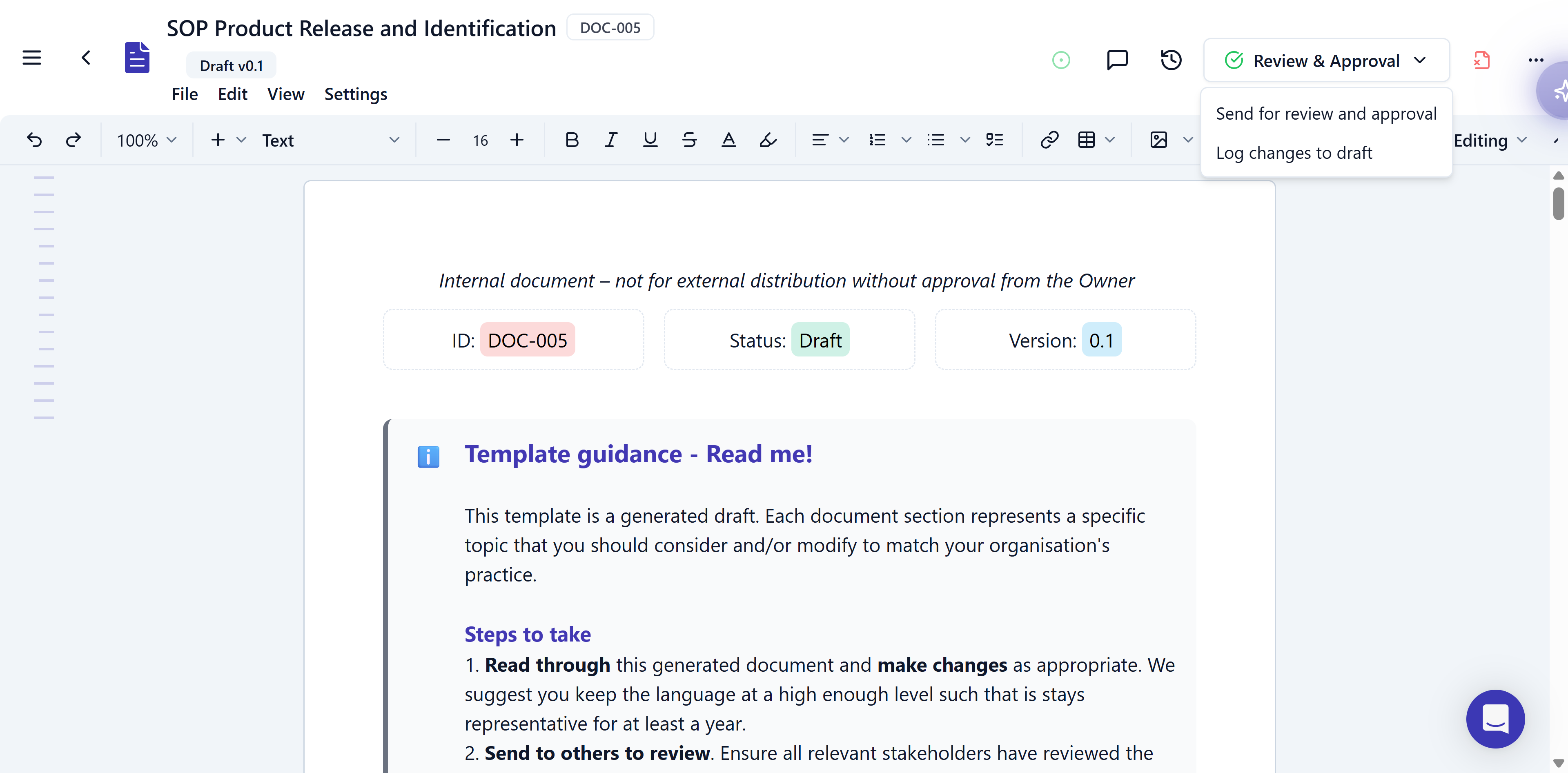
The Review & Approval menu on a controlled document: Send for review and approval starts the cycle, and Log changes to draft records a minor change without one.
Describe the version and set where it republishes
Pick reviewers and approvers
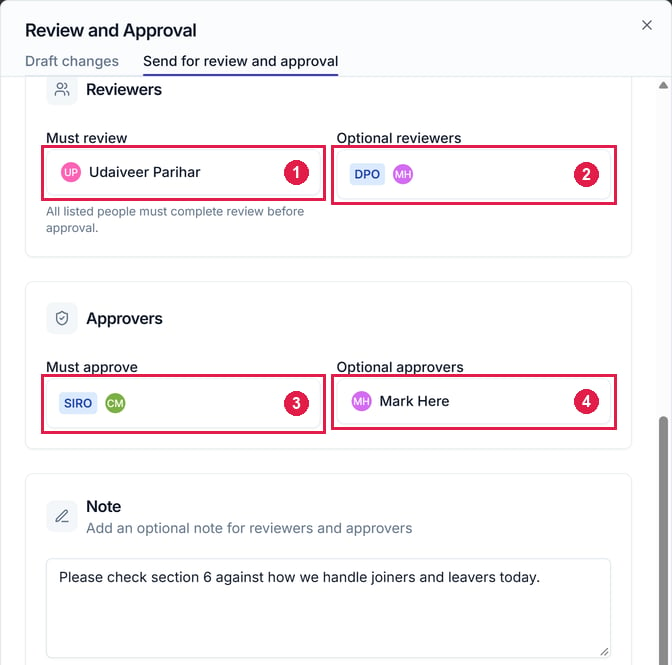
Send for review and approval with all four lists filled in. 1 is Must review, here a person. 2 is Optional reviewers, here the DPO role and the person who holds it. 3 is Must approve, here the SIRO role. 4 is Optional approvers, here another person. The Note below goes to everyone listed.
Begin the cycle
Respond to a request
- Reviewer
- Approver
- choose Complete review, add a Note if you like, and click Accept and complete review; or
- choose Request changes, write a Comment, and click Request changes. Editors and approvers see your comment.

The review banner. 1 is the request to review. 2 is Submit response, open to show Complete review and Request changes. 3 is who the review is still awaited from, with required people marked (required).
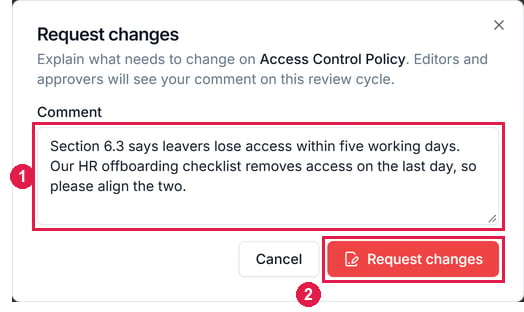
Request changes. 1 is your Comment, which editors and approvers see on this review cycle. 2 sends it.
When changes are requested
The document stays Pending Review and shows “A reviewer has requested changes. Use Stop review cycle when you are ready to continue.”- Click Stop review cycle and confirm. The document returns to Draft with the same draft number, like v1.1, and the review steps in progress are removed. You can stop a running cycle this way at any time.
- Edit the document to address the comments, then click Send for review and approval again. The version number and summary are kept, but you pick the reviewers and approvers again.
Start the next version
An approved controlled document is locked. To change it, click Return to draft and confirm. Then:- The latest approved version stays published and unchanged until you approve the updated one.
- The document opens as the next draft, like v2.1.