

Quick summary
- You can see who has completed each checklist, item by item and person by person, and remind people about what’s outstanding.
- A person’s checklist History links the exact policy version they confirmed, which is your evidence for an auditor.
- Automatic checklist reminders are off until an Admin switches them on.
Across all your checklists
The Staff overview on the Checklists screen has a bar per checklist, labelled with its internal Label.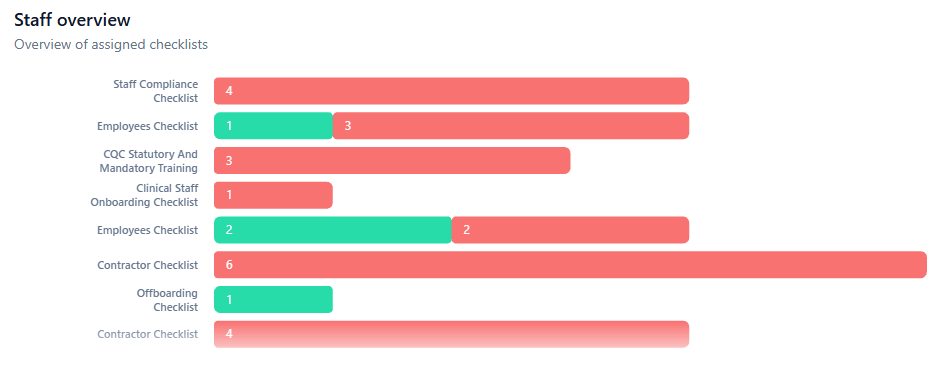
The Staff overview, one bar per checklist.
One checklist, item by item
Click the count on a checklist, like 1/4, to open its progress.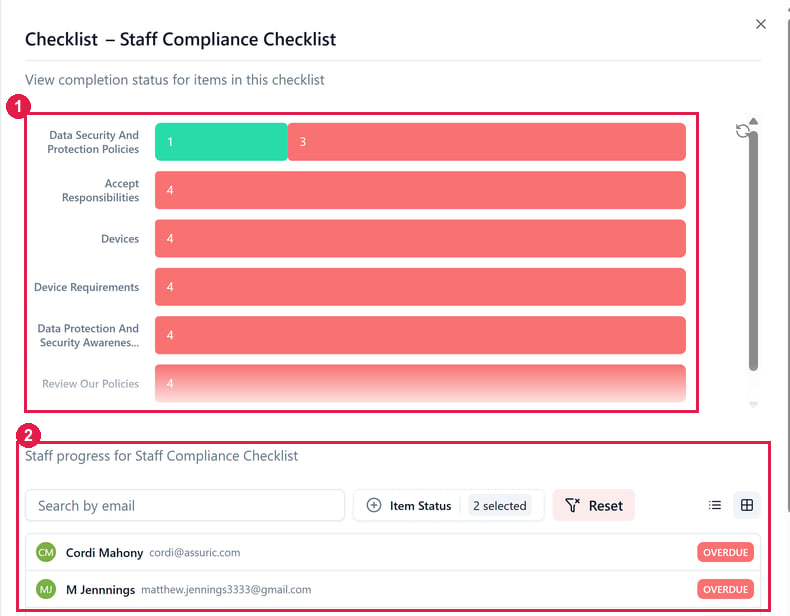
A checklist's progress. 1 shows, for each item, how many people have completed it and how many are overdue. 2 lists the people it's assigned to.
One person, every checklist
Click a person in the progress list to open their Staff compliance sheet. It’s the same as the Checklists section of their sheet on the People tab.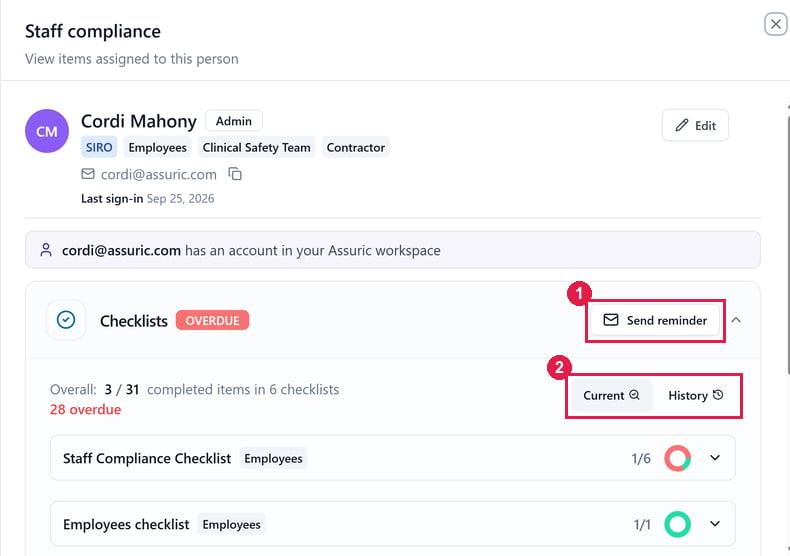
A person's Staff compliance sheet. 1 Send reminder. 2 The Current and History toggle.
- Overall: how many items they’ve completed, across how many checklists, and how many are overdue.
- Current: each checklist they’ve been given, with their progress on it. Expand one to see its items.
- History: the items they’ve completed, with the date and time of each.
History here lists one person’s completed checklist items. For who changed what across Assuric, use the Activity log, under Activity in the sidebar.
Show an auditor who has signed off a policy
Your evidence is the policy’s Resources item. Click the checklist’s count to open its progress, then click a person. On their sheet, click History and expand the item to see:- each document they confirmed, linked to the exact version they read;
- who completed it, as their email address, and the date and time;
- Refreshes at: when they’ll be asked to confirm it again.
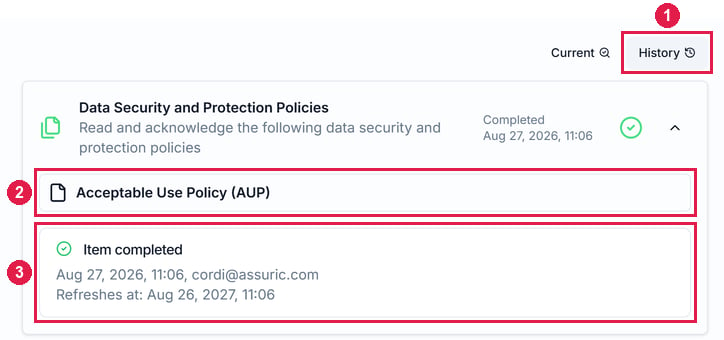
A person's History, with a Resources item expanded. 1 is History. 2 is the document they confirmed; click it to open the version they read. 3 is Item completed, with the date, time and their email, and Refreshes at, when they'll be asked again.
Send reminders
Send reminder emails people about checklist items they haven’t completed. Only an Admin can send one, from 2 places:
An Administrative checklist has no Send reminder, since an Admin completes it.
Remind people automatically
To send reminders on a schedule:- Open your account menu (your initial, top right) → Notification Preferences → Organisation Notifications, and switch on Enable for Checklist reminders. Only workspace admins can switch them on.
- Choose how often it sends. Assuric then emails everyone in the workspace about their own outstanding assigned checklists.

Checklist reminders in Organisation Notifications, off until you switch on Enable.
Related articles
Create, assign and publish a checklist
A checklist only counts once it’s published and assigned.
What triggers a notification
Every notification Assuric sends, including checklist reminders.