> ## Documentation Index
> Fetch the complete documentation index at: https://docs.assuric.com/llms.txt
> Use this file to discover all available pages before exploring further.
# Task management
> Filter a long task list down, assign owners, set due dates and recurring schedules, and comment on tasks.
**Quick summary**
* A task can have one or more owners, a due date and a recurring schedule.
* You assign a task to people, not to roles or groups.
* A recurring task's due date moves forward by one interval each time you complete it.
## Find the tasks you need
Narrow a long task list with these controls:
* **Filter tasks** searches every category at once.
* The filter row narrows the list further, and the funnel icon reveals a second row.
* **Clear all** resets every filter across both rows.
* The two view buttons switch between tasks grouped by category and one flat list.
* **View** lets you reorder or hide columns.
 ## Assign owners
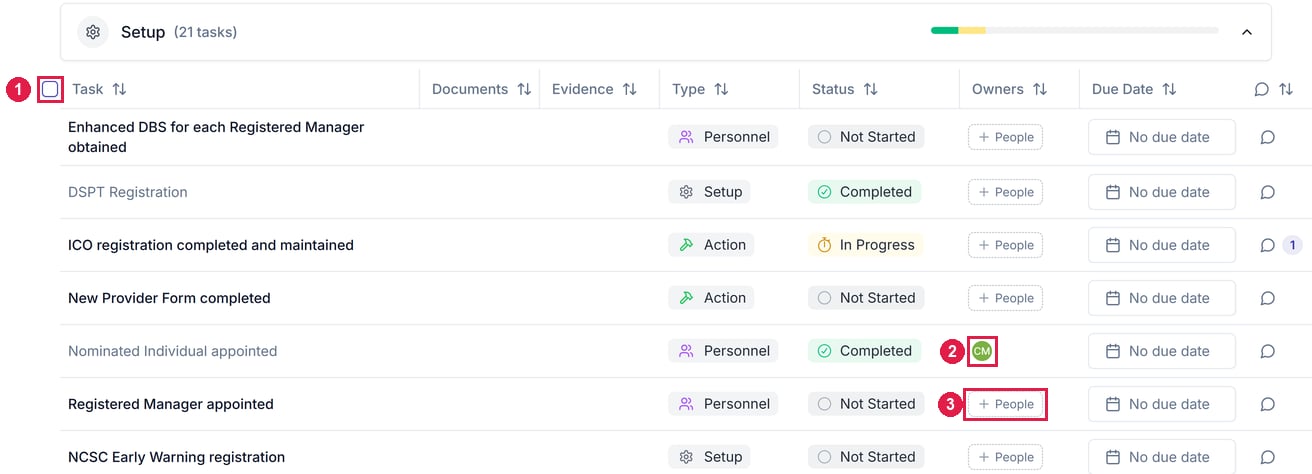
Assign a task to one or more people, not roles or groups:
* **One task:** use its *Owners* column, or *Assignees* on its sheet.
* **In bulk:** use the header checkbox to select every task in a category, then apply a bulk action.
## Assign owners
Assign a task to one or more people, not roles or groups:
* **One task:** use its *Owners* column, or *Assignees* on its sheet.
* **In bulk:** use the header checkbox to select every task in a category, then apply a bulk action.
 [Product-specific tasks](/tasks/product-specific-tasks) also carry the product they belong to, which is set when the task is created.
## Set a due date and recurrence
Any task can have a due date, and a recurring schedule suits work that comes round again, such as a backup restore test every 6 months.
On the task's sheet, click the circular-arrows icon next to *Due Date* to open *Task Schedule*.
Set the *Due Date*, then pick a *Recurrence* if the task repeats. Leave it on *No schedule* for one-off work, then click **Update**.
[Product-specific tasks](/tasks/product-specific-tasks) also carry the product they belong to, which is set when the task is created.
## Set a due date and recurrence
Any task can have a due date, and a recurring schedule suits work that comes round again, such as a backup restore test every 6 months.
On the task's sheet, click the circular-arrows icon next to *Due Date* to open *Task Schedule*.
Set the *Due Date*, then pick a *Recurrence* if the task repeats. Leave it on *No schedule* for one-off work, then click **Update**.
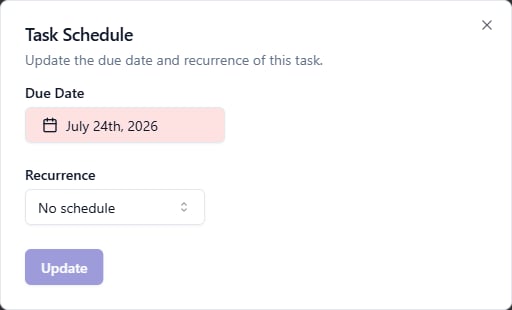 A scheduled task's sheet shows a *Repeat* row, and completing a recurring task moves its due date forward by one interval. A due date that has passed shows in red, on the sheet and in the task list.
## Comment on a task
A task's sheet shows how many comments are unresolved in *Comments*.
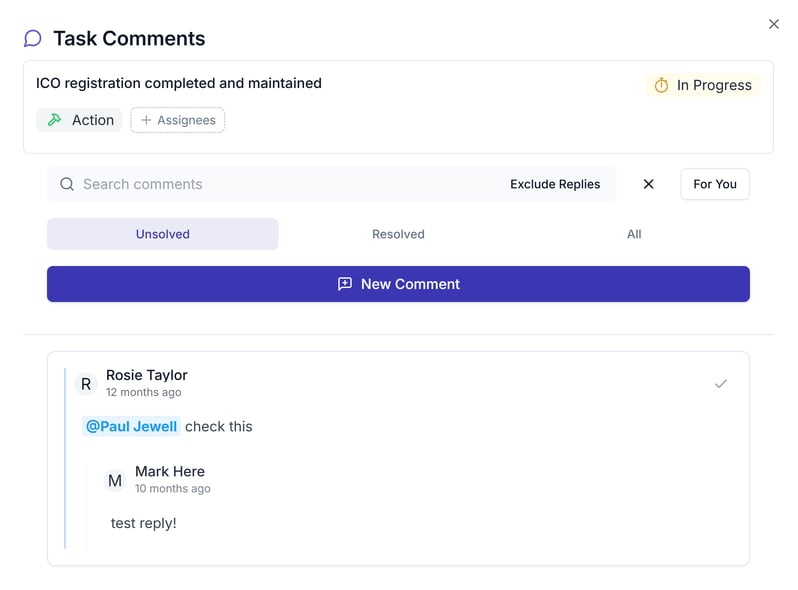
* To write a comment, click **Add comment** to open the task's comments, then **New Comment**.
* Type @ to mention someone. They're notified according to their *Comments and Mentions* settings.
* To find what still needs an answer, filter the thread by *Unsolved*, *Resolved* or *For You*.
A scheduled task's sheet shows a *Repeat* row, and completing a recurring task moves its due date forward by one interval. A due date that has passed shows in red, on the sheet and in the task list.
## Comment on a task
A task's sheet shows how many comments are unresolved in *Comments*.
* To write a comment, click **Add comment** to open the task's comments, then **New Comment**.
* Type @ to mention someone. They're notified according to their *Comments and Mentions* settings.
* To find what still needs an answer, filter the thread by *Unsolved*, *Resolved* or *For You*.
 **What we recommend**
Before someone leaves, filter by *Assignee* to find their tasks and hand them on, then [offboard them](/people/offboarding-and-deactivating).
## Related articles
Choose how you hear about mentions, replies and overdue tasks.
Read the guidance and take the suggested action.
This documentation is built and hosted on [Mintlify](https://mintlify.com), a developer documentation platform.
**What we recommend**
Before someone leaves, filter by *Assignee* to find their tasks and hand them on, then [offboard them](/people/offboarding-and-deactivating).
## Related articles
Choose how you hear about mentions, replies and overdue tasks.
Read the guidance and take the suggested action.
This documentation is built and hosted on [Mintlify](https://mintlify.com), a developer documentation platform.