> ## Documentation Index
> Fetch the complete documentation index at: https://docs.assuric.com/llms.txt
> Use this file to discover all available pages before exploring further.
# Controlled documents
> Make a document controlled, send it through formal review and approval, and respond when you're asked to review or approve it.
**Quick summary**
* A controlled document gets a formal review and approval cycle before each new major version is approved, and is locked while the cycle runs and once approved.
* Only the people on *Must review* and *Must approve* hold the cycle up, not the optional reviewers and approvers.
* If a reviewer requests changes, the document stays *Pending Review* until you click **Stop review cycle**, which returns it to *Draft* with the same draft number.
## Make a document controlled
Controlled documents are switched on per workspace. If **Settings** → **Workspace Setup** → **Documents** doesn't show *Controlled documents* as *Enabled*, contact support.
Then tick **Controlled** on the document, when you [create it](/documents/creating-a-document#fill-in-the-document-details) or later from its **Settings** menu → **Document Settings**.
It gets a *Document ID*, like `DOC-POL-010`, and its *Review and approval* section opens up.
## Start a review cycle
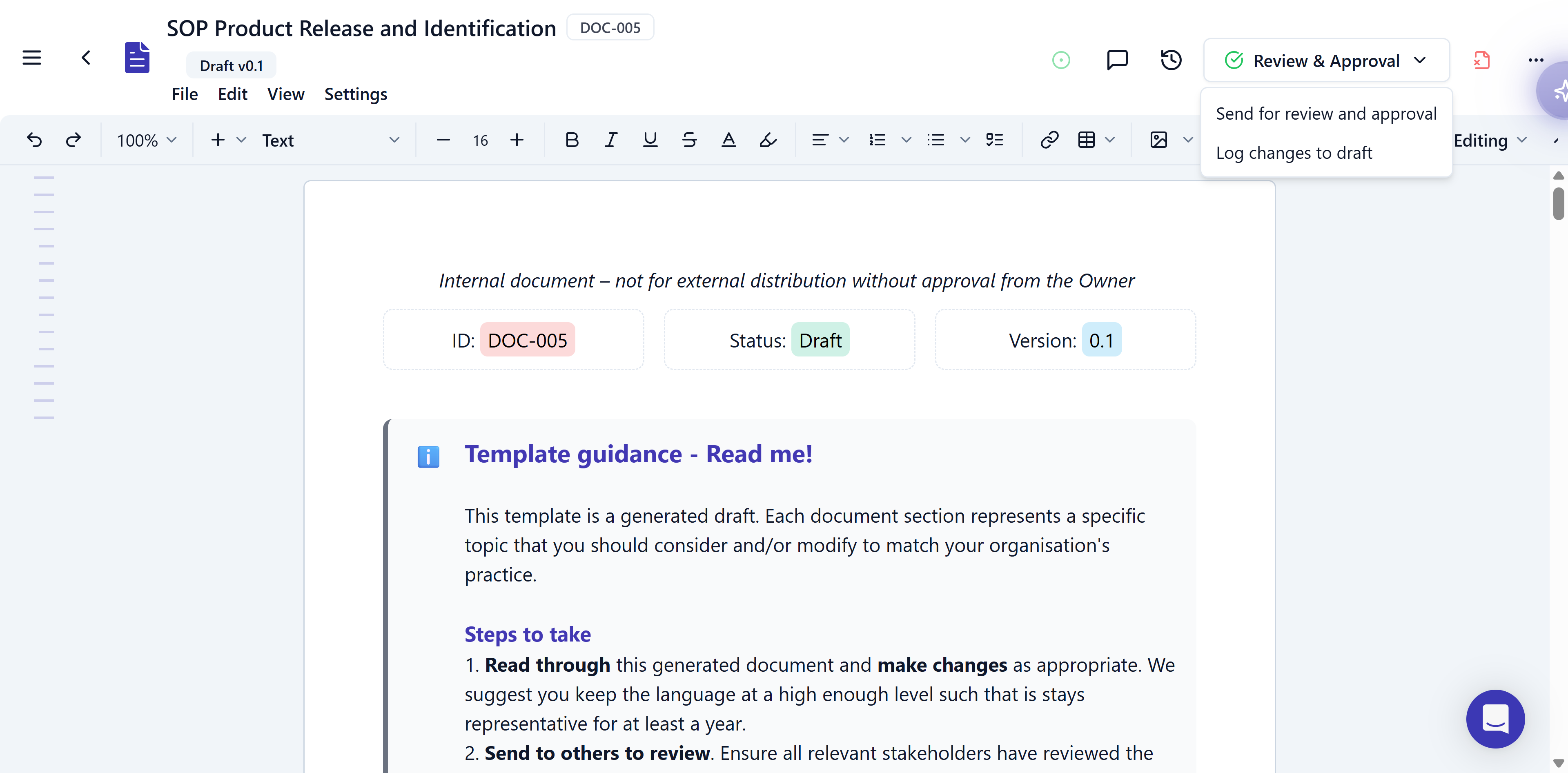
On a controlled document in *Draft*, click **Review & Approval** → **Send for review and approval**.
 Check the suggested *Version Number* and the title, and write a *Summary of changes* or click **Generate AI Summary**.
Every place the document is used starts ticked under [Republish options](/documents/versions-and-version-history#republish-options). Untick any that shouldn't move to this version once it's approved.
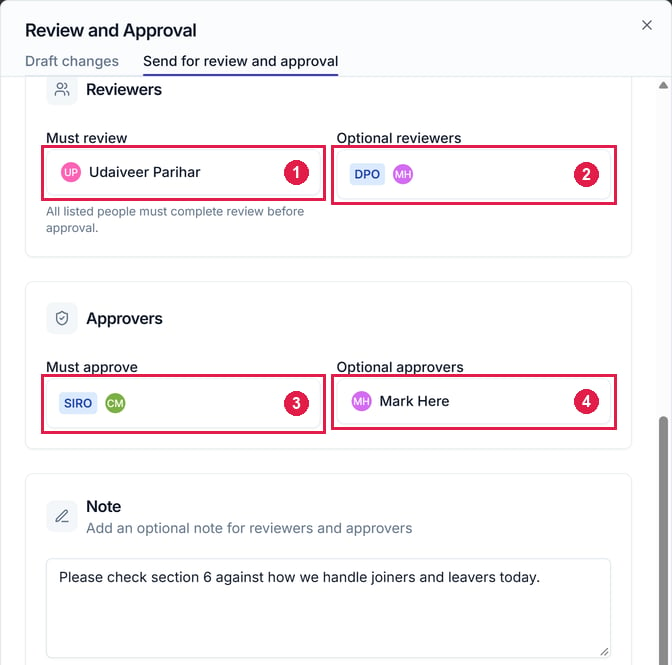
Fill in *Must review*, *Optional reviewers*, *Must approve* and *Optional approvers*, and add a *Note* for them if you like. See [Who reviews and approves](/quality/review-cycle-and-statuses#who-reviews-and-approves).
Only pick roles that have someone assigned. If a role has nobody in it, you can't continue until you remove it or assign someone: "These roles have no people assigned".
Check the suggested *Version Number* and the title, and write a *Summary of changes* or click **Generate AI Summary**.
Every place the document is used starts ticked under [Republish options](/documents/versions-and-version-history#republish-options). Untick any that shouldn't move to this version once it's approved.
Fill in *Must review*, *Optional reviewers*, *Must approve* and *Optional approvers*, and add a *Note* for them if you like. See [Who reviews and approves](/quality/review-cycle-and-statuses#who-reviews-and-approves).
Only pick roles that have someone assigned. If a role has nobody in it, you can't continue until you remove it or assign someone: "These roles have no people assigned".
 Click **Next**, then **Begin review cycle**. The document is now *Pending Review* and locked, and reviewers and approvers are notified.
To [log a minor change](/documents/versions-and-version-history#log-a-minor-change) without a cycle, use **Review & Approval** → **Log changes to draft**.
## Respond to a request
When you're asked to review, the document shows "You have been asked to review this document. Choose Complete review or Request changes when ready."
Click **Submit response**, then either:
* choose *Complete review*, add a *Note* if you like, and click **Accept and complete review**; or
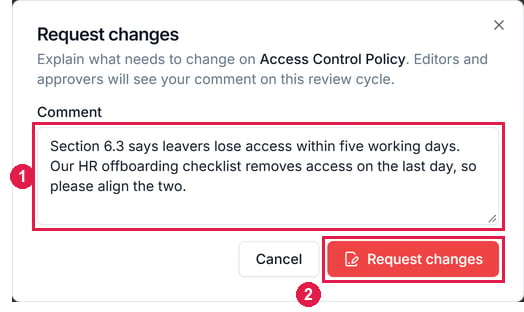
* choose *Request changes*, write a *Comment*, and click **Request changes**. Editors and approvers see your comment.
The header shows *Completed reviews* and who it's *Awaiting review from*, with required people marked *(required)*.
Click **Next**, then **Begin review cycle**. The document is now *Pending Review* and locked, and reviewers and approvers are notified.
To [log a minor change](/documents/versions-and-version-history#log-a-minor-change) without a cycle, use **Review & Approval** → **Log changes to draft**.
## Respond to a request
When you're asked to review, the document shows "You have been asked to review this document. Choose Complete review or Request changes when ready."
Click **Submit response**, then either:
* choose *Complete review*, add a *Note* if you like, and click **Accept and complete review**; or
* choose *Request changes*, write a *Comment*, and click **Request changes**. Editors and approvers see your comment.
The header shows *Completed reviews* and who it's *Awaiting review from*, with required people marked *(required)*.

 Once every required reviewer has completed their review, the document moves to *Pending Approval* and shows "You have been asked to approve this document. Choose Approve or Request changes when ready."
Click **Submit response**, then either:
* choose *Approve*, add a *Note* if you like, and click **Approve**; or
* choose *Request changes* and write a comment.
When every required approver has approved, the document is *Approved* at the proposed version, and anything you ticked under *Republish options* moves to it.
### When changes are requested
The document stays *Pending Review* and shows "A reviewer has requested changes. Use Stop review cycle when you are ready to continue."
1. Click **Stop review cycle** and confirm. The document returns to *Draft* with the same draft number, like v1.1, and the review steps in progress are removed. You can stop a running cycle this way at any time.
2. Edit the document to address the comments, then click **Send for review and approval** again. The version number and summary are kept, but you pick the reviewers and approvers again.
## Start the next version
An approved controlled document is locked. To change it, click **Return to draft** and confirm. Then:
* The latest approved version stays published and unchanged until you approve the updated one.
* The document opens as the next draft, like v2.1.
**What we recommend**
Keep *Must review* and *Must approve* short, since each required person can hold up the cycle, and put everyone else in the optional lists.
## Related articles
The statuses, version numbers, reviewer and approver lists, and e-signatures.
Approving documents that aren't controlled, and republishing.
This documentation is built and hosted on [Mintlify](https://mintlify.com), a developer documentation platform.
Once every required reviewer has completed their review, the document moves to *Pending Approval* and shows "You have been asked to approve this document. Choose Approve or Request changes when ready."
Click **Submit response**, then either:
* choose *Approve*, add a *Note* if you like, and click **Approve**; or
* choose *Request changes* and write a comment.
When every required approver has approved, the document is *Approved* at the proposed version, and anything you ticked under *Republish options* moves to it.
### When changes are requested
The document stays *Pending Review* and shows "A reviewer has requested changes. Use Stop review cycle when you are ready to continue."
1. Click **Stop review cycle** and confirm. The document returns to *Draft* with the same draft number, like v1.1, and the review steps in progress are removed. You can stop a running cycle this way at any time.
2. Edit the document to address the comments, then click **Send for review and approval** again. The version number and summary are kept, but you pick the reviewers and approvers again.
## Start the next version
An approved controlled document is locked. To change it, click **Return to draft** and confirm. Then:
* The latest approved version stays published and unchanged until you approve the updated one.
* The document opens as the next draft, like v2.1.
**What we recommend**
Keep *Must review* and *Must approve* short, since each required person can hold up the cycle, and put everyone else in the optional lists.
## Related articles
The statuses, version numbers, reviewer and approver lists, and e-signatures.
Approving documents that aren't controlled, and republishing.
This documentation is built and hosted on [Mintlify](https://mintlify.com), a developer documentation platform.