> ## Documentation Index
> Fetch the complete documentation index at: https://docs.assuric.com/llms.txt
> Use this file to discover all available pages before exploring further.
# Set up incident reporting
> Let staff and the public report incidents straight into your incident log.
**Quick summary**
* Staff and Trust Centre visitors can report straight into your incident log, and you choose separately whether each can be anonymous.
* Trust Centre reports may include special category data, so check your privacy notice covers it first.
* Trust Centre reports arrive without a product or incident owners, so set them when you triage.
Each report lands in your incident log under *Clinical*, *Security* or both, depending on what the reporter ticks, and *Source* shows where it came from.
## Let staff report through the Staff Portal
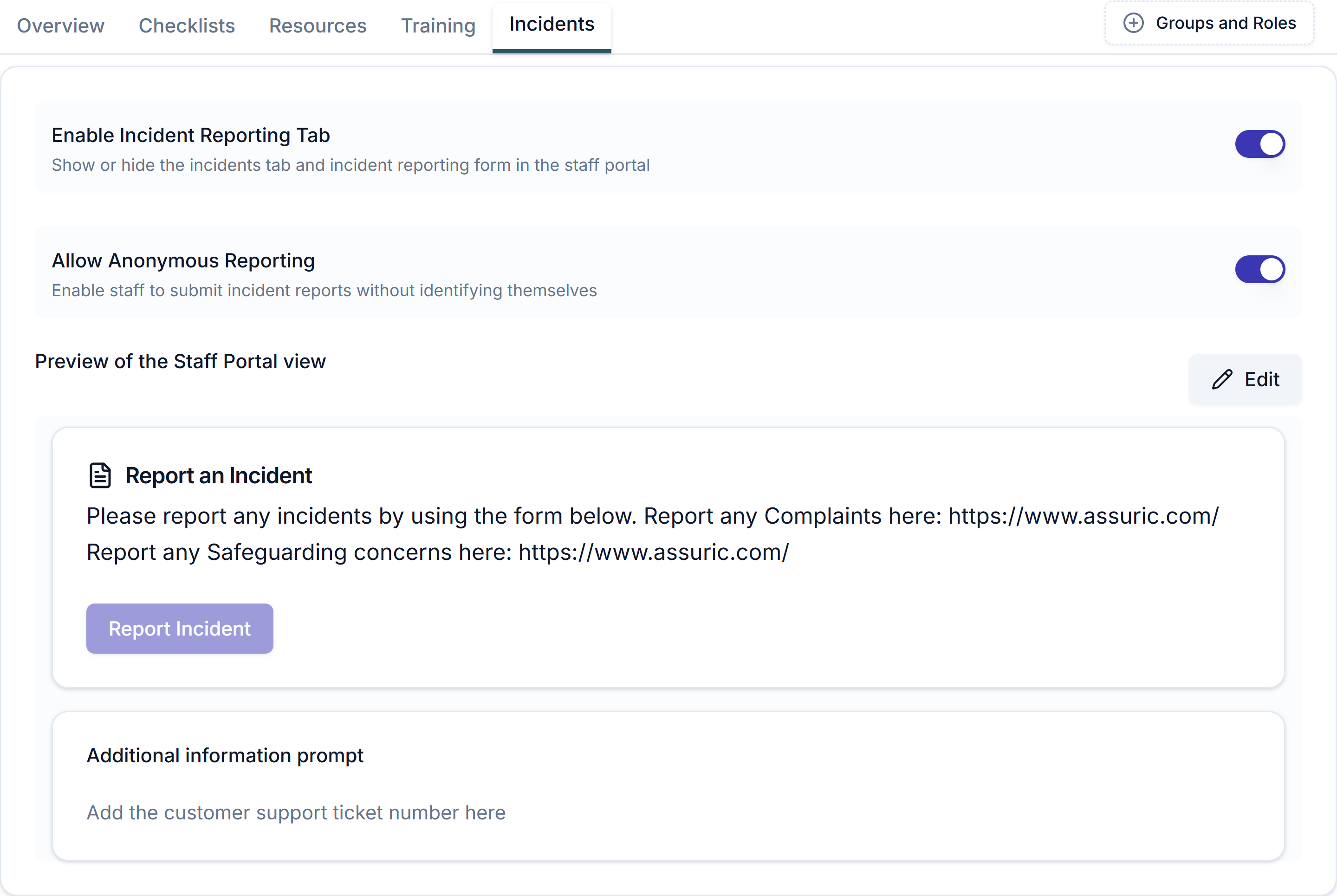
Go to **People → Staff Portal**, click the **Incidents** tab and switch on *Enable Incident Reporting Tab*.
To let staff report without identifying themselves, switch on *Allow Anonymous Reporting*.
If you like, click **Edit** under *Preview of the Staff Portal view* to change the *Report an Incident* instructions above the **Report Incident** button. Fill in *Additional information prompt* for helper text on the form, such as "Add the customer support ticket number here".
 If staff tick *Report anonymously*, the form hides *Reported By* and the report's **Original Staff Report** shows no reporter. Staff see their own reports on the same tab.
## Let anyone report through your Trust Centre
Patients, customers and NHS staff can report from your public Trust Centre without an Assuric account. Your Trust Centre needs to be live first.
Reporters can type special category data into the free-text fields, so check your privacy notice covers it before you turn this on.
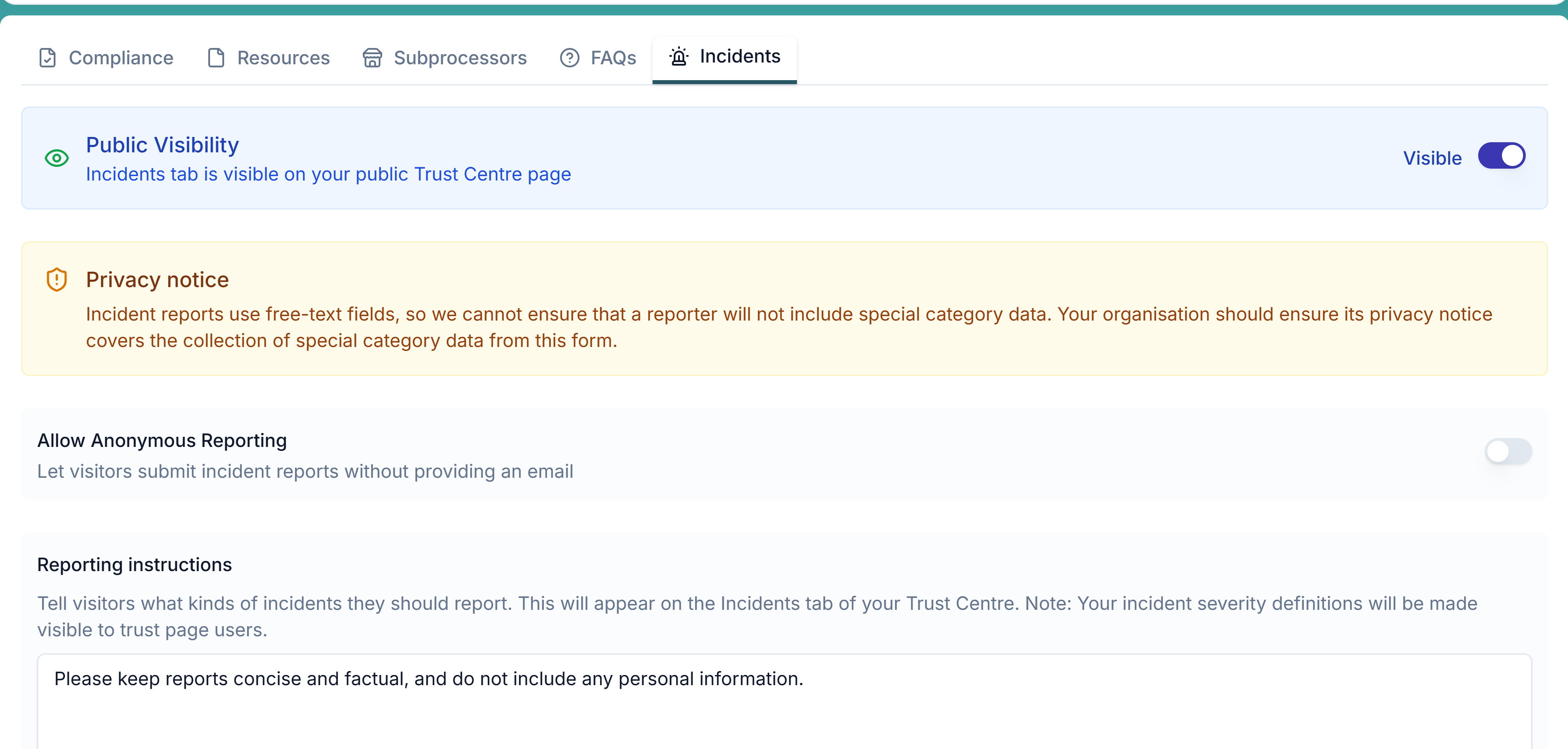
Go to **Trust Centre → Page Content**, click the **Incidents** tab and switch on *Public Visibility* to show the tab on your public Trust Centre page.
To let visitors report without giving an email, switch on *Allow Anonymous Reporting*.
In *Reporting instructions*, tell visitors which incidents to report (they also see your incident severity definitions), then click **Save**.
If staff tick *Report anonymously*, the form hides *Reported By* and the report's **Original Staff Report** shows no reporter. Staff see their own reports on the same tab.
## Let anyone report through your Trust Centre
Patients, customers and NHS staff can report from your public Trust Centre without an Assuric account. Your Trust Centre needs to be live first.
Reporters can type special category data into the free-text fields, so check your privacy notice covers it before you turn this on.
Go to **Trust Centre → Page Content**, click the **Incidents** tab and switch on *Public Visibility* to show the tab on your public Trust Centre page.
To let visitors report without giving an email, switch on *Allow Anonymous Reporting*.
In *Reporting instructions*, tell visitors which incidents to report (they also see your incident severity definitions), then click **Save**.
 ### What a visitor sees
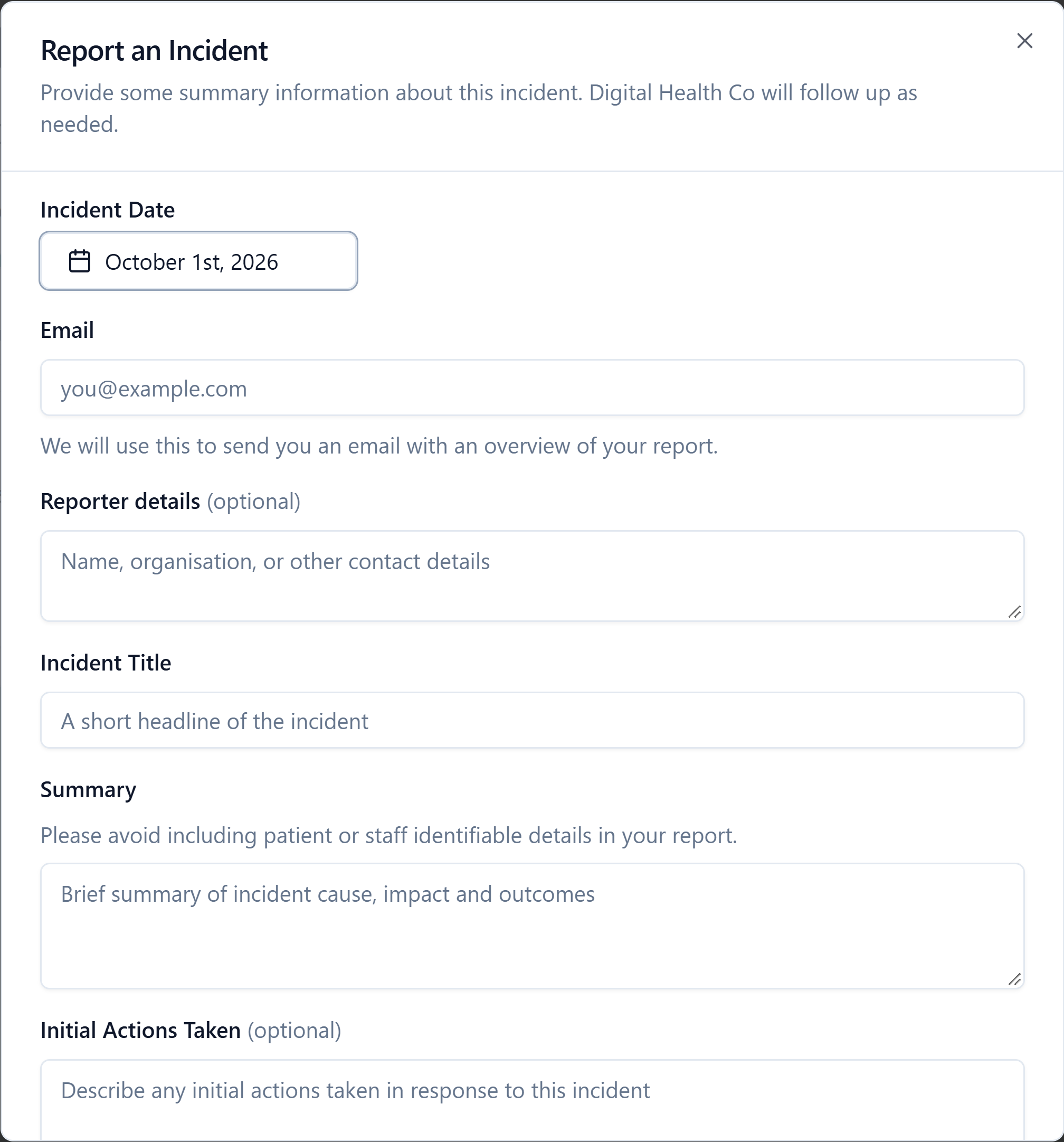
Visitors click **Report Incident** on the **Incidents** tab and fill in the form below. They get an overview of their report at the *Email* they enter, and *Summary* asks them to leave out patient or staff identifiable details.
### What a visitor sees
Visitors click **Report Incident** on the **Incidents** tab and fill in the form below. They get an overview of their report at the *Email* they enter, and *Summary* asks them to leave out patient or staff identifiable details.
 Each report arrives as a new *Open* incident, with *Reported By* set to *User Report*. When you triage it:
* **Product and owners:** set both, as a report arrives without them.
* **Reporter:** click the **Trust Page Reported** badge at the top of **Incident Information** to read their *Email* and *Reporter details*.
* **Original report:** **Original Trust Page Report** keeps the form as submitted.
### Who hears about a new report
Whoever triages incidents should turn on alerts for new reports:
* **For yourself:** in your account menu, go to **Notification Preferences → Personal Notifications** and, under **Incidents**, switch on *Staff Reported Incidents* and *Trust Page Reported Incidents* (in-app, by email or in Slack). See [Personal notification settings](/notifications/personal-notification-settings).
* **For a shared inbox or Slack channel:** use **Organisation Notifications → Incidents**. See [Notification channels](/notifications/notification-channels).
Triage reports in [Manage your incident log](/privacy-security/managing-incidents), and log your own with [Create an incident](/privacy-security/incidents).
## Related articles
What staff see on the portal.
Get your Trust Centre live before you open it to incident reports.
This documentation is built and hosted on [Mintlify](https://mintlify.com), a developer documentation platform.
Each report arrives as a new *Open* incident, with *Reported By* set to *User Report*. When you triage it:
* **Product and owners:** set both, as a report arrives without them.
* **Reporter:** click the **Trust Page Reported** badge at the top of **Incident Information** to read their *Email* and *Reporter details*.
* **Original report:** **Original Trust Page Report** keeps the form as submitted.
### Who hears about a new report
Whoever triages incidents should turn on alerts for new reports:
* **For yourself:** in your account menu, go to **Notification Preferences → Personal Notifications** and, under **Incidents**, switch on *Staff Reported Incidents* and *Trust Page Reported Incidents* (in-app, by email or in Slack). See [Personal notification settings](/notifications/personal-notification-settings).
* **For a shared inbox or Slack channel:** use **Organisation Notifications → Incidents**. See [Notification channels](/notifications/notification-channels).
Triage reports in [Manage your incident log](/privacy-security/managing-incidents), and log your own with [Create an incident](/privacy-security/incidents).
## Related articles
What staff see on the portal.
Get your Trust Centre live before you open it to incident reports.
This documentation is built and hosted on [Mintlify](https://mintlify.com), a developer documentation platform.