> ## Documentation Index
> Fetch the complete documentation index at: https://docs.assuric.com/llms.txt
> Use this file to discover all available pages before exploring further.
# Track checklist completion and send reminders
> See who's completed each checklist, item by item and person by person, and remind people about what's outstanding.
**Quick summary**
* You can see who has completed each checklist, item by item and person by person, and remind people about what's outstanding.
* A person's checklist *History* links the exact policy version they confirmed, which is your evidence for an auditor.
* Automatic checklist reminders are off until an Admin switches them on.
## Across all your checklists
The *Staff overview* on the Checklists screen has a bar per checklist, labelled with its internal *Label*.
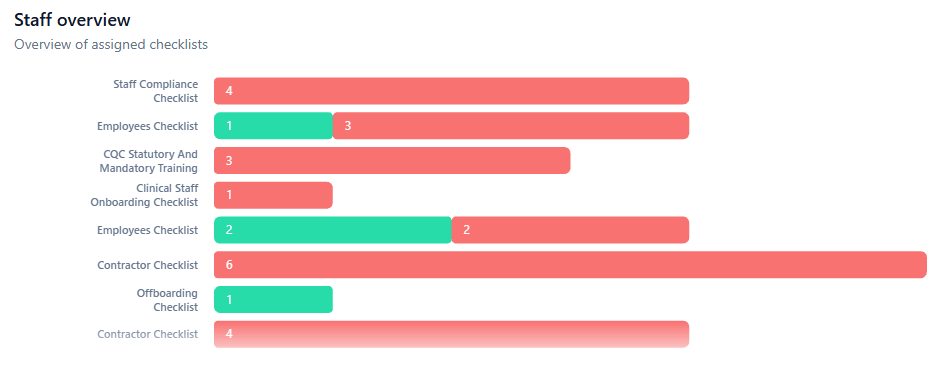 Below it, the people table's *Checklists* column shows whether each person is *COMPLETE* or *OVERDUE* across all their checklists. Filter it by *Account Status* to include people who've left.
## One checklist, item by item
Click the count on a checklist, like **1/4**, to open its progress.
Below it, the people table's *Checklists* column shows whether each person is *COMPLETE* or *OVERDUE* across all their checklists. Filter it by *Account Status* to include people who've left.
## One checklist, item by item
Click the count on a checklist, like **1/4**, to open its progress.
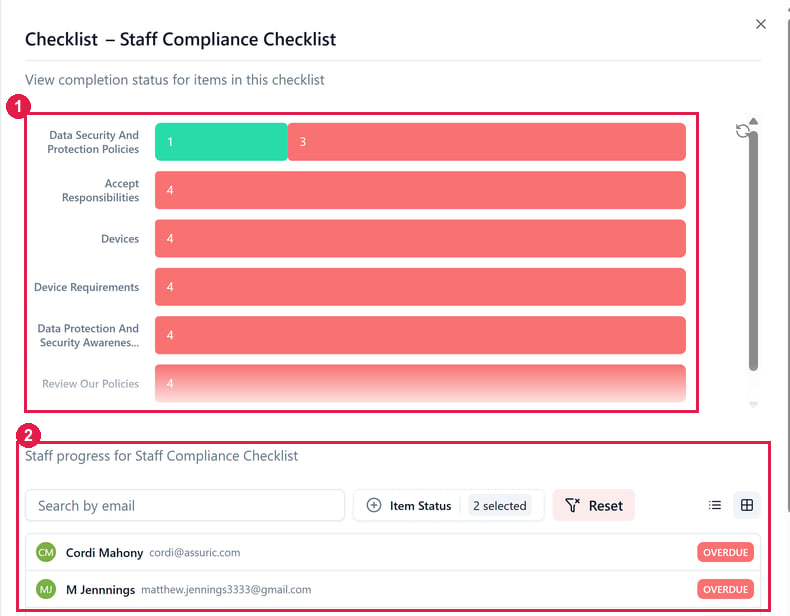 The chart shows which item is holding people up. The same chart appears in the editor's *Completion Progress* section.
## One person, every checklist
Click a person in the progress list to open their *Staff compliance* sheet. It's the same as the *Checklists* section of their sheet on the **People** tab.
The chart shows which item is holding people up. The same chart appears in the editor's *Completion Progress* section.
## One person, every checklist
Click a person in the progress list to open their *Staff compliance* sheet. It's the same as the *Checklists* section of their sheet on the **People** tab.
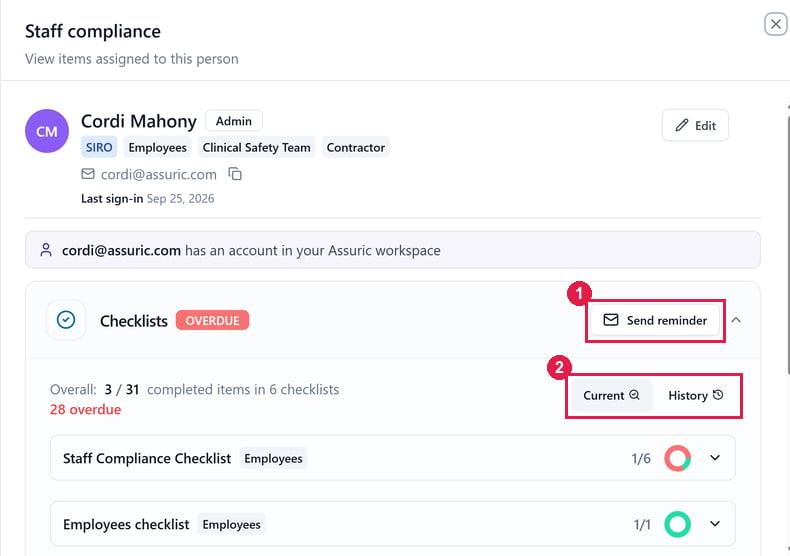 The sheet shows:
* **Overall:** how many items they've completed, across how many checklists, and how many are overdue.
* **Current:** each checklist they've been given, with their progress on it. Expand one to see its items.
* **History:** the items they've completed, with the date and time of each.
On your own sheet, **Visit staff portal** opens the portal as a member of staff would see it.
*History* here lists one person's completed checklist items. For who changed what across Assuric, use the [Activity log](/settings/audit-log), under **Activity** in the sidebar.
## Show an auditor who has signed off a policy
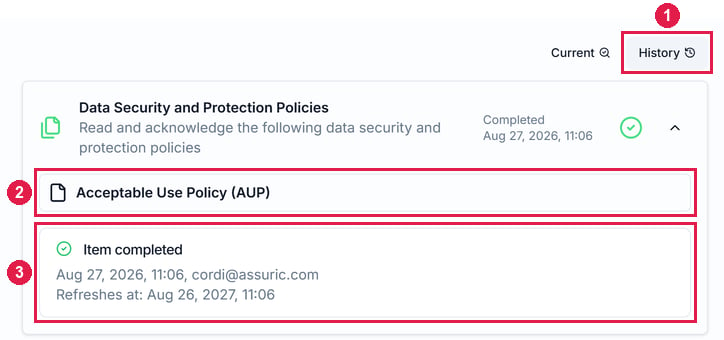
Your evidence is the policy's [*Resources* item](/people/checklists#resources-items-signing-off-a-policy). Click the checklist's count to open its progress, then click a person. On their sheet, click **History** and expand the item to see:
* each document they confirmed, linked to the exact version they read;
* who completed it, as their email address, and the date and time;
* *Refreshes at*: when they'll be asked to confirm it again.
The sheet shows:
* **Overall:** how many items they've completed, across how many checklists, and how many are overdue.
* **Current:** each checklist they've been given, with their progress on it. Expand one to see its items.
* **History:** the items they've completed, with the date and time of each.
On your own sheet, **Visit staff portal** opens the portal as a member of staff would see it.
*History* here lists one person's completed checklist items. For who changed what across Assuric, use the [Activity log](/settings/audit-log), under **Activity** in the sidebar.
## Show an auditor who has signed off a policy
Your evidence is the policy's [*Resources* item](/people/checklists#resources-items-signing-off-a-policy). Click the checklist's count to open its progress, then click a person. On their sheet, click **History** and expand the item to see:
* each document they confirmed, linked to the exact version they read;
* who completed it, as their email address, and the date and time;
* *Refreshes at*: when they'll be asked to confirm it again.
 ## Send reminders
**Send reminder** emails people about checklist items they haven't completed. Only an Admin can send one, from 2 places:
| Where | Who it reminds |
| - | - |
| A Staff checklist's editor, in **Completion Progress** | Everyone with outstanding items on that checklist |
| A person's sheet, in **Checklists** | That person, about all their outstanding items |
An Administrative checklist has no **Send reminder**, since an Admin completes it.
### Remind people automatically
To send reminders on a schedule:
* Open your account menu (your initial, top right) → **Notification Preferences** → **Organisation Notifications**, and switch on *Enable* for *Checklist reminders*. Only workspace admins can switch them on.
* Choose how often it sends. Assuric then emails everyone in the workspace about their own outstanding assigned checklists.
## Send reminders
**Send reminder** emails people about checklist items they haven't completed. Only an Admin can send one, from 2 places:
| Where | Who it reminds |
| - | - |
| A Staff checklist's editor, in **Completion Progress** | Everyone with outstanding items on that checklist |
| A person's sheet, in **Checklists** | That person, about all their outstanding items |
An Administrative checklist has no **Send reminder**, since an Admin completes it.
### Remind people automatically
To send reminders on a schedule:
* Open your account menu (your initial, top right) → **Notification Preferences** → **Organisation Notifications**, and switch on *Enable* for *Checklist reminders*. Only workspace admins can switch them on.
* Choose how often it sends. Assuric then emails everyone in the workspace about their own outstanding assigned checklists.
 Each person's own [*Upcoming and Overdue Summary*](/notifications/personal-notification-settings) can also include overdue checklist items.
**What we recommend**
Before an audit, start from the *Staff overview*: the bars with the most overdue show which checklist to open, and that checklist's item chart shows which item to chase. Then send one checklist-level reminder, not one per person.
## Related articles
A checklist only counts once it's published and assigned.
Every notification Assuric sends, including checklist reminders.
This documentation is built and hosted on [Mintlify](https://mintlify.com), a developer documentation platform.
Each person's own [*Upcoming and Overdue Summary*](/notifications/personal-notification-settings) can also include overdue checklist items.
**What we recommend**
Before an audit, start from the *Staff overview*: the bars with the most overdue show which checklist to open, and that checklist's item chart shows which item to chase. Then send one checklist-level reminder, not one per person.
## Related articles
A checklist only counts once it's published and assigned.
Every notification Assuric sends, including checklist reminders.
This documentation is built and hosted on [Mintlify](https://mintlify.com), a developer documentation platform.