> ## Documentation Index
> Fetch the complete documentation index at: https://docs.assuric.com/llms.txt
> Use this file to discover all available pages before exploring further.
# Manage and customise your staff portal
> Your colleagues do their checklists, training, incident reports and device registration on a separate, simpler site. Manage what they see from here.
**Quick summary**
* Colleagues do their checklists, training and incident reports on the staff portal, which you manage under **People** → **Staff Portal**.
* When you approve a new version, a staff portal document moves to it unless you untick it under *Republish options*.
* An Admin's own staff portal shows only what's assigned to them, which is often nothing.
## Where to find it
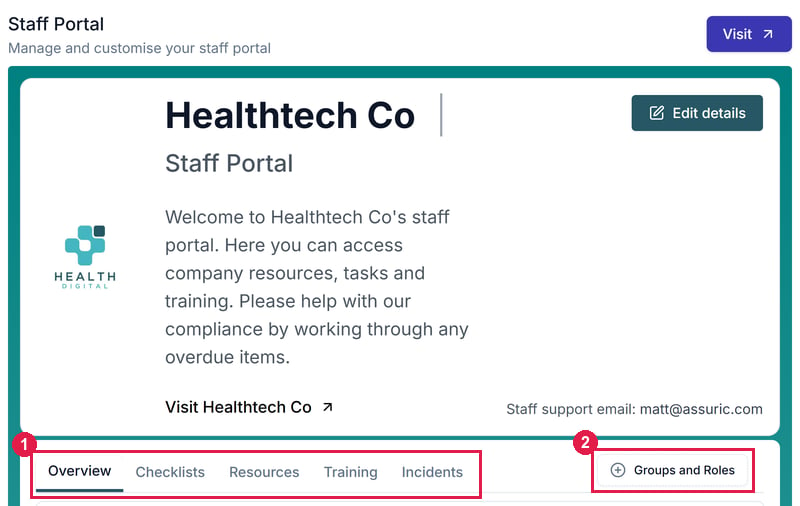
Go to **People** → **Staff Portal**. **Visit** opens the portal, at `app.assuric.com/staff`. People with [*Staff portal only*](/people/permissions-and-access) permission can open the portal but not the rest of Assuric.
 ## What's on each tab
| Tab | On this screen | On the portal, for staff |
| - | - | - |
| **Checklists** | Every published [Staff checklist](/people/checklists) | Only the checklists assigned to them |
| **Resources** | Documents and evidence you share with staff, in folders, each assigned to groups and kept on the [version you added](#when-the-document-changes) | The resources assigned to them |
| **Training** | Every published [training module](/people/training) | Only the training assigned to them |
| **Incidents** | Incidents staff have reported from the portal, added to the same incident record as those reported elsewhere in Assuric | A form to report an incident |
## When the document changes
A resource on the **Resources** tab stays on the version you added, so editing the document's draft changes nothing staff see.
When you approve a new version, or send a controlled document for review and approval, [*Republish options*](/documents/versions-and-version-history#republish-options) lists the resource under *Staff portal resources*, ticked by default:
* **Ticked:** the resource moves to the new version once it's approved.
* **Unticked:** it keeps the old version. To move it later, use **Remove from list** and add the document again.
After a move:
* **Label and description:** they don't update, so change them with **⋯** → **Edit** if they mention the version. **Edit** can also change the assigned groups, but not the version.
* **Notifications:** staff aren't notified in Assuric. To have them confirm they've read the new version, use a checklist *Resources* item with [*Require recompletion*](/people/checklists#when-the-document-changes).
## See what one group or role gets
Click **Groups and Roles** and pick a group or role, like *Contractor*. The screen shows only its checklists and training until you click **Reset**.
## Edit your portal's details
Click **Edit details**, then fill in *Company Name*, *Company Bio* and *Company Website*, which greet colleagues on the portal.
## What's on each tab
| Tab | On this screen | On the portal, for staff |
| - | - | - |
| **Checklists** | Every published [Staff checklist](/people/checklists) | Only the checklists assigned to them |
| **Resources** | Documents and evidence you share with staff, in folders, each assigned to groups and kept on the [version you added](#when-the-document-changes) | The resources assigned to them |
| **Training** | Every published [training module](/people/training) | Only the training assigned to them |
| **Incidents** | Incidents staff have reported from the portal, added to the same incident record as those reported elsewhere in Assuric | A form to report an incident |
## When the document changes
A resource on the **Resources** tab stays on the version you added, so editing the document's draft changes nothing staff see.
When you approve a new version, or send a controlled document for review and approval, [*Republish options*](/documents/versions-and-version-history#republish-options) lists the resource under *Staff portal resources*, ticked by default:
* **Ticked:** the resource moves to the new version once it's approved.
* **Unticked:** it keeps the old version. To move it later, use **Remove from list** and add the document again.
After a move:
* **Label and description:** they don't update, so change them with **⋯** → **Edit** if they mention the version. **Edit** can also change the assigned groups, but not the version.
* **Notifications:** staff aren't notified in Assuric. To have them confirm they've read the new version, use a checklist *Resources* item with [*Require recompletion*](/people/checklists#when-the-document-changes).
## See what one group or role gets
Click **Groups and Roles** and pick a group or role, like *Contractor*. The screen shows only its checklists and training until you click **Reset**.
## Edit your portal's details
Click **Edit details**, then fill in *Company Name*, *Company Bio* and *Company Website*, which greet colleagues on the portal.
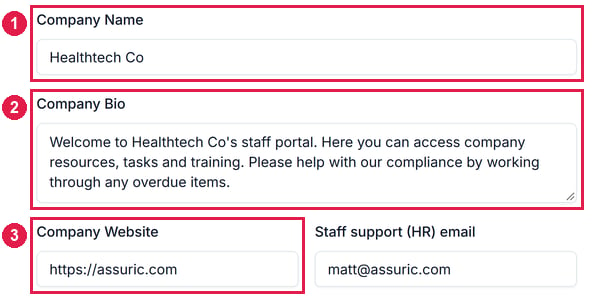 Add a *Staff support (HR) email* so colleagues know where to ask what the portal can't answer.
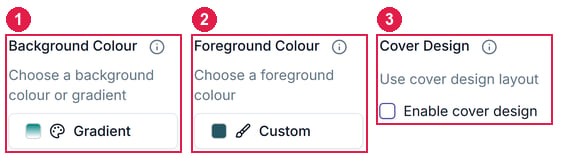
 Set a *Background Colour* and *Foreground Colour*, and tick *Enable cover design* for a banner layout.
 Click **Update**.
 **What we recommend**
Before rolling the portal out, check it from a test account with *Staff portal only* permission. An Admin's own portal shows only what's assigned to them, which is often nothing.
## Related articles
What actually reaches the Checklists tab.
What actually reaches the Training tab.
Accounts, groups, roles, checklists and training in one place.
This documentation is built and hosted on [Mintlify](https://mintlify.com), a developer documentation platform.
**What we recommend**
Before rolling the portal out, check it from a test account with *Staff portal only* permission. An Admin's own portal shows only what's assigned to them, which is often nothing.
## Related articles
What actually reaches the Checklists tab.
What actually reaches the Training tab.
Accounts, groups, roles, checklists and training in one place.
This documentation is built and hosted on [Mintlify](https://mintlify.com), a developer documentation platform.