> ## Documentation Index
> Fetch the complete documentation index at: https://docs.assuric.com/llms.txt
> Use this file to discover all available pages before exploring further.
# Create, assign and publish a checklist
> Create a checklist, assign it to groups and roles, add its items, then publish it so it reaches the people it's for.
**Quick summary**
* You create a checklist for the groups and roles you pick, and it reaches them only once you publish it.
* You can't change a checklist's audience, *Staff* or *Administrative*, once you've created it.
* *Email staff* is ticked by default, so publishing a checklist emails everyone it's assigned to.
A checklist left in *Draft* reaches nobody. You can't publish one until it's assigned to at least one group or role.
## Create a checklist
Go to **People** → **Checklists** and click **New Checklist**.
Choose *Staff* if people complete it themselves on the portal, or *Administrative* if an Admin completes it for them. You can't change this later.
Under *Assigned Groups / Roles*, pick who gets it. You can pick several and change them later.
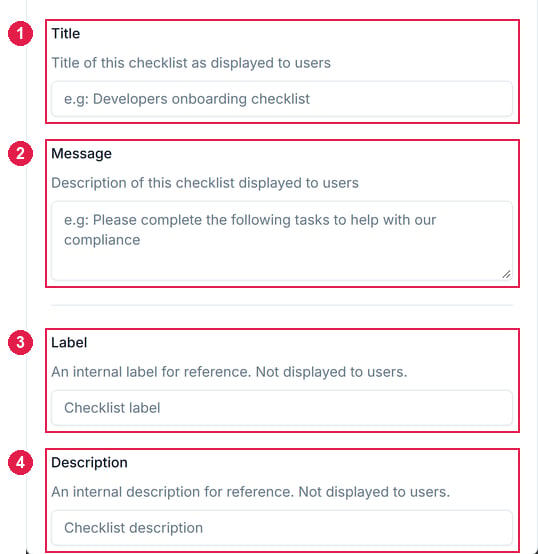
Fill in all 4 [name fields](#names-staff-see-and-names-you-see) for a *Staff* checklist, or just *Label* and *Description* for an *Administrative* one. Then click **Create checklist**, and it opens in its editor as a *Draft*.
 Under *Checklist Items*, click **New Item**, pick a type and set it up.
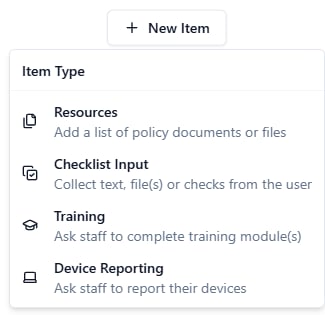 An Administrative checklist offers only *Checklist Input* and *Device Reporting*, since an Admin fills them in for the person.
Click **Preview** to check it, then **Publish**. The dialog lists the groups and roles it goes to, and *Email staff*, ticked by default, emails them to sign in and complete their items. Click **Publish** to confirm.
An Administrative checklist offers only *Checklist Input* and *Device Reporting*, since an Admin fills them in for the person.
Click **Preview** to check it, then **Publish**. The dialog lists the groups and roles it goes to, and *Email staff*, ticked by default, emails them to sign in and complete their items. Click **Publish** to confirm.
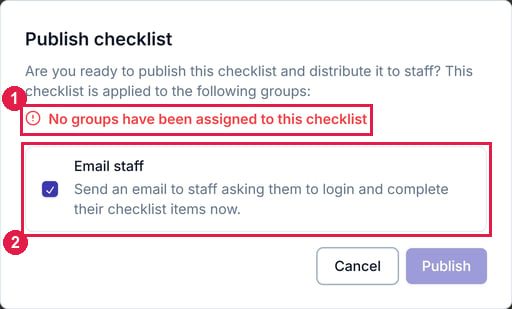 For an Administrative checklist, the button and dialog say **Distribute** instead.
## Names staff see and names you see
| Field | Who sees it | Use it for |
| - | - | - |
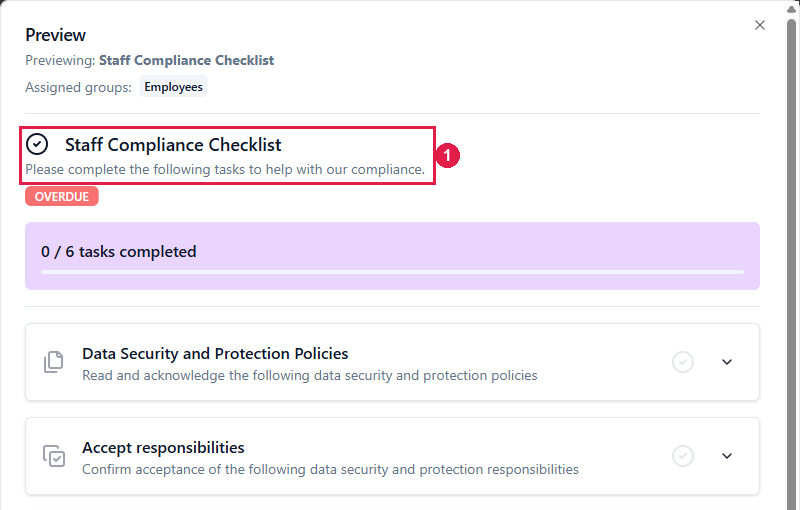
| **Title** | The people it's assigned to | A clear name, like *Staff Compliance Checklist* |
| **Message** | The people it's assigned to | One line on what to do and why |
| **Label** | Only you, on the Checklists screen | Telling checklists apart when several share a title |
| **Description** | Only you, on the Checklists screen | A note on what the checklist is for and who it's aimed at |
To change the Title or Message later, click it at the top of the editor.
For an Administrative checklist, the button and dialog say **Distribute** instead.
## Names staff see and names you see
| Field | Who sees it | Use it for |
| - | - | - |
| **Title** | The people it's assigned to | A clear name, like *Staff Compliance Checklist* |
| **Message** | The people it's assigned to | One line on what to do and why |
| **Label** | Only you, on the Checklists screen | Telling checklists apart when several share a title |
| **Description** | Only you, on the Checklists screen | A note on what the checklist is for and who it's aimed at |
To change the Title or Message later, click it at the top of the editor.
 ## Point of contact and suggested items
On the portal, your *Point of contact* is listed under *Need help?* An Administrative checklist has *Checklist Owners* instead.
The editor's *Creating this checklist* section suggests policies for staff to read. Each shows *Added* once it's on the checklist, or lets you add it from an *Assuric Document* or **Generate** a new one.
## Draft, published and unpublished changes
On the Checklists screen, a checklist shows as *Draft* until it's first published, then *Published*. In the editor, an *Unpublished changes* badge means staff can't see your changes yet.
## Point of contact and suggested items
On the portal, your *Point of contact* is listed under *Need help?* An Administrative checklist has *Checklist Owners* instead.
The editor's *Creating this checklist* section suggests policies for staff to read. Each shows *Added* once it's on the checklist, or lets you add it from an *Assuric Document* or **Generate** a new one.
## Draft, published and unpublished changes
On the Checklists screen, a checklist shows as *Draft* until it's first published, then *Published*. In the editor, an *Unpublished changes* badge means staff can't see your changes yet.
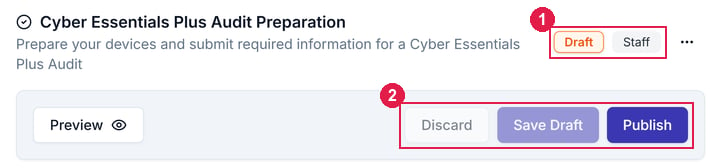 * **Save Draft** saves changes without publishing; **Discard** throws away unsaved ones.
* With unsaved changes, **Publish** reads **Save & Publish** (or **Save & Distribute**) and does both at once.
## Related articles
See who's completed your checklist once it's published.
Setting up each item type, how often it comes back and who can complete it.
Where your published checklists show up for staff.
This documentation is built and hosted on [Mintlify](https://mintlify.com), a developer documentation platform.
* **Save Draft** saves changes without publishing; **Discard** throws away unsaved ones.
* With unsaved changes, **Publish** reads **Save & Publish** (or **Save & Distribute**) and does both at once.
## Related articles
See who's completed your checklist once it's published.
Setting up each item type, how often it comes back and who can complete it.
Where your published checklists show up for staff.
This documentation is built and hosted on [Mintlify](https://mintlify.com), a developer documentation platform.