> ## Documentation Index
> Fetch the complete documentation index at: https://docs.assuric.com/llms.txt
> Use this file to discover all available pages before exploring further.
# Assigning owners and responsibilities
> Assuric has no single owner field to fill in once. Documents, controls and risks get their owners from People, and checklists go to groups and roles.
**Quick summary**
* You can create a group under **People** → **Roles & Groups** to hand the same work, like a checklist, to several people at once.
* Assuric won't delete a group that still has members or assigned checklists.
* You pick a document's *Owner*, a hazard log control's *Responsibilities* and a risk's *Owners* from **People**, rather than typing a name.
## Groups versus roles
A document's *Owner*, a hazard log control's *Responsibilities* and a risk's *Owners* are all picked from People, not typed in.
| | Groups | Roles |
| - | - | - |
| Answers | Who gets this checklist? | Who is accountable for this? |
| Typical member | Everyone who joined this year | One named Clinical Safety Officer |
| Defined by | You | Assuric's list, plus any you add |
A role can receive checklists too.
## Groups you start with
Every workspace starts with *Employees* and *Offboard*, which carries the offboarding checklist. A catalogue of ready-made groups sits alongside them.
## Create a group
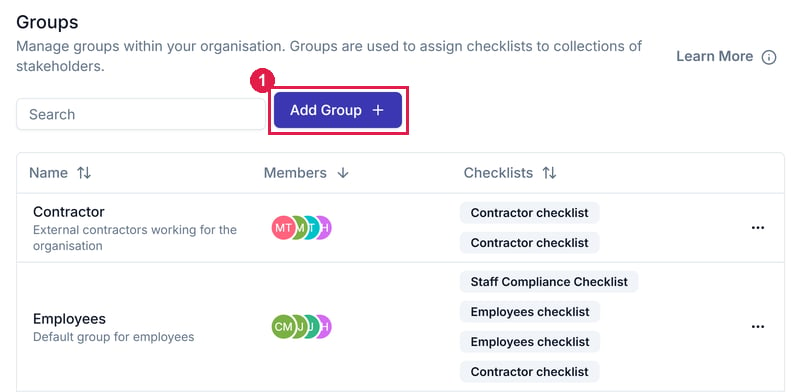
Go to **People** → **Roles & Groups**, which opens on the **Groups** tab, and click **Add Group**.
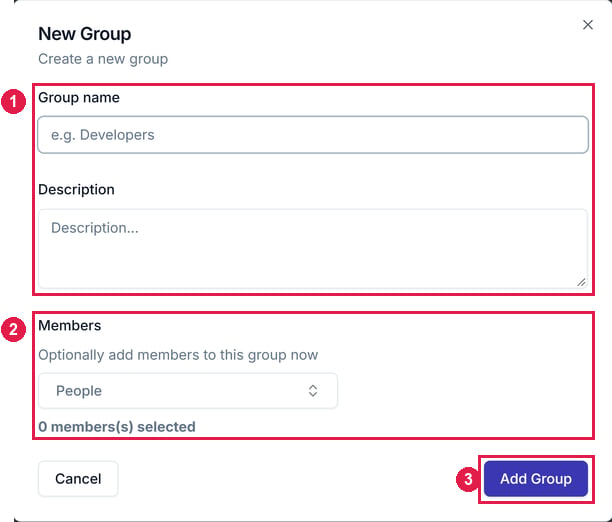
 Enter a *Group name* and *Description*. *Members* are optional and can be added later. Then click **Add Group** at the bottom of the dialog.
 ## Change a group's members
Open the group, click **Edit Members**, pick its people and click **Confirm**. **Remove** next to a name takes that person out.
## Edit or delete a group
Open the **⋯** menu on the group's row. **Edit group** changes the name and description, and **Delete group** deletes the group.
### You can't delete a group that's in use
If the group still has members or assigned checklists, Assuric blocks the deletion:
> *This group cannot be deleted while it is still in use*
Expand the message to see every member (by name) and every checklist blocking it. Remove the members and unassign the checklists first.
**What we recommend**
Create your groups before you assign anything, or you'll have to reassign it all, one person at a time.
## Related articles
Adding people to your workspace.
How roles compare with groups, and key roles.
This documentation is built and hosted on [Mintlify](https://mintlify.com), a developer documentation platform.
## Change a group's members
Open the group, click **Edit Members**, pick its people and click **Confirm**. **Remove** next to a name takes that person out.
## Edit or delete a group
Open the **⋯** menu on the group's row. **Edit group** changes the name and description, and **Delete group** deletes the group.
### You can't delete a group that's in use
If the group still has members or assigned checklists, Assuric blocks the deletion:
> *This group cannot be deleted while it is still in use*
Expand the message to see every member (by name) and every checklist blocking it. Remove the members and unassign the checklists first.
**What we recommend**
Create your groups before you assign anything, or you'll have to reassign it all, one person at a time.
## Related articles
Adding people to your workspace.
How roles compare with groups, and key roles.
This documentation is built and hosted on [Mintlify](https://mintlify.com), a developer documentation platform.