> ## Documentation Index
> Fetch the complete documentation index at: https://docs.assuric.com/llms.txt
> Use this file to discover all available pages before exploring further.
# Notification channels
> What in-app, email and Slack notifications do, and how organisation-wide routing and Slack subscription work.
**Quick summary**
* Notifications arrive by *In-App*, *Email* or *Slack*, each a per-category toggle in your own preferences.
* Organisation-wide, Email goes to a list of addresses, and Slack to a channel subscribed with a copied command.
* Slack needs your workspace's Slack integration connected first, for personal and organisation notifications.
## The 3 channels
| Channel | What it does |
| - | - |
| **In-App** | Shows in the bell icon in the top bar, for personal notifications only |
| **Email** | Sent to your own address (personal scope) or to a list of addresses an admin maintains (organisation scope) |
| **Slack** | Sent as a Slack message once the workspace's Slack integration is connected: to your own direct message (DM) for personal notifications, or to the subscribed channel for organisation notifications |
## Organisation-wide routing works differently
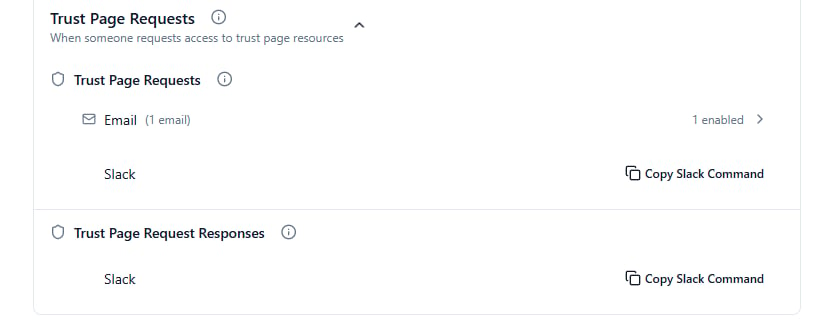
Unlike your personal per-category toggles, each Organisation Notifications category shows:
 | Row | What it shows | How to add one |
| - | - | - |
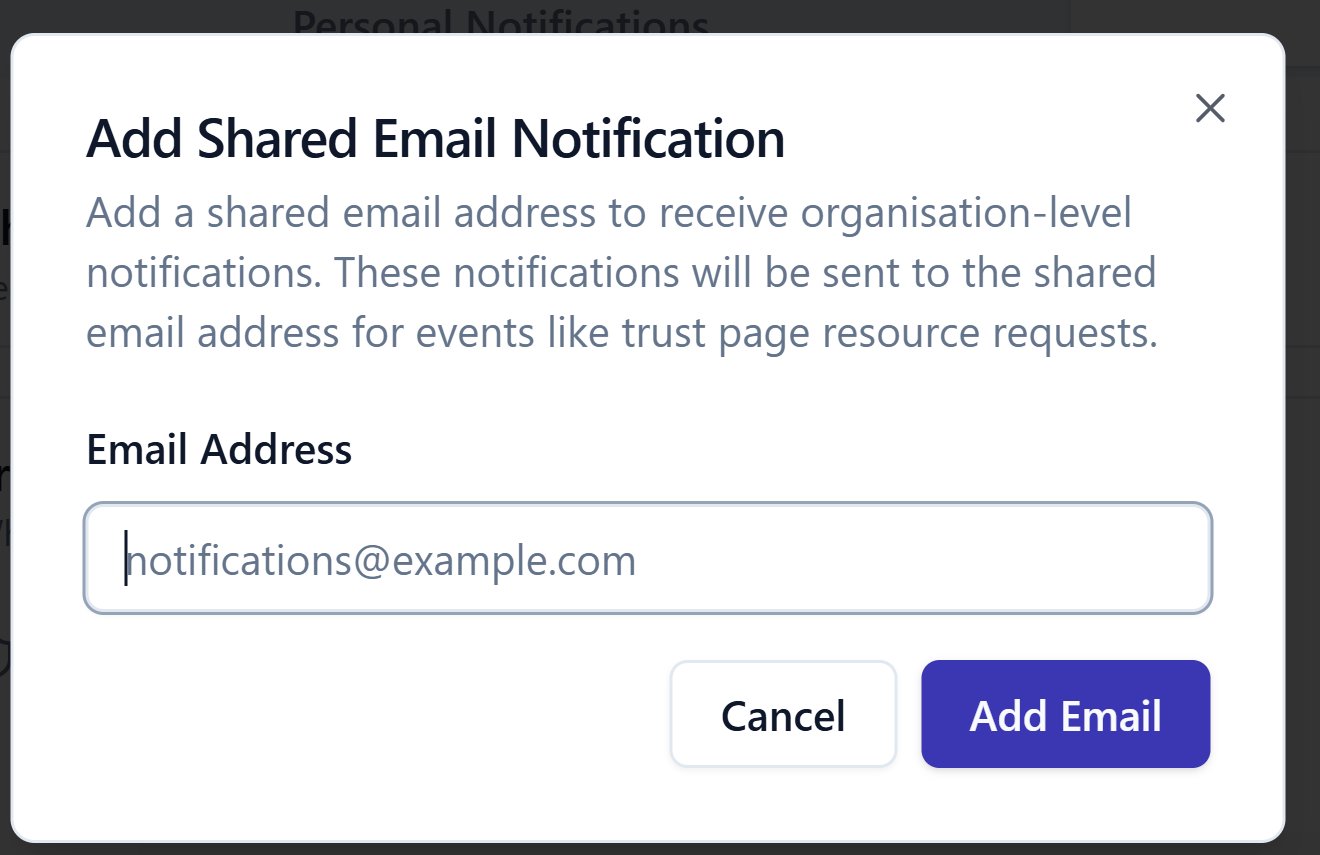
| **Email** | How many addresses are configured for that category, and how many are currently enabled | Expand the count to see existing addresses, each with its own enable toggle and delete icon; **Add shared email** opens a form for one more address |
| **Slack** | A **Copy Slack Command** button | Copy the command and paste it into the Slack channel that should receive it |
| Row | What it shows | How to add one |
| - | - | - |
| **Email** | How many addresses are configured for that category, and how many are currently enabled | Expand the count to see existing addresses, each with its own enable toggle and delete icon; **Add shared email** opens a form for one more address |
| **Slack** | A **Copy Slack Command** button | Copy the command and paste it into the Slack channel that should receive it |
 The Slack command is the same whichever category you copy it from. Pasting it into a channel subscribes that channel to the workspace's organisation-wide notifications, not one category.
Personal Slack needs no separate linking step. Connecting the workspace's Slack integration is a workspace-level setup step, done outside this screen.
**What we recommend**
Route Trust Page Requests and Incidents to a shared Slack channel, not only email. A message left unread in one admin's inbox is easy to miss, but in a channel whoever's around sees it.
## Related articles
Every category and what fires it, in both scopes.
Setting your own In-App, Email and Slack preferences.
This documentation is built and hosted on [Mintlify](https://mintlify.com), a developer documentation platform.
The Slack command is the same whichever category you copy it from. Pasting it into a channel subscribes that channel to the workspace's organisation-wide notifications, not one category.
Personal Slack needs no separate linking step. Connecting the workspace's Slack integration is a workspace-level setup step, done outside this screen.
**What we recommend**
Route Trust Page Requests and Incidents to a shared Slack channel, not only email. A message left unread in one admin's inbox is easy to miss, but in a channel whoever's around sees it.
## Related articles
Every category and what fires it, in both scopes.
Setting your own In-App, Email and Slack preferences.
This documentation is built and hosted on [Mintlify](https://mintlify.com), a developer documentation platform.