> ## Documentation Index
> Fetch the complete documentation index at: https://docs.assuric.com/llms.txt
> Use this file to discover all available pages before exploring further.
# Document versioning
> Approve a new version of a document or log a minor change, choose where the new version is republished, and view, download, compare or restore earlier versions.
**Quick summary**
* Document versioning lets you approve a new version of a document or log a minor change, and view, download or restore earlier versions.
* Approving a new version of a document moves every place that uses it to that version, unless you untick the place in *Republish options*.
* People who've confirmed a document on a checklist needn't confirm a new version, unless you tick *Require recompletion*.
## Draft and approved
The document's status and version show next to its title. After approval:
* On a document that isn't controlled, you keep editing, and the last approved version stays in use until you approve the next.
* A controlled document is locked, so click **Return to draft** first.
By convention, approved versions get a new major number (2.0) and logged changes a new minor one (2.1), but this isn't enforced.
## Approve a new version
On a document that isn't controlled, click **Approve** → **Approve version**. To have others look at the document first, you can use **Request Review**.
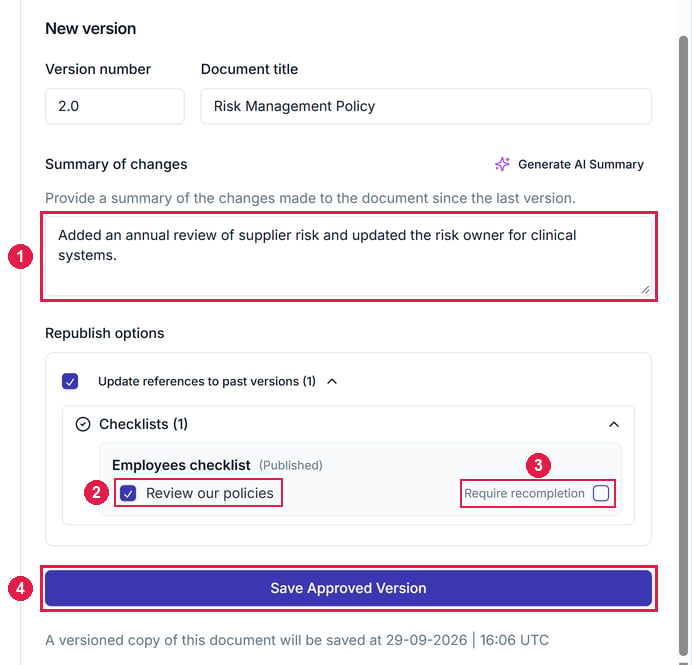
The version number and title are filled in for you, so change either if needed. Then write a *Summary of changes*, or click **Generate AI Summary** to draft one from the differences.
Under *Republish options*, choose which [places](#republish-options) move to the new version.
Then click **Save Approved Version** to save the version as a PDF.
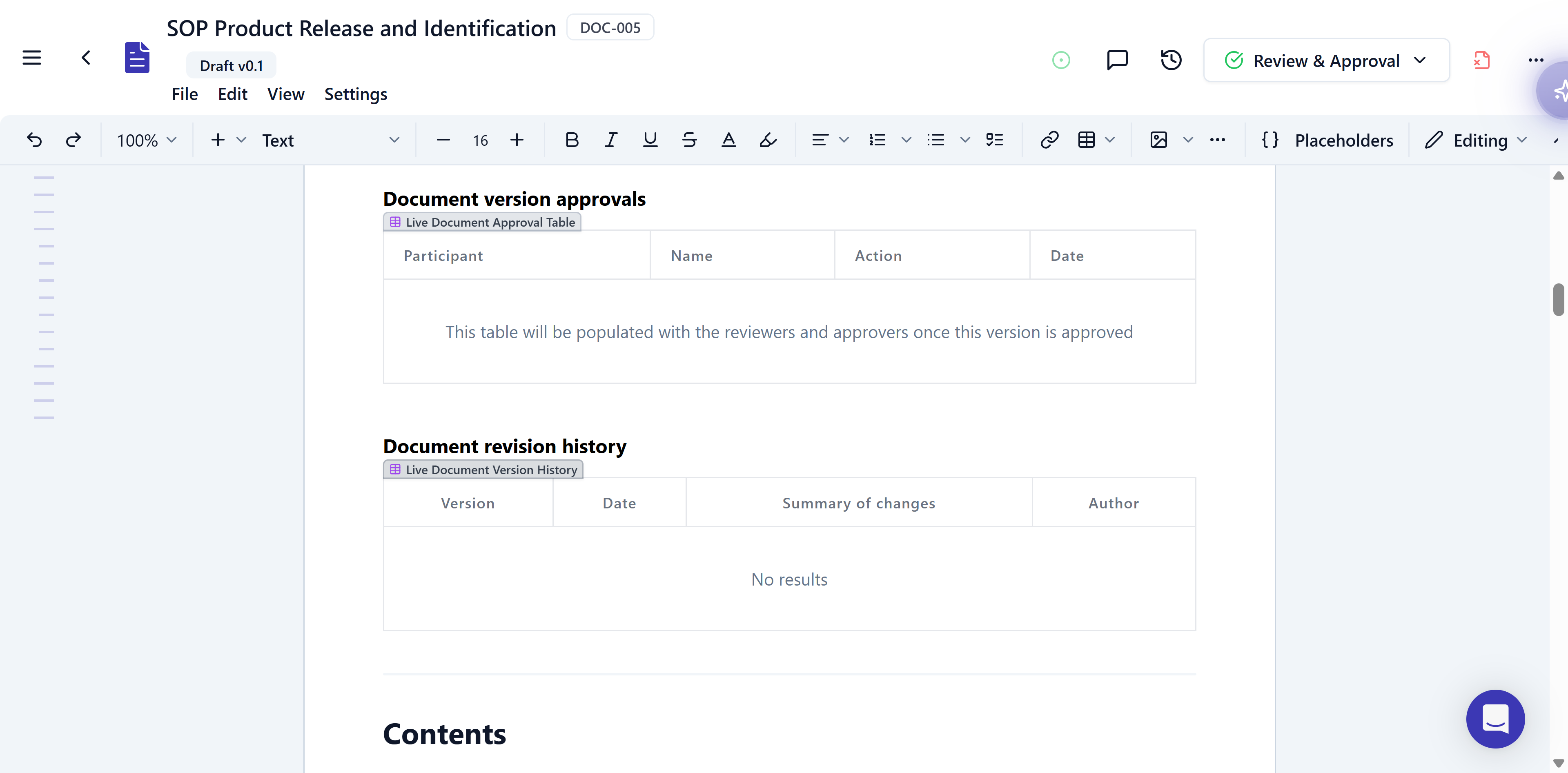
 Approving a version also lets you publish the document on your Trust Centre, and adds a row to any version history table.
 ### Log a minor change
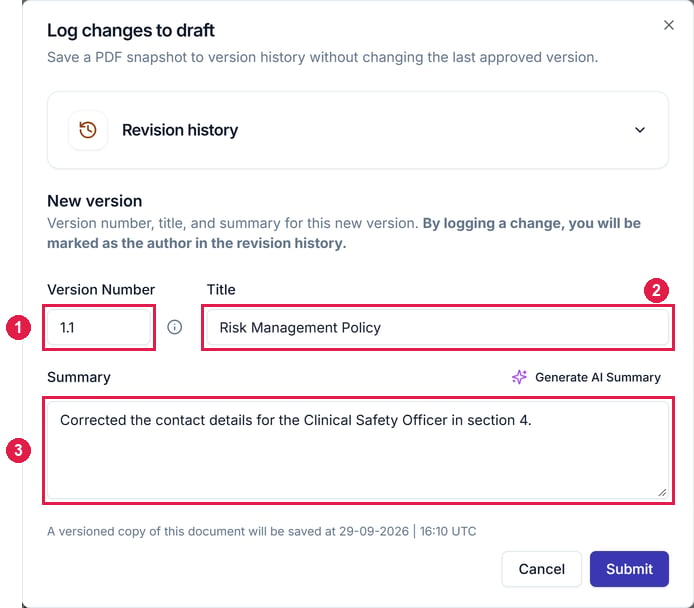
On a document that isn't controlled, **Approve** → **Log changes to draft** saves a PDF snapshot to the version history, with you as the author. It has no republish options, so the last approved version stays in use everywhere.
### Log a minor change
On a document that isn't controlled, **Approve** → **Log changes to draft** saves a PDF snapshot to the version history, with you as the author. It has no republish options, so the last approved version stays in use everywhere.
 ## Republish options
*Republish options* covers the places a document can be used. Each points at one approved version, a fixed PDF, so editing the draft changes nothing people see there.
| Where | What it is |
| - | - |
| **Trust Centre** | A [resource on your Trust Centre](/trust-centre/updates-and-notifications) |
| **Staff portal** | A resource on the portal's [Resources tab](/people/staff-portal#when-the-document-changes) |
| **Checklists** | A [Resources item](/people/checklists#when-the-document-changes) that staff confirm they've read |
When you approve a new version, *Republish options* shows *Update references to past versions*, grouped by place. Expand a group to see its resources, all ticked:
* **Move or keep:** leave a resource ticked to move it to the new version, or untick it to keep the old one.
* **Recompletion:** a checklist item also has *Require recompletion*, unticked by default. Leave it off and people who've already confirmed the item stay complete until it refreshes; tick it to ask them to confirm the new version.
* **Label and description:** republishing swaps the file but keeps both.
* **Controlled documents:** you choose in *Send for review and approval*, and resources move once it's approved.
## Approved versions
Open **View** → **Version History** → **Approved Versions**, or use a document's **⋯** menu → **Versions** on the Documents tab.
From a version's **⋯** menu:
| Action | What it does |
| - | - |
| **View File** | Opens the version as it was approved, with the differences from the current document highlighted |
| **Download** | Saves that version's PDF |
| **Restore** | Puts the document back to that version |
**Hide Changes** turns that highlighting off. The menu also has **Edit**, **Remove** and **Select**.
## Republish options
*Republish options* covers the places a document can be used. Each points at one approved version, a fixed PDF, so editing the draft changes nothing people see there.
| Where | What it is |
| - | - |
| **Trust Centre** | A [resource on your Trust Centre](/trust-centre/updates-and-notifications) |
| **Staff portal** | A resource on the portal's [Resources tab](/people/staff-portal#when-the-document-changes) |
| **Checklists** | A [Resources item](/people/checklists#when-the-document-changes) that staff confirm they've read |
When you approve a new version, *Republish options* shows *Update references to past versions*, grouped by place. Expand a group to see its resources, all ticked:
* **Move or keep:** leave a resource ticked to move it to the new version, or untick it to keep the old one.
* **Recompletion:** a checklist item also has *Require recompletion*, unticked by default. Leave it off and people who've already confirmed the item stay complete until it refreshes; tick it to ask them to confirm the new version.
* **Label and description:** republishing swaps the file but keeps both.
* **Controlled documents:** you choose in *Send for review and approval*, and resources move once it's approved.
## Approved versions
Open **View** → **Version History** → **Approved Versions**, or use a document's **⋯** menu → **Versions** on the Documents tab.
From a version's **⋯** menu:
| Action | What it does |
| - | - |
| **View File** | Opens the version as it was approved, with the differences from the current document highlighted |
| **Download** | Saves that version's PDF |
| **Restore** | Puts the document back to that version |
**Hide Changes** turns that highlighting off. The menu also has **Edit**, **Remove** and **Select**.
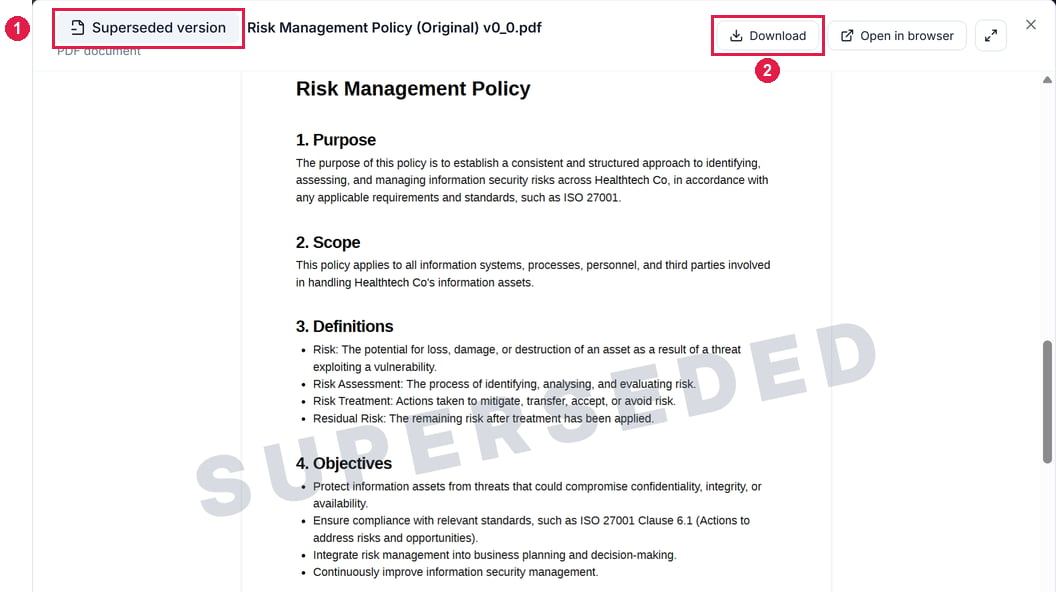 In **Approved Versions**, the original uploaded file is kept as version *0.0*, labelled *(Original)*. A replaced version is watermarked *SUPERSEDED*, so an out-of-date PDF in someone's inbox is easy to spot.
Each approved PDF keeps the values its placeholders had at approval. See [Live content and approved versions](/documents/default-placeholders#live-content-and-approved-versions).
**What we recommend**
Write a summary of changes even for a small change. In 6 months, "updated section 4" will tell nobody anything.
## Related articles
The formal review and approval cycle, with required reviewers and approvers.
Republish a new version on your Trust Centre and tell the people who hold it.
This documentation is built and hosted on [Mintlify](https://mintlify.com), a developer documentation platform.
In **Approved Versions**, the original uploaded file is kept as version *0.0*, labelled *(Original)*. A replaced version is watermarked *SUPERSEDED*, so an out-of-date PDF in someone's inbox is easy to spot.
Each approved PDF keeps the values its placeholders had at approval. See [Live content and approved versions](/documents/default-placeholders#live-content-and-approved-versions).
**What we recommend**
Write a summary of changes even for a small change. In 6 months, "updated section 4" will tell nobody anything.
## Related articles
The formal review and approval cycle, with required reviewers and approvers.
Republish a new version on your Trust Centre and tell the people who hold it.
This documentation is built and hosted on [Mintlify](https://mintlify.com), a developer documentation platform.