> ## Documentation Index
> Fetch the complete documentation index at: https://docs.assuric.com/llms.txt
> Use this file to discover all available pages before exploring further.
# Templates
> Start a document from one of Assuric's templates or one of your own, and turn a document you've written into a custom template.
**Quick summary**
* You can start a document from an Assuric template or one of your own, and it opens with your workspace details filled in.
* You can edit your own custom templates, but not Assuric's.
* Which Assuric templates you see depends on the frameworks enabled in your workspace.
## Assuric and custom templates
Go to **Documents** → **Templates**.
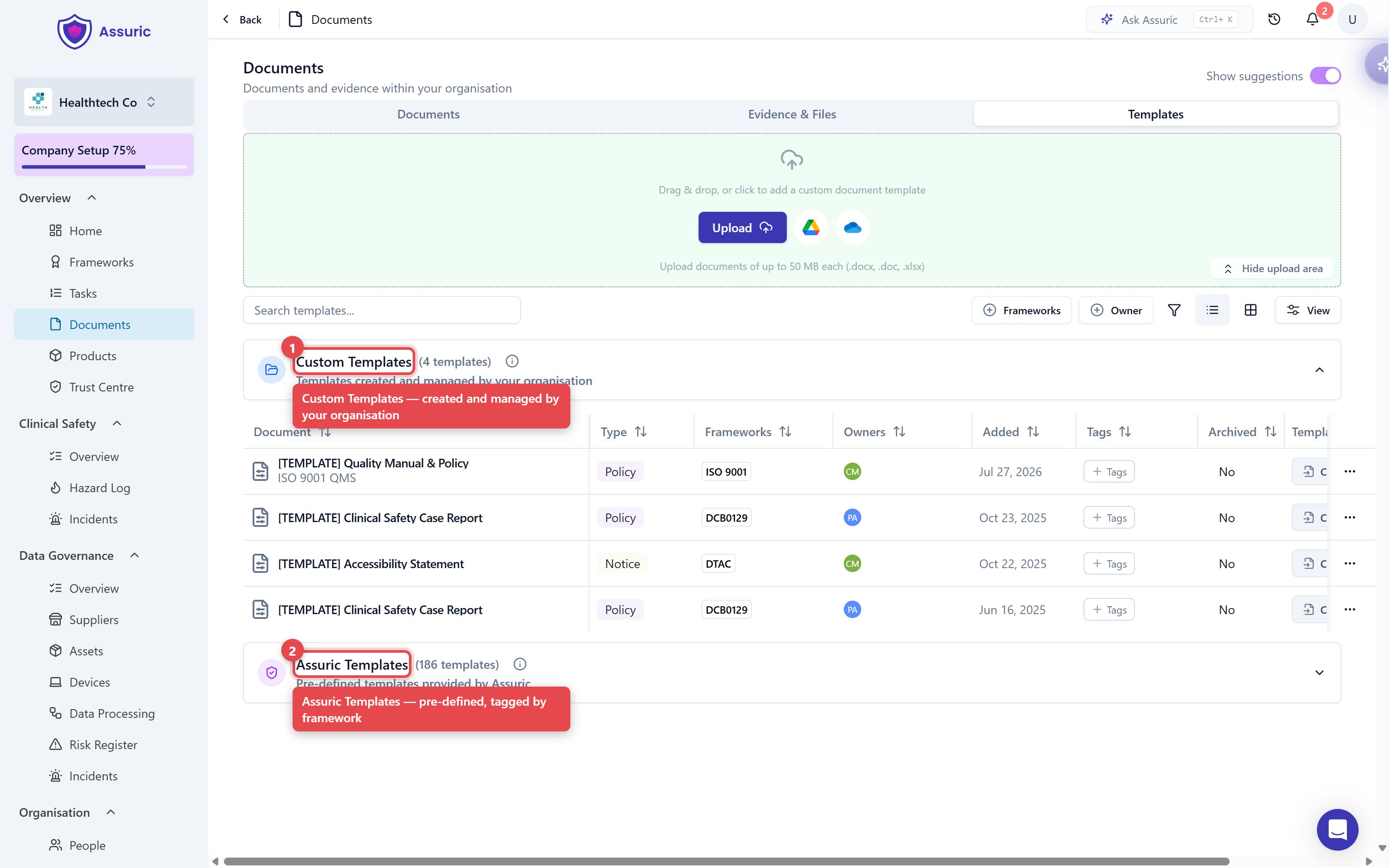 | Group | What it is | Can you edit it? |
| - | - | - |
| **Assuric Templates** | Written by Assuric and tagged with the frameworks each one covers | No |
| **Custom Templates** | Made by your organisation | Yes |
The set of Assuric templates depends on the frameworks enabled in your workspace, and Assuric also suggests them from your tasks.
## Create a document from a template
Find the template under *Assuric Templates* or *Custom Templates* and click **Create from template** on its row, or use **New Document** → **From Template** on the Documents tab.
| Group | What it is | Can you edit it? |
| - | - | - |
| **Assuric Templates** | Written by Assuric and tagged with the frameworks each one covers | No |
| **Custom Templates** | Made by your organisation | Yes |
The set of Assuric templates depends on the frameworks enabled in your workspace, and Assuric also suggests them from your tasks.
## Create a document from a template
Find the template under *Assuric Templates* or *Custom Templates* and click **Create from template** on its row, or use **New Document** → **From Template** on the Documents tab.
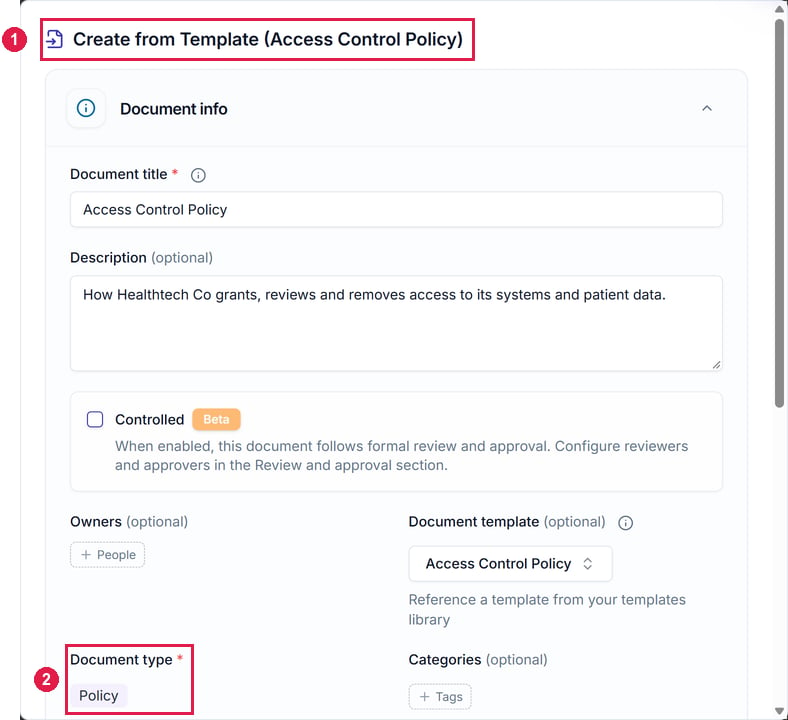
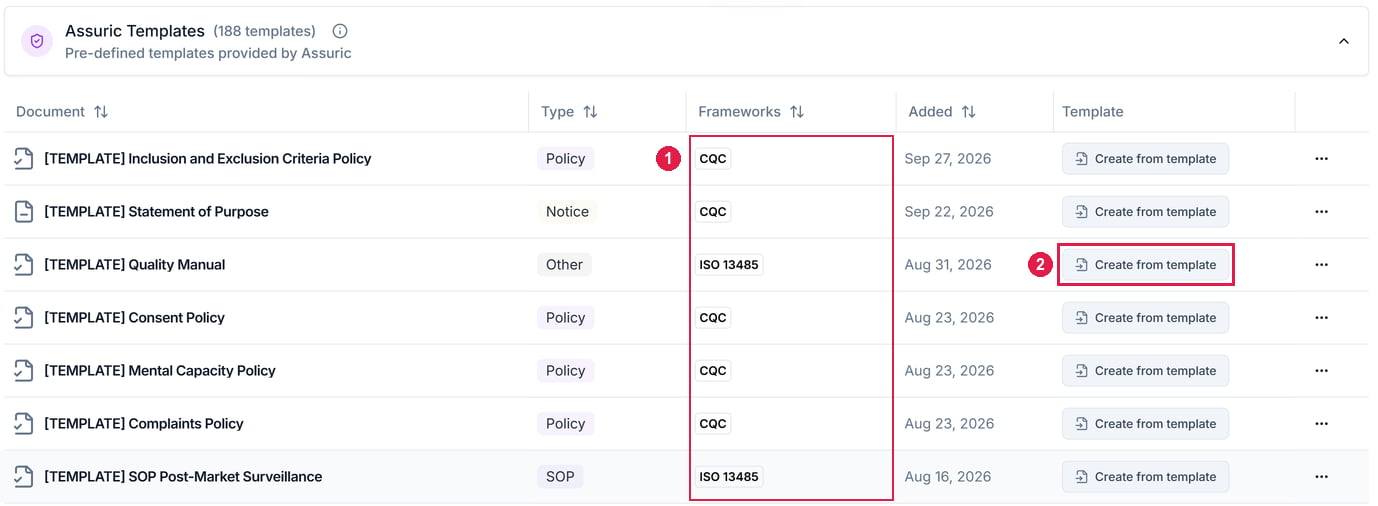 *Create from Template* opens with its document type filled in. Check the title, then fill in the rest as for [any new document](/documents/creating-a-document#fill-in-the-document-details).
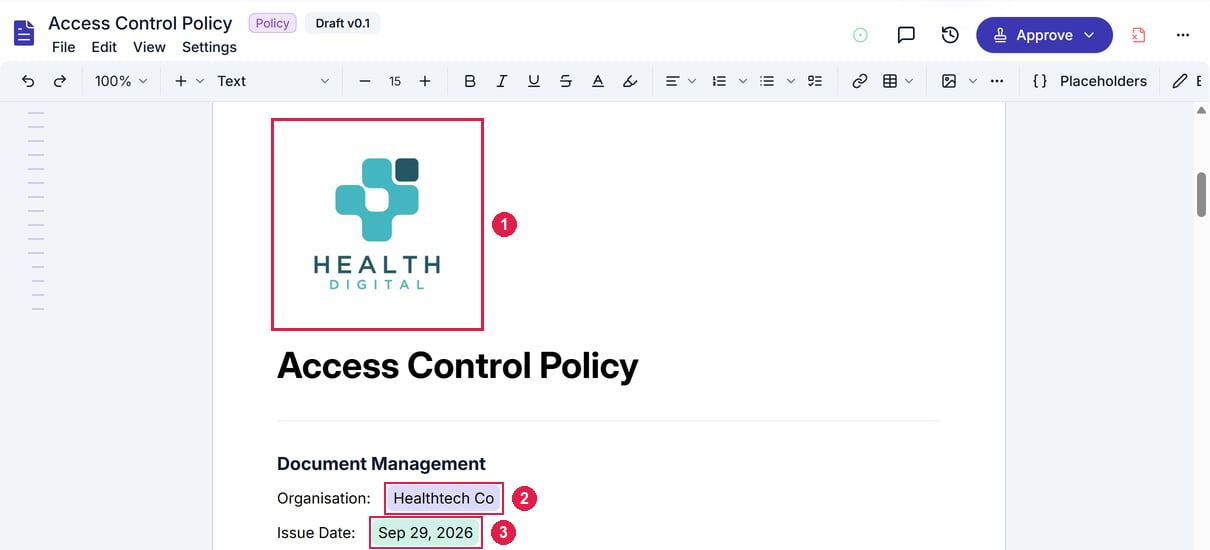
 Click **Create**. The document opens with its placeholders filled in from your workspace.
 ## Create a custom template
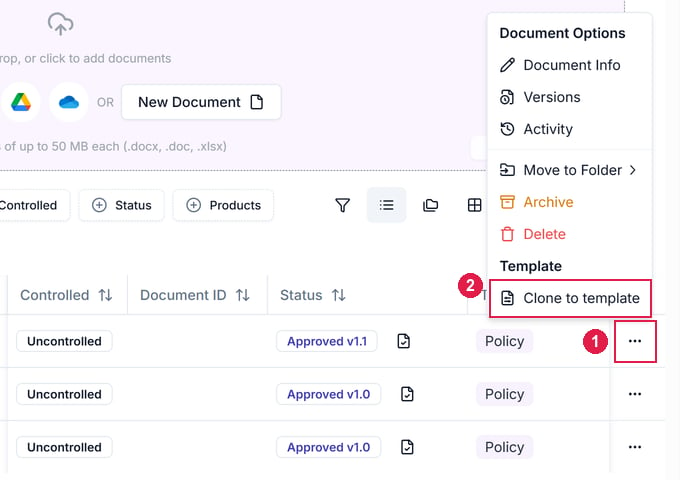
On the **Documents** tab, open the **⋯** menu of the document you want to reuse, like a clinical safety case report you write for each product. Under *Template*, click **Clone to template**. The template is created straight away.
## Create a custom template
On the **Documents** tab, open the **⋯** menu of the document you want to reuse, like a clinical safety case report you write for each product. Under *Template*, click **Clone to template**. The template is created straight away.
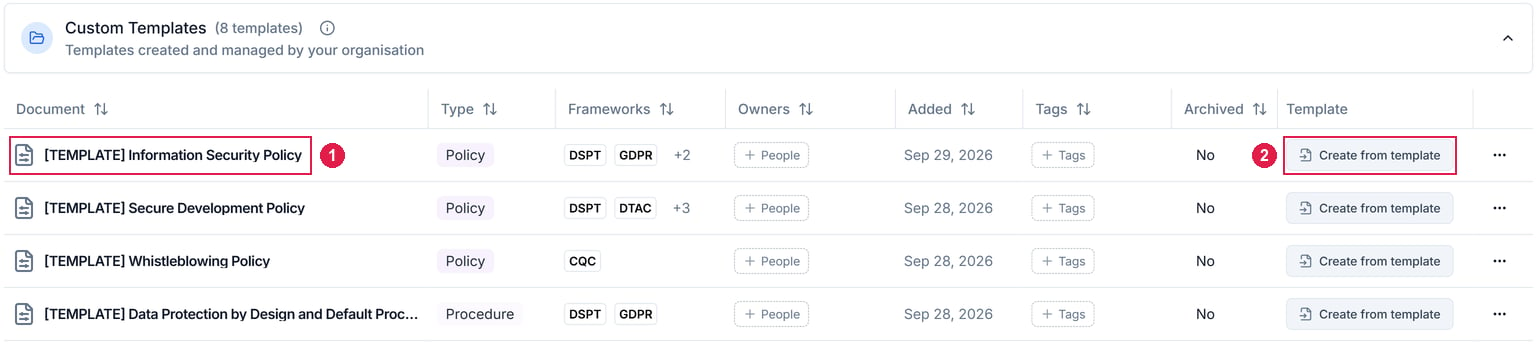
 It appears in *Custom Templates* as *\[TEMPLATE]* plus the document's name, with the same type and frameworks. Open it to edit it like any other document.
 The **Templates** tab also has an upload area for template files: `.docx`, `.doc` and `.xlsx`, up to 50 MB.
To turn a custom template back into a document, use **Clone to document** in its **⋯** menu.
**What we recommend**
Start from an Assuric template even for a policy you've already written elsewhere. Pasting your wording in is quicker than adding structure and placeholders later, and an assessor reading 20 of your documents will notice the consistent shape.
## Related articles
Start a blank document, or upload your own.
The live values a template fills in for you.
This documentation is built and hosted on [Mintlify](https://mintlify.com), a developer documentation platform.
The **Templates** tab also has an upload area for template files: `.docx`, `.doc` and `.xlsx`, up to 50 MB.
To turn a custom template back into a document, use **Clone to document** in its **⋯** menu.
**What we recommend**
Start from an Assuric template even for a policy you've already written elsewhere. Pasting your wording in is quicker than adding structure and placeholders later, and an assessor reading 20 of your documents will notice the consistent shape.
## Related articles
Start a blank document, or upload your own.
The live values a template fills in for you.
This documentation is built and hosted on [Mintlify](https://mintlify.com), a developer documentation platform.