> ## Documentation Index
> Fetch the complete documentation index at: https://docs.assuric.com/llms.txt
> Use this file to discover all available pages before exploring further.
# Keep documents current with placeholders
> Insert live values, cross-references and tables into a document so it updates itself when the information behind it changes, configure a live table, and define placeholders of your own.
**Quick summary**
* A placeholder pulls live information into a document, so updating its source, like your registered address, updates every document that uses it.
* Changing a live table, such as a hazard log summary, affects only that table, unless you switch on *Apply to all instances*.
* You can't change a custom placeholder between Pastable (a one-off copy) and Synced (stays live) without redoing every insertion.
## Why placeholders
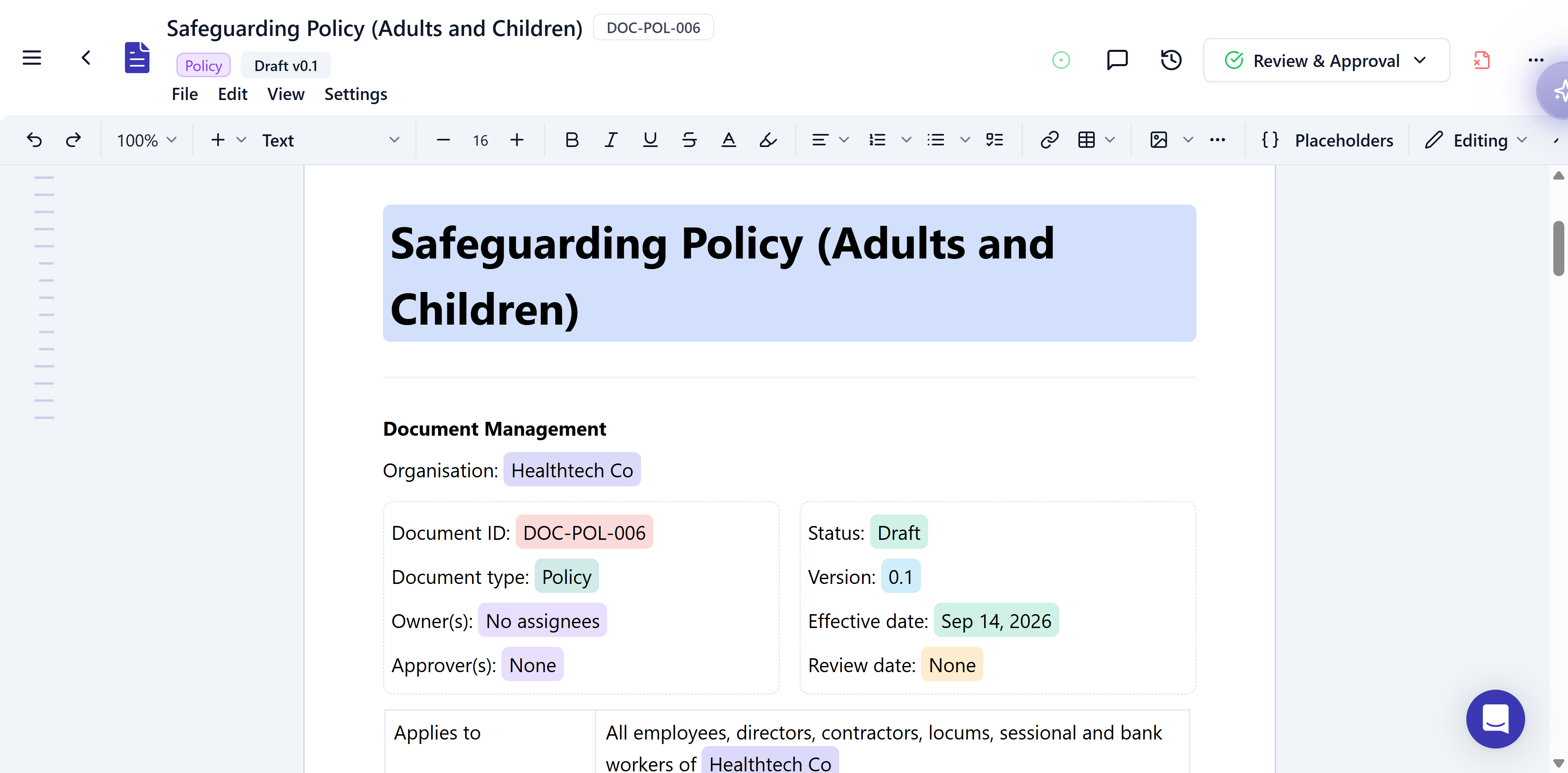
A placeholder pulls live information from elsewhere in Assuric, or holds text you define. It's a reference rather than a copy, so updating the source, like your registered address, updates every document that uses it.
 ## Insert a placeholder
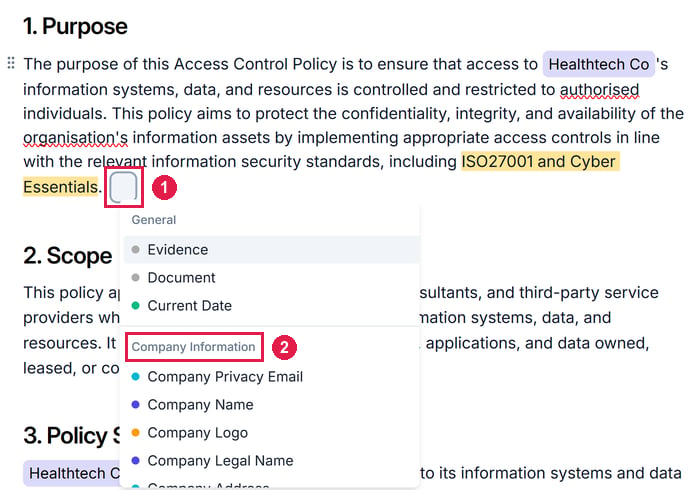
Type `@` in the editor and pick a placeholder from the list. It shows highlighted while you edit.
## Insert a placeholder
Type `@` in the editor and pick a placeholder from the list. It shows highlighted while you edit.
 ## Cross-reference another document
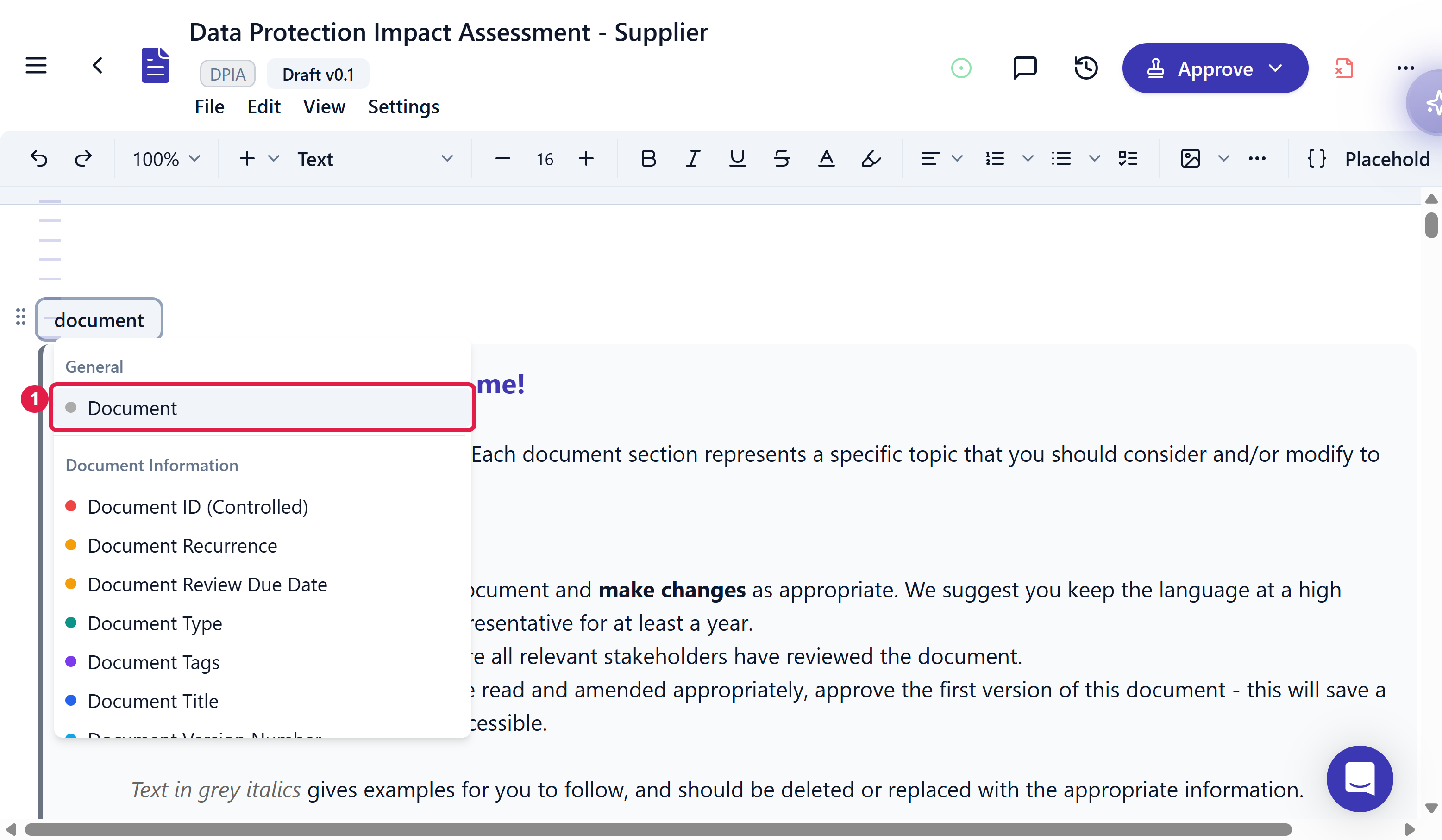
To link another document by name, like your privacy notice, type `@document` and pick *Document*. The link survives renames and new versions.
## Cross-reference another document
To link another document by name, like your privacy notice, type `@document` and pick *Document*. The link survives renames and new versions.
 ## Configure a live table
For what a live table shows, see [Live tables](/documents/default-placeholders#live-tables).
## Configure a live table
For what a live table shows, see [Live tables](/documents/default-placeholders#live-tables).
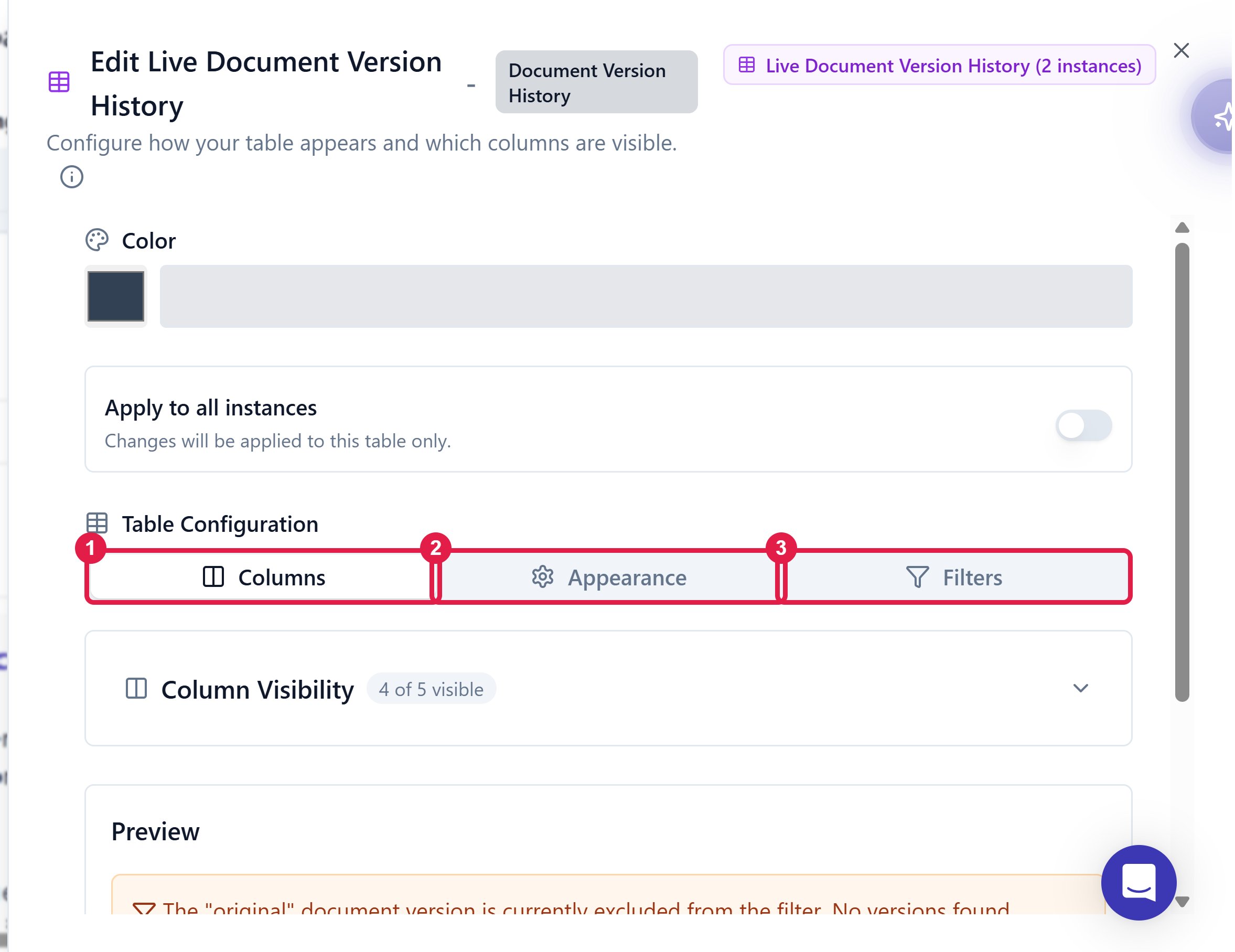 Click a live table to configure it. For a *Hazard Log Summary*, for example, **Filters** sets which hazards it includes, and **Filter by Risk Level** keeps only those with an undesirable initial or residual risk.
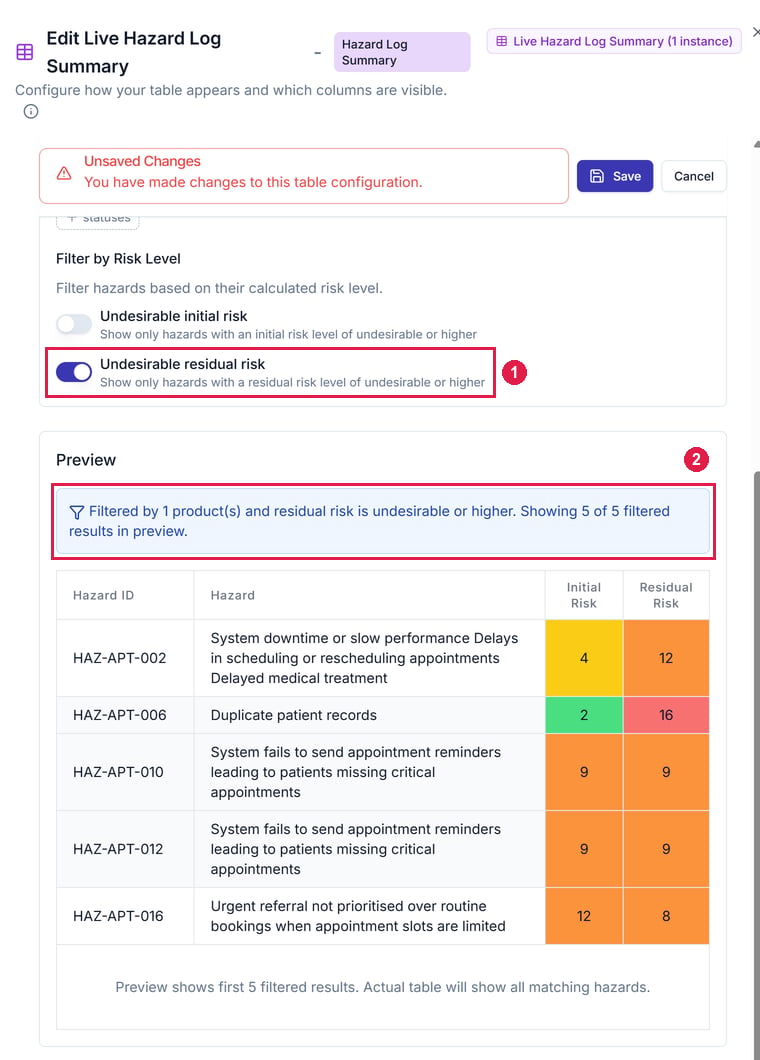 * **Preview:** it shows the first 5 matching rows.
* **Scope:** changes apply to this table only, unless you switch on *Apply to all instances* to change every copy.
* **Case reports:** [the live hazard log table](/clinical-safety/clinical-documentation#the-live-hazard-log-table) covers using a *Hazard Log Summary* in a clinical safety case report.
## Create a custom placeholder
When the defaults don't cover a value you repeat, define your own, like "Team responsible for onboarding" with the value "HR department".
In the editor, open **Settings** → **Placeholders**. Click **Add Placeholder** to open *Create Custom Placeholder*.
* **Preview:** it shows the first 5 matching rows.
* **Scope:** changes apply to this table only, unless you switch on *Apply to all instances* to change every copy.
* **Case reports:** [the live hazard log table](/clinical-safety/clinical-documentation#the-live-hazard-log-table) covers using a *Hazard Log Summary* in a clinical safety case report.
## Create a custom placeholder
When the defaults don't cover a value you repeat, define your own, like "Team responsible for onboarding" with the value "HR department".
In the editor, open **Settings** → **Placeholders**. Click **Add Placeholder** to open *Create Custom Placeholder*.
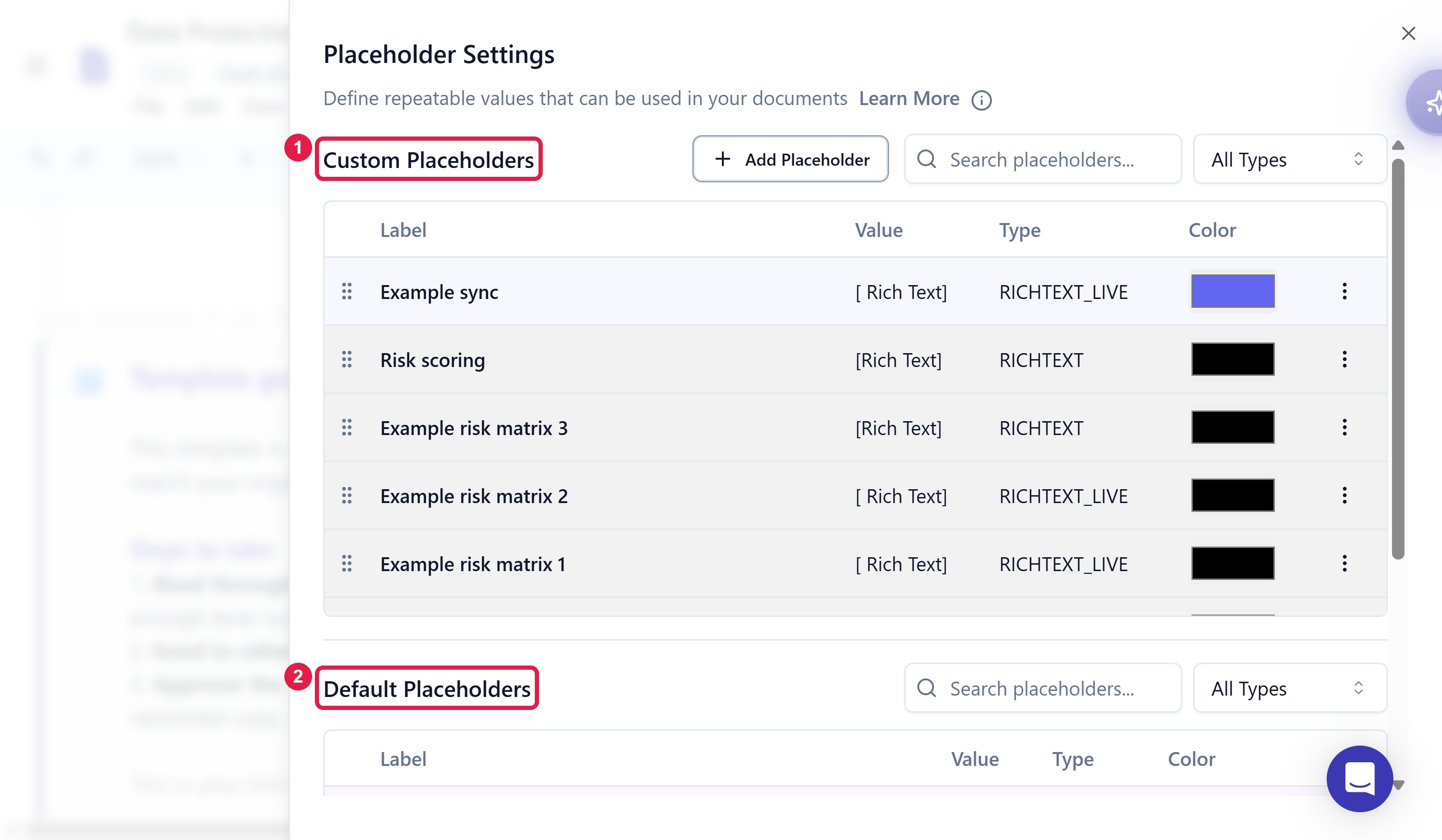 Give it a label, pick a colour, choose a *Placeholder Type* and enter its value. Add a description if you like.
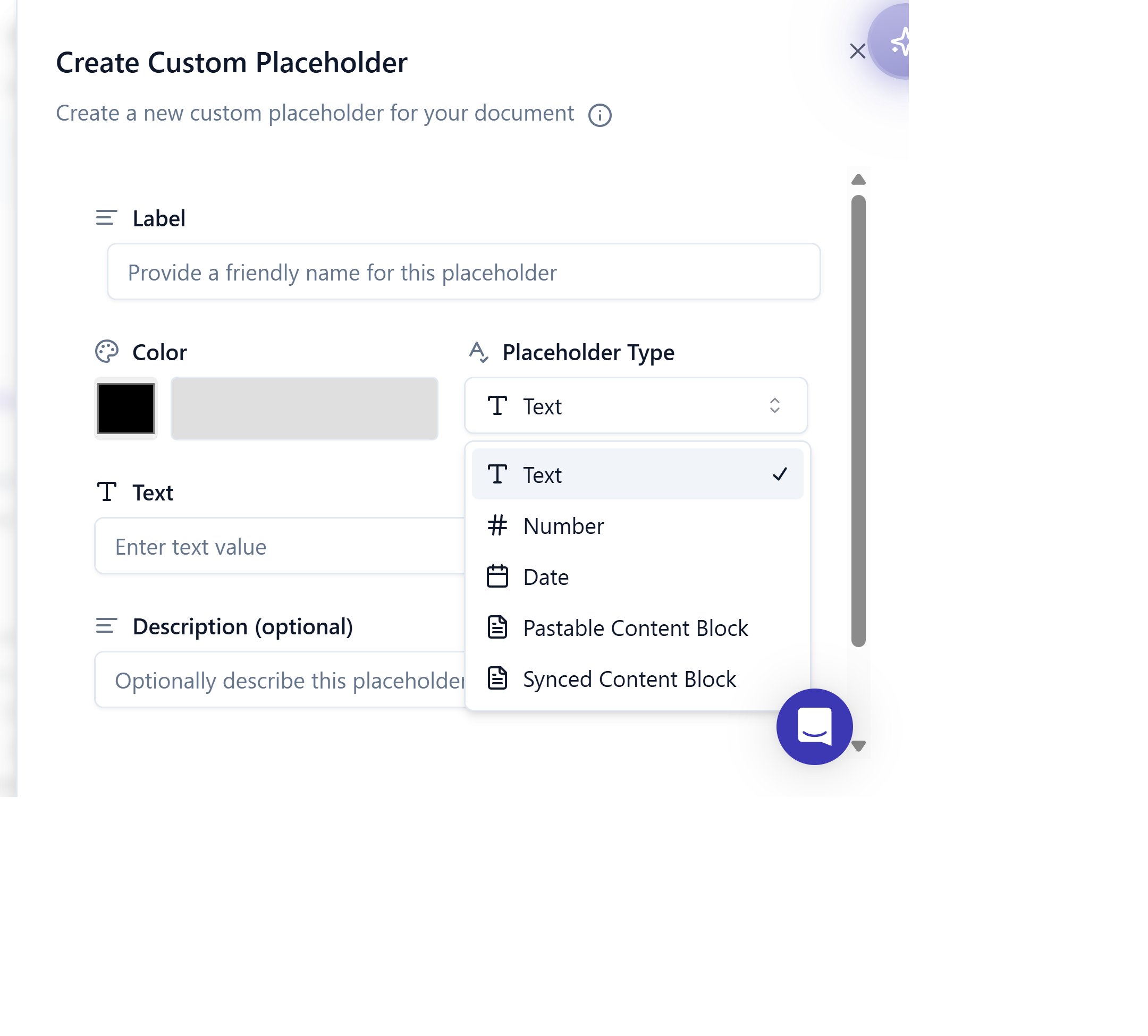 **Pastable and Synced can't be swapped later without redoing every insertion.**
* *Pastable* becomes ordinary text in each document. Use it for a standard clause each document adapts.
* *Synced* stays live and updates everywhere. Use it when every copy must stay identical.
**What we recommend**
Use a custom placeholder for any value that appears in more than 2 documents and might change, like a product name.
## Related articles
Where you insert placeholders, and everything else about writing a document.
Every placeholder that comes with Assuric, and what an approved version keeps.
This documentation is built and hosted on [Mintlify](https://mintlify.com), a developer documentation platform.
**Pastable and Synced can't be swapped later without redoing every insertion.**
* *Pastable* becomes ordinary text in each document. Use it for a standard clause each document adapts.
* *Synced* stays live and updates everywhere. Use it when every copy must stay identical.
**What we recommend**
Use a custom placeholder for any value that appears in more than 2 documents and might change, like a product name.
## Related articles
Where you insert placeholders, and everything else about writing a document.
Every placeholder that comes with Assuric, and what an approved version keeps.
This documentation is built and hosted on [Mintlify](https://mintlify.com), a developer documentation platform.