> ## Documentation Index
> Fetch the complete documentation index at: https://docs.assuric.com/llms.txt
> Use this file to discover all available pages before exploring further.
# The Assuric document editor
> Write and format documents in Assuric's block editor, insert live placeholders, see and restore earlier snapshots, comment and edit together, and export.
**Quick summary**
* The Assuric document editor lets you write and format documents in blocks, insert placeholders, comment, and edit with others at the same time.
* The editor saves snapshots as you work and you can restore them, but only approved versions count for compliance.
* To share a document, download its approved version from **Approved Versions** instead of exporting the working copy.
Open any document from the **Documents** tab, or [create a new one](/documents/creating-a-document).
## Basic editing and formatting
The editor works in blocks.
* Type `/` to add a block.
* To set apart text a reader mustn't miss, type `/` and choose *Callout*. To change its colour, click its icon.
* Type `@` to insert a placeholder, a live value like your company name.
* To move a block, drag the handle to its left.
* Format text with the toolbar above the page, and set the block type with *Text*.
* To switch between *Portrait* and *Landscape*, use **View** → **Page layout**.
* **View** → **Full screen** hides the rest of Assuric. To leave, click the menu button at the top left.
* The mode menu at the top right switches between *Editing*, *Viewing* and *Suggestion*.
## Change history
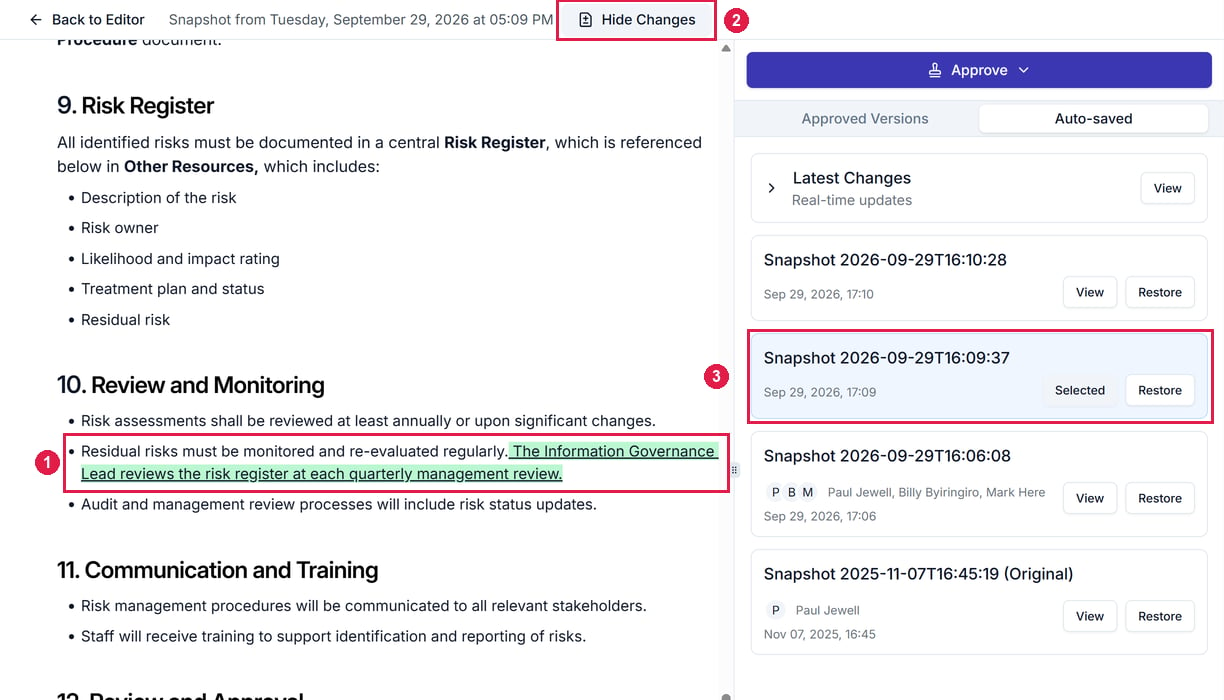
To see the snapshots Assuric keeps as you edit, open **View** → **Version History** → **Auto-saved**.
* **View** on a snapshot shows the document as it was, with its changes highlighted.
* **Restore** puts the document back to that snapshot.
* The first snapshot is marked *(Original)*.
 To save a snapshot yourself, press **Ctrl+S** or click **File** → **Save**.
Only formally approved versions, on the **Approved Versions** tab, count for compliance.
## Comments, live collaboration and autosave
* **Comments.** Select text and click the comment button in the toolbar that appears. **View** → **Comments** shows them all, filtered by open or resolved.
* **Live collaboration.** Several people can edit at once, seeing each other's edits as they're made.
* **Autosave.** Changes save as you type, so you lose nothing if you close the tab. Its snapshots are under [Change history](#change-history).
## Import and export
| To | Use |
| - | - |
| Bring content into this document | **File** → **Import** |
| Save a copy outside Assuric | **File** → **Download as**, where a PDF keeps the editor's fonts and fits tables to the page |
To share an approved version rather than the working document, download it from [Approved Versions](/documents/versions-and-version-history#approved-versions).
## Related articles
Insert live values, people and tables.
Approve a version and choose where it's republished.
This documentation is built and hosted on [Mintlify](https://mintlify.com), a developer documentation platform.
To save a snapshot yourself, press **Ctrl+S** or click **File** → **Save**.
Only formally approved versions, on the **Approved Versions** tab, count for compliance.
## Comments, live collaboration and autosave
* **Comments.** Select text and click the comment button in the toolbar that appears. **View** → **Comments** shows them all, filtered by open or resolved.
* **Live collaboration.** Several people can edit at once, seeing each other's edits as they're made.
* **Autosave.** Changes save as you type, so you lose nothing if you close the tab. Its snapshots are under [Change history](#change-history).
## Import and export
| To | Use |
| - | - |
| Bring content into this document | **File** → **Import** |
| Save a copy outside Assuric | **File** → **Download as**, where a PDF keeps the editor's fonts and fits tables to the page |
To share an approved version rather than the working document, download it from [Approved Versions](/documents/versions-and-version-history#approved-versions).
## Related articles
Insert live values, people and tables.
Approve a version and choose where it's republished.
This documentation is built and hosted on [Mintlify](https://mintlify.com), a developer documentation platform.