> ## Documentation Index
> Fetch the complete documentation index at: https://docs.assuric.com/llms.txt
> Use this file to discover all available pages before exploring further.
# Create a document
> Start a document from a template or a blank page, or upload one, then set its details, who can edit it, whether it's controlled and when it's due for review. Organise documents into folders.
**Quick summary**
* You can start a document from a template or a blank page, or upload your own `.docx`, `.doc` or `.xlsx` file of up to 50 MB.
* Any other file you upload on the Documents tab, such as a PDF, becomes evidence instead of a document.
* A document with no framework tag is missing from framework views, where audits usually start.
## Start a document
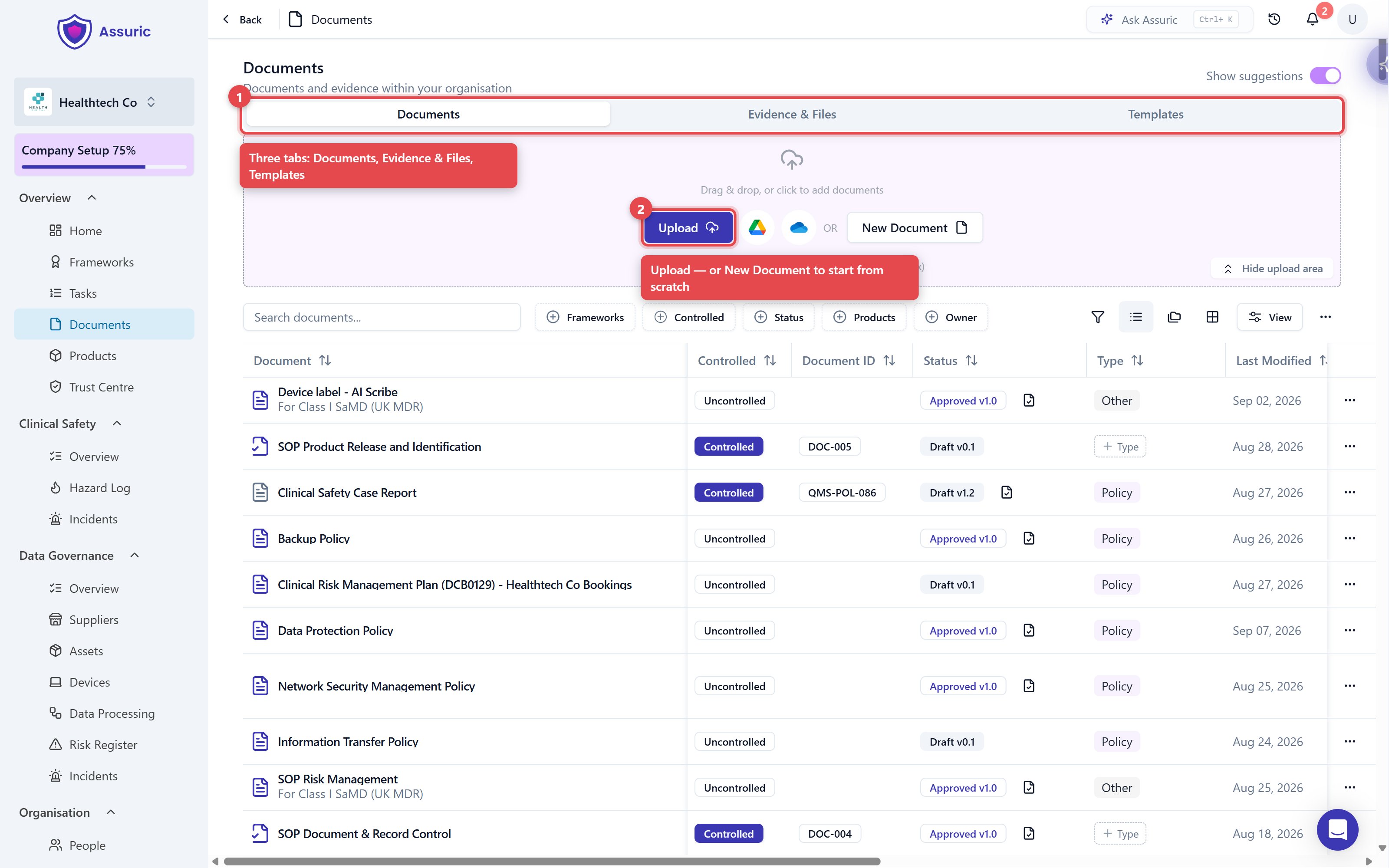
Go to **Documents** in the sidebar, then start from the upload area at the top of the **Documents** tab:
| Route | What you get |
| - | - |
| **New Document** → **Blank Document** | An empty document |
| **New Document** → **From Template** | A document started from one of your [templates](/documents/templates-and-document-catalogue) |
| **Upload**, or drag and drop | Your own `.docx`, `.doc` or `.xlsx` file, up to 50 MB, imported into the Assuric editor |
**Google Drive** takes Google Docs, `.doc` and `.docx` files. **OneDrive** offers *Personal OneDrive* or *Work Files (SharePoint / 365)*.
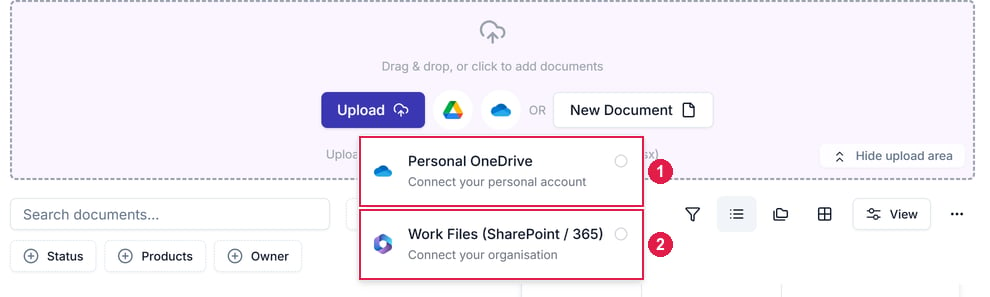 Any other file you drop here, like a PDF, becomes evidence in **Evidence & Files**, not a document.
 ### Documents Assuric suggests
With *Show suggestions* on, the Documents tab also lists policies you don't have yet, each tagged with the frameworks it covers. **Generate** drafts one from what Assuric knows about your workspace, and other parts of Assuric, such as a task, may prompt you to generate one too.
## Fill in the document details
Starting a document opens a dialog for its details, all of which you can change later in the document's **Settings** → **Document Settings**.
### Documents Assuric suggests
With *Show suggestions* on, the Documents tab also lists policies you don't have yet, each tagged with the frameworks it covers. **Generate** drafts one from what Assuric knows about your workspace, and other parts of Assuric, such as a task, may prompt you to generate one too.
## Fill in the document details
Starting a document opens a dialog for its details, all of which you can change later in the document's **Settings** → **Document Settings**.
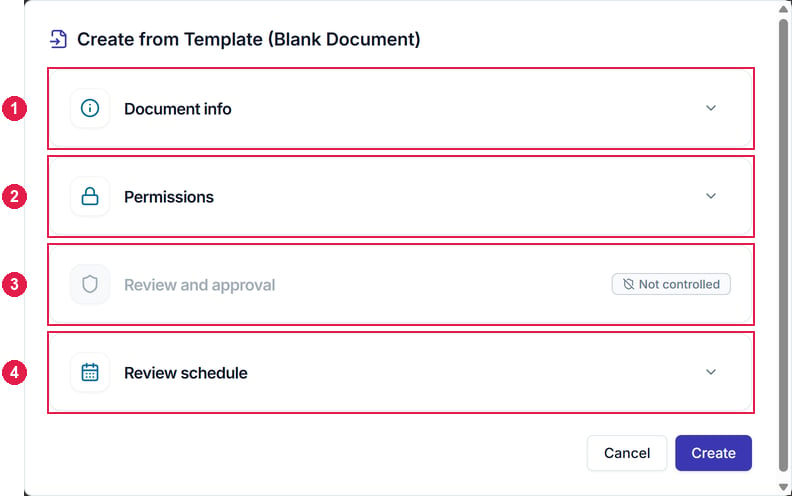 *Document title* and *Document type* are required. Everything else is optional, including *Products* and *Frameworks*.
Tick *Controlled* if the document needs formal [review and approval](/quality/controlled-documents), like the procedures behind a quality management system. Assuric then suggests a *Document ID*, like `DOC-POL-010`.
Choose who can edit it. See [Permissions](#permissions).
For controlled documents only, set who reviews and approves the document. See [Who reviews and approves](/quality/review-cycle-and-statuses#who-reviews-and-approves).
Set how often it's reviewed in *Recurrence*. Reviews come up even when nothing has changed. Then set the next *Due date*, and *Last approved* if you like.
Then click **Create**, and the document opens in [the Assuric document editor](/documents/document-editor).
Every document is versioned: each approval saves a numbered version you can go back to. See [Document versioning](/documents/versions-and-version-history).
## Permissions
Everyone in your workspace can view a document, apart from people with *Staff portal only* permission. A document's permissions decide who can edit it:
| Who can edit | Who it covers |
| - | - |
| **Everyone in the organisation** | All Admins and Users |
| **Specific people and roles only** | Only the people and roles you choose, with at least one chosen |
Document permissions can only narrow a person's [account permission](/people/permissions-and-access). A *View-only* account can't edit a document, even when everyone in the organisation can.
## Organise documents into folders
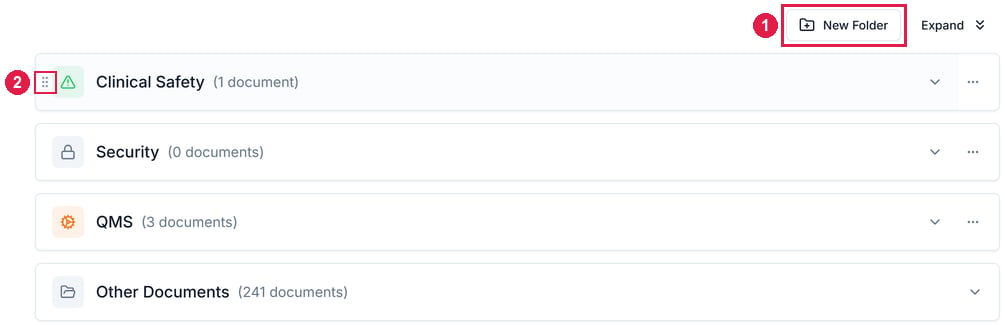
Switch the Documents tab between folders, list and grid views with the buttons above the table.
* To create a folder, click **New Folder**.
* To move a document into a folder, use **Move to Folder** in its **⋯** menu.
* To reorder folders, drag one by its handle.
* A folder's **⋯** menu has **Edit**, **New Folder** and **Delete**.
*Document title* and *Document type* are required. Everything else is optional, including *Products* and *Frameworks*.
Tick *Controlled* if the document needs formal [review and approval](/quality/controlled-documents), like the procedures behind a quality management system. Assuric then suggests a *Document ID*, like `DOC-POL-010`.
Choose who can edit it. See [Permissions](#permissions).
For controlled documents only, set who reviews and approves the document. See [Who reviews and approves](/quality/review-cycle-and-statuses#who-reviews-and-approves).
Set how often it's reviewed in *Recurrence*. Reviews come up even when nothing has changed. Then set the next *Due date*, and *Last approved* if you like.
Then click **Create**, and the document opens in [the Assuric document editor](/documents/document-editor).
Every document is versioned: each approval saves a numbered version you can go back to. See [Document versioning](/documents/versions-and-version-history).
## Permissions
Everyone in your workspace can view a document, apart from people with *Staff portal only* permission. A document's permissions decide who can edit it:
| Who can edit | Who it covers |
| - | - |
| **Everyone in the organisation** | All Admins and Users |
| **Specific people and roles only** | Only the people and roles you choose, with at least one chosen |
Document permissions can only narrow a person's [account permission](/people/permissions-and-access). A *View-only* account can't edit a document, even when everyone in the organisation can.
## Organise documents into folders
Switch the Documents tab between folders, list and grid views with the buttons above the table.
* To create a folder, click **New Folder**.
* To move a document into a folder, use **Move to Folder** in its **⋯** menu.
* To reorder folders, drag one by its handle.
* A folder's **⋯** menu has **Edit**, **New Folder** and **Delete**.
 **What we recommend**
Tag frameworks and products when you create a document, so it shows in views filtered by framework, where an audit usually starts.
When you set who can edit, choose a role rather than a person where you can, so the right people keep access when someone leaves.
## Related articles
Writing, formatting, comments and change history.
Start from an Assuric template or one of your own.
This documentation is built and hosted on [Mintlify](https://mintlify.com), a developer documentation platform.
**What we recommend**
Tag frameworks and products when you create a document, so it shows in views filtered by framework, where an audit usually starts.
When you set who can edit, choose a role rather than a person where you can, so the right people keep access when someone leaves.
## Related articles
Writing, formatting, comments and change history.
Start from an Assuric template or one of your own.
This documentation is built and hosted on [Mintlify](https://mintlify.com), a developer documentation platform.