> ## Documentation Index
> Fetch the complete documentation index at: https://docs.assuric.com/llms.txt
> Use this file to discover all available pages before exploring further.
# Share and publish your hazard log
> Publish bundles of your product hazard logs through your Trust Centre, update the published logs when you approve a new version, and notify stakeholders.
**Quick summary**
* Publishing puts a bundle of approved versions, one per product, on your Trust Centre under its own link.
* A new published hazard log starts as "Private - requires access request".
* Update notifications need a privacy notice URL on your Trust Centre.
## Publish a hazard log
A published hazard log is a bundle of approved versions of individual product hazard logs, usually the latest of each, with its own public link.
On the **Hazard Log** page, click **Publish** to open the **Published Hazard Logs** sheet.
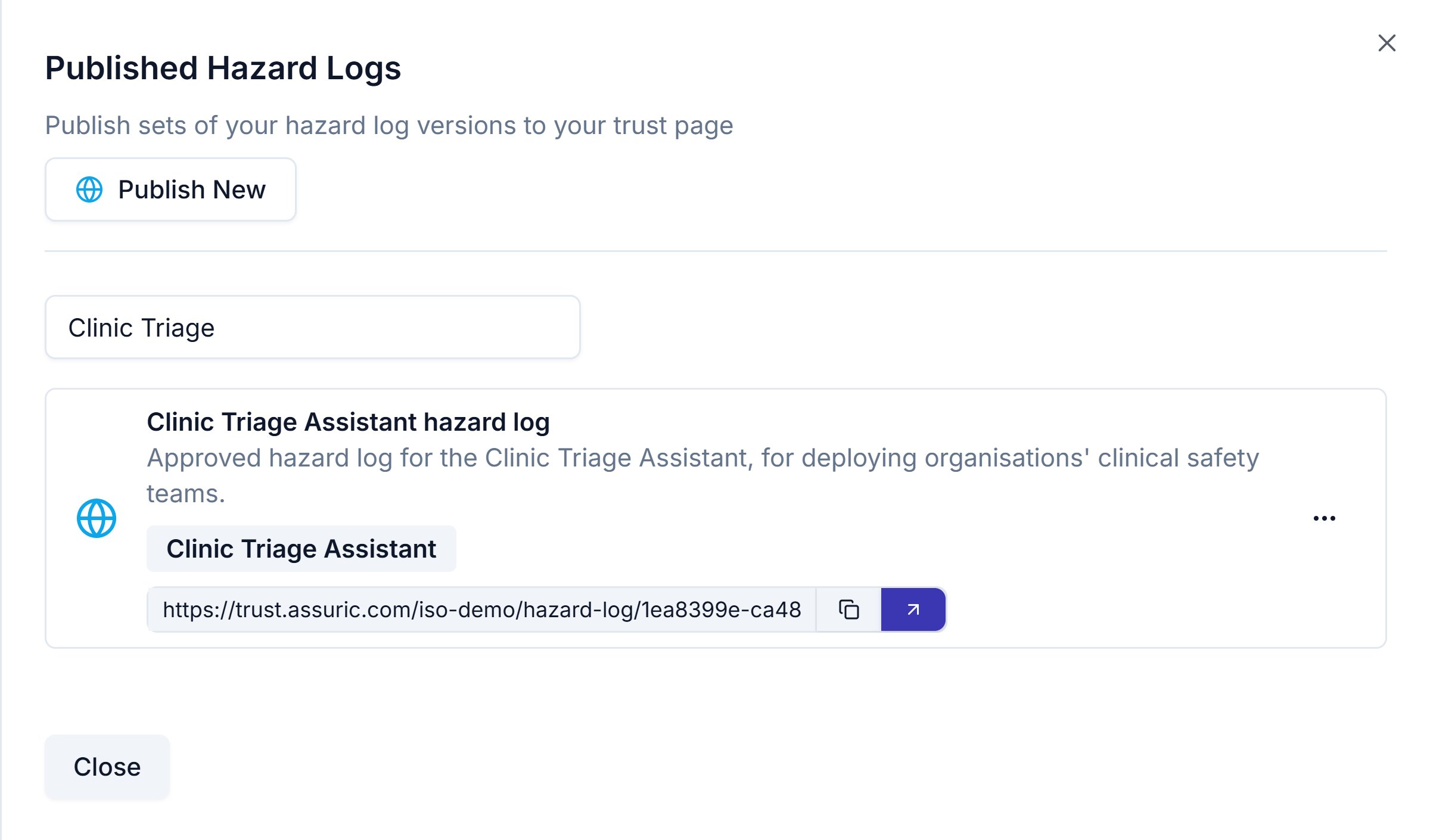 Click **Publish New**, then choose the products. Each product shows its 2 latest versions, and **Show all** lists the rest.
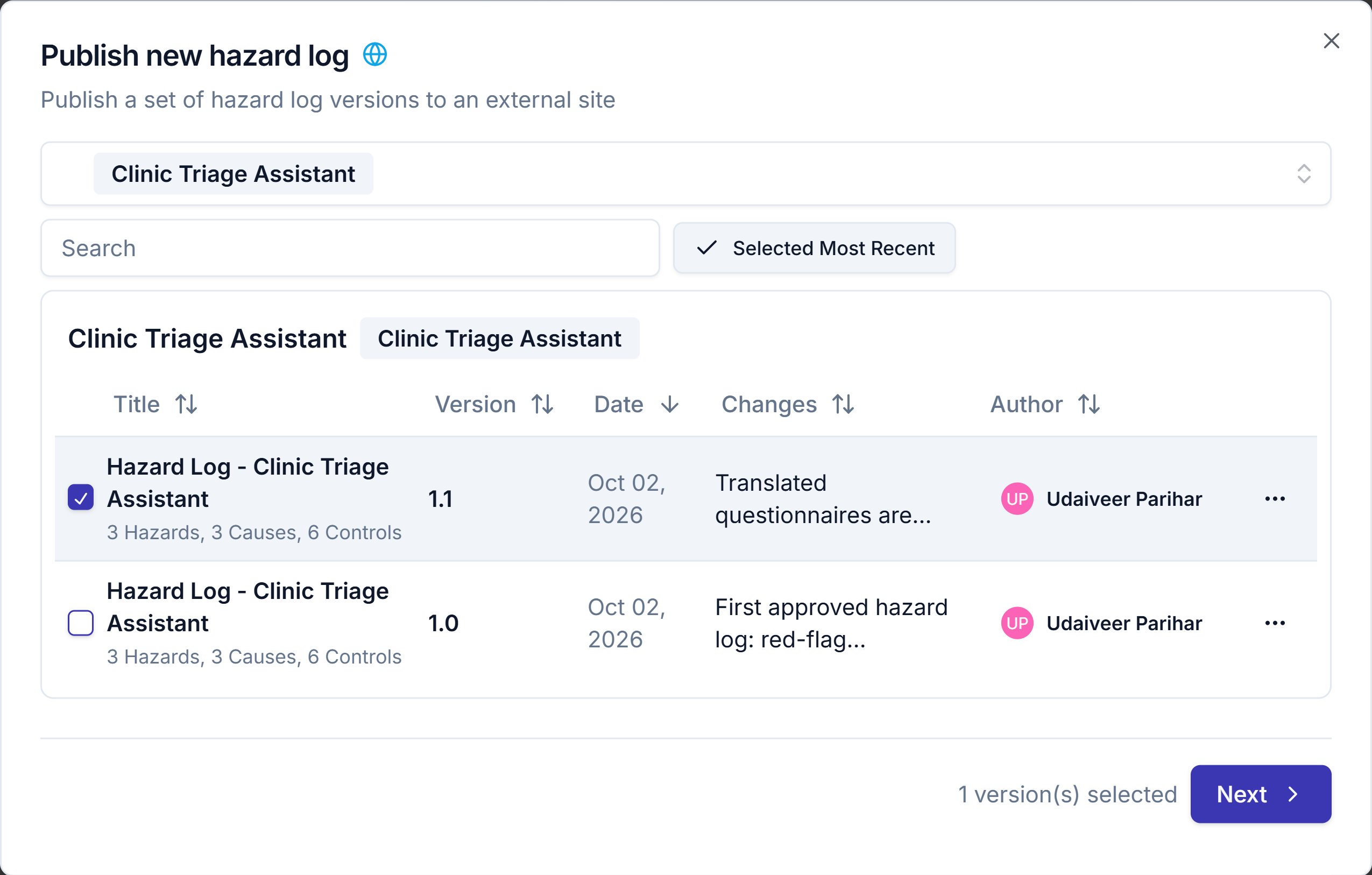
Click **Select Most Recent** to tick the latest version of every product, then untick any you want to leave out. Click **Next** once at least one version is selected.
Click **Publish New**, then choose the products. Each product shows its 2 latest versions, and **Show all** lists the rest.
Click **Select Most Recent** to tick the latest version of every product, then untick any you want to leave out. Click **Next** once at least one version is selected.
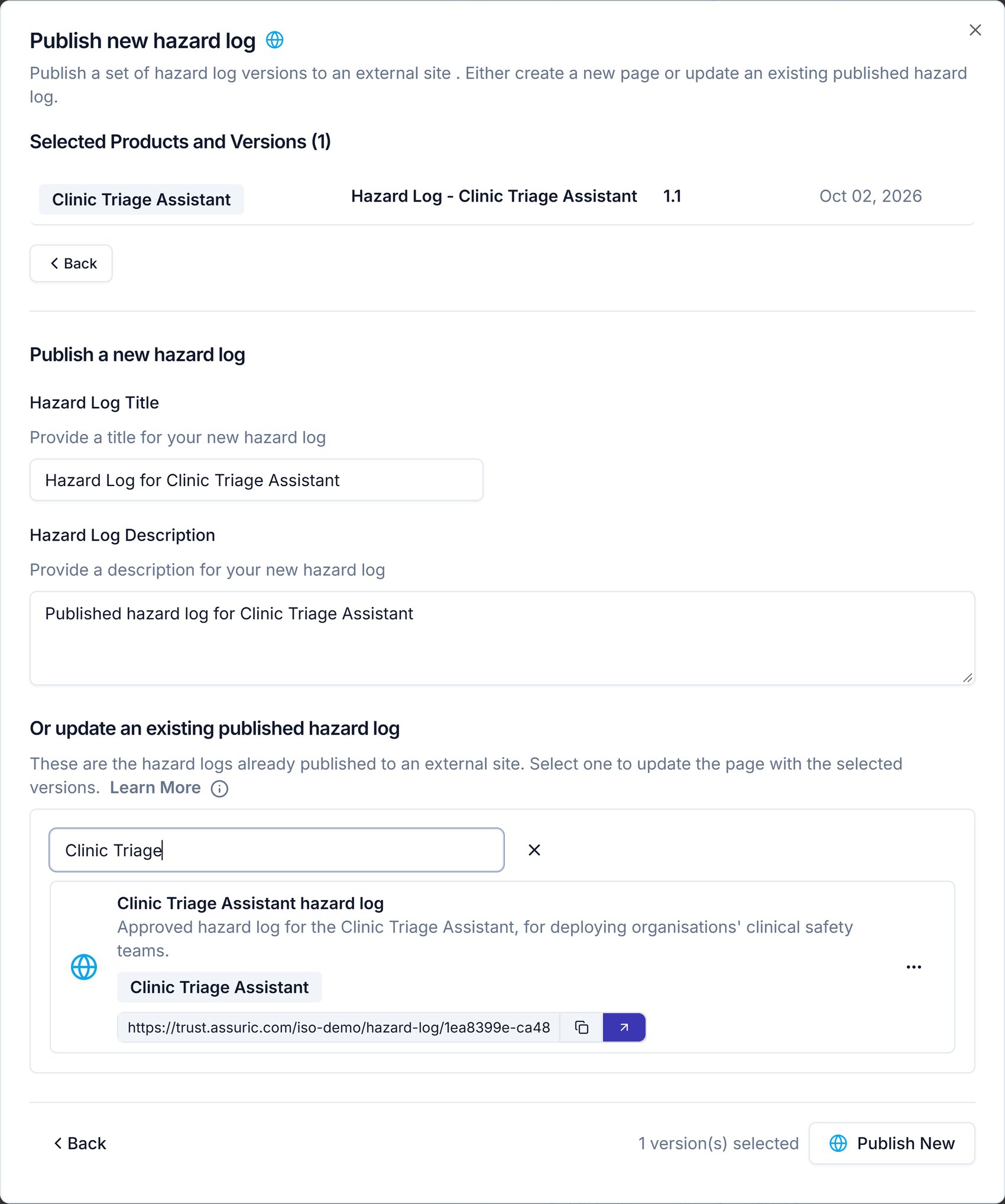
 * To create a new bundle, fill in *Hazard Log Title* and *Hazard Log Description* under **Publish a new hazard log**. Assuric suggests both from the product names. Don't use special characters in the title.
* To update a bundle you've already published, choose it under **Or update an existing published hazard log**. The button changes to **Update** and the title and description fill in for you.
**Update** replaces the versions with the ones you ticked, so tick a version for every product it should still include, not only the one that changed.
Then click **Publish New** or **Update**.
* To create a new bundle, fill in *Hazard Log Title* and *Hazard Log Description* under **Publish a new hazard log**. Assuric suggests both from the product names. Don't use special characters in the title.
* To update a bundle you've already published, choose it under **Or update an existing published hazard log**. The button changes to **Update** and the title and description fill in for you.
**Update** replaces the versions with the ones you ticked, so tick a version for every product it should still include, not only the one that changed.
Then click **Publish New** or **Update**.
 A new published hazard log starts as "Private - requires access request". To let anyone view it, open the resource in your Trust Centre and set *Public?* to "Public - anyone can view".
You can also place it in a folder with *Folder (Optional)*. See [Access requests and who can see what](/trust-centre/access-control).
### Manage a published hazard log
On a card in **Published Hazard Logs**, **Edit Details** in the "..." menu opens **Edit Published Hazard Log Details**, which changes only the *Title* and *Description*.
## What customers see
The link opens a bundle page with **Download All** (**Download** for a one-product bundle) and a card with a **View** button for each product version.
A new published hazard log starts as "Private - requires access request". To let anyone view it, open the resource in your Trust Centre and set *Public?* to "Public - anyone can view".
You can also place it in a folder with *Folder (Optional)*. See [Access requests and who can see what](/trust-centre/access-control).
### Manage a published hazard log
On a card in **Published Hazard Logs**, **Edit Details** in the "..." menu opens **Edit Published Hazard Log Details**, which changes only the *Title* and *Description*.
## What customers see
The link opens a bundle page with **Download All** (**Download** for a one-product bundle) and a card with a **View** button for each product version.
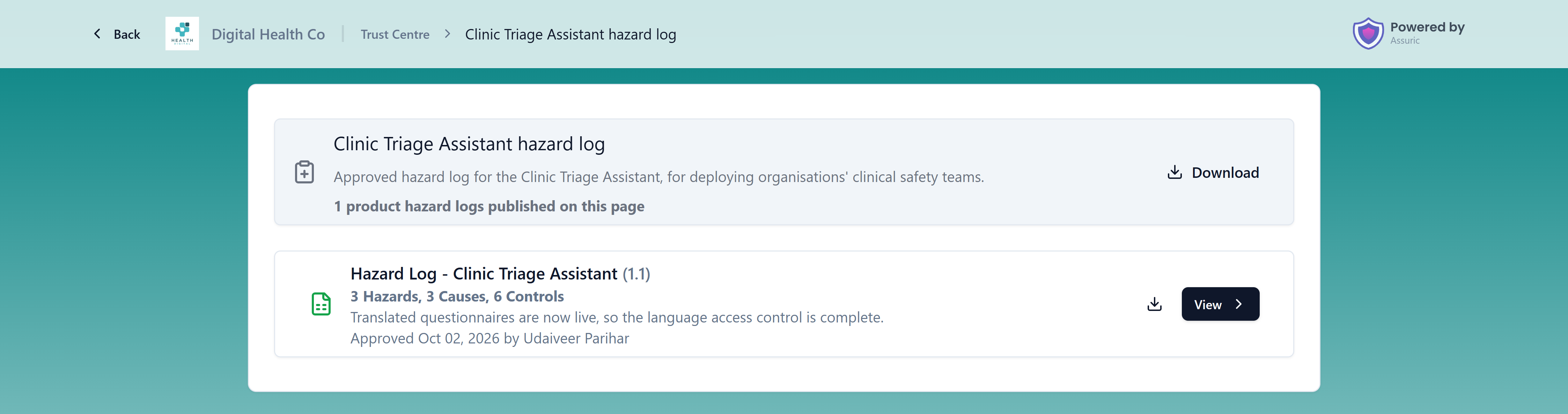 **View** opens the product page, with a **Download** button and 2 tabs:
* **Hazard Log** lists each hazard with its causes, initial risk, controls, residual risk and status.
* **Transferred Controls** lists the controls that are the deploying organisation's responsibility.
A control's evidence count opens **Evidence for control**, which lists each item with its link.
**View** opens the product page, with a **Download** button and 2 tabs:
* **Hazard Log** lists each hazard with its causes, initial risk, controls, residual risk and status.
* **Transferred Controls** lists the controls that are the deploying organisation's responsibility.
A control's evidence count opens **Evidence for control**, which lists each item with its link.
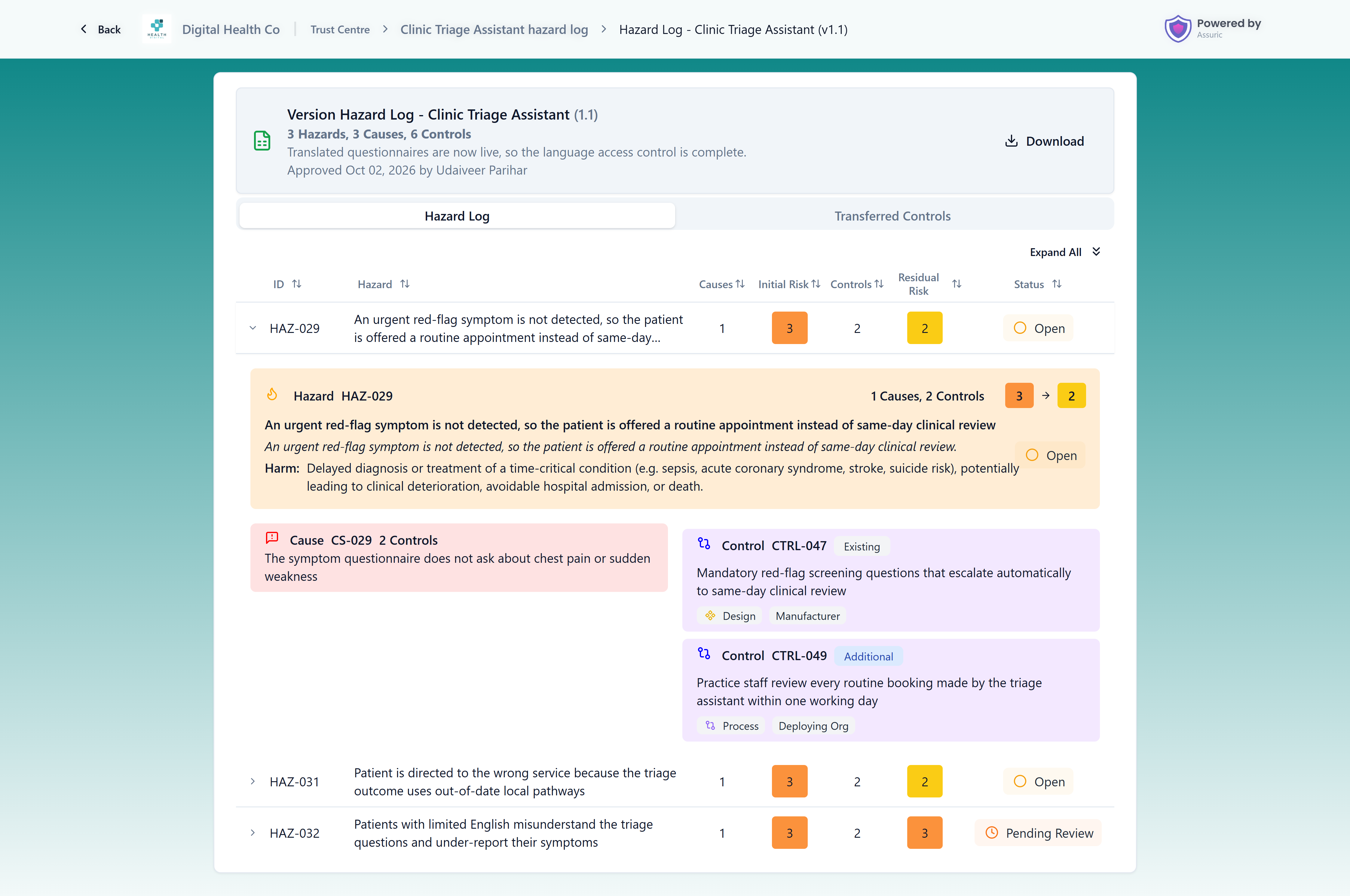 Published hazard logs that aren't in a folder appear under **Hazard Logs** on your public Trust Centre.
## Keep it current
[Approve the product's new version](/clinical-safety/hazard-log-approvals#approve-a-new-version) with *Update published hazard logs for this product* ticked.
Open the card's "..." menu and click **Send Notification**, which opens the **Send trust page update notifications** flow in your Trust Centre.
You can't send notifications until your Trust Centre has a privacy notice URL. Set it before you need it.
## Related articles
Save a version and update the logs where it's published.
Tell the people who hold a published resource that it changed.
This documentation is built and hosted on [Mintlify](https://mintlify.com), a developer documentation platform.
Published hazard logs that aren't in a folder appear under **Hazard Logs** on your public Trust Centre.
## Keep it current
[Approve the product's new version](/clinical-safety/hazard-log-approvals#approve-a-new-version) with *Update published hazard logs for this product* ticked.
Open the card's "..." menu and click **Send Notification**, which opens the **Send trust page update notifications** flow in your Trust Centre.
You can't send notifications until your Trust Centre has a privacy notice URL. Set it before you need it.
## Related articles
Save a version and update the logs where it's published.
Tell the people who hold a published resource that it changed.
This documentation is built and hosted on [Mintlify](https://mintlify.com), a developer documentation platform.