> ## Documentation Index
> Fetch the complete documentation index at: https://docs.assuric.com/llms.txt
> Use this file to discover all available pages before exploring further.
# Answer security questionnaires
> Paste or upload a customer's security questionnaire and get answers drafted from your policies, with citations you can check.
**Quick summary**
* The Questionnaire Assistant, a mode of [Ask Assuric](/ask-assuric/overview), drafts answers to a customer's security questionnaire from your documents and evidence.
* Read every answer and its sources before sending: you're accountable for what you submit.
* The assistant drafts the NHS [DSPT](/assuric-overview/glossary#abbreviations), but you [copy the answers into the DSPT portal yourself](#for-the-dspt).
Customers send supplier security questionnaires, and this mode answers them from your workspace, so you don't rewrite the same answers.
## Answer a questionnaire
Press **Ctrl+J**, or click **Ask** at the top of the sidebar, and choose **Questionnaire Assistant**.
Paste the questions into the message, or click **+** and choose **Upload file**. For example:
> Here is a security questionnaire from a GP practice customer. Please answer each question from our policies.
>
> 1. Do you have a documented information security policy, and when was it last reviewed?
> 2. Do you carry out multi-factor authentication for staff access to systems holding patient data?
> 3. Do you hold Cyber Essentials certification?
> 4. How do you report and manage data breaches?
Click **Send**.
The assistant builds a *Security Questionnaire*. When its card shows *Completed*, click **Open questionnaire**.
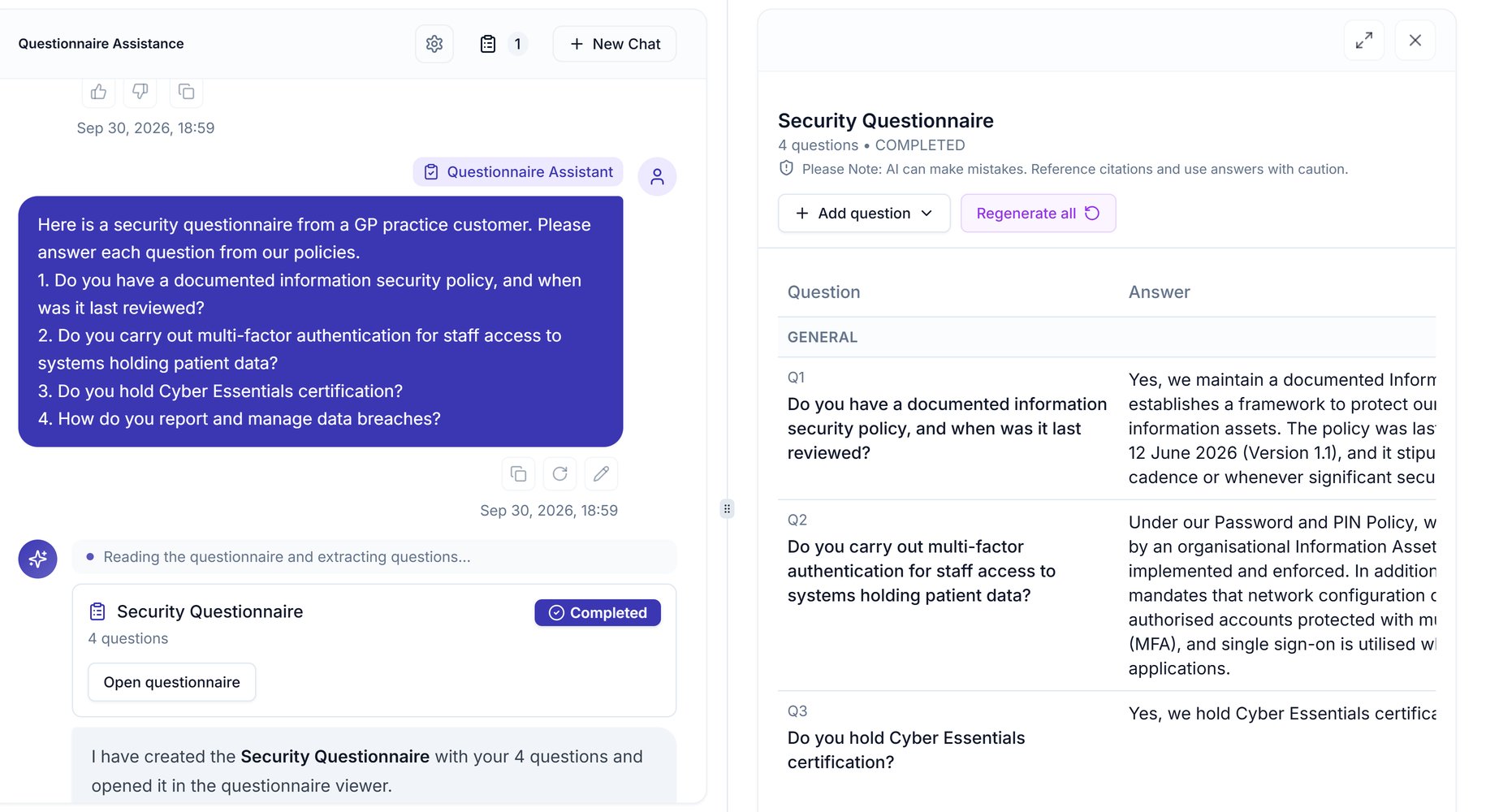 The viewer lists each question with its answer and a *Citations* number.
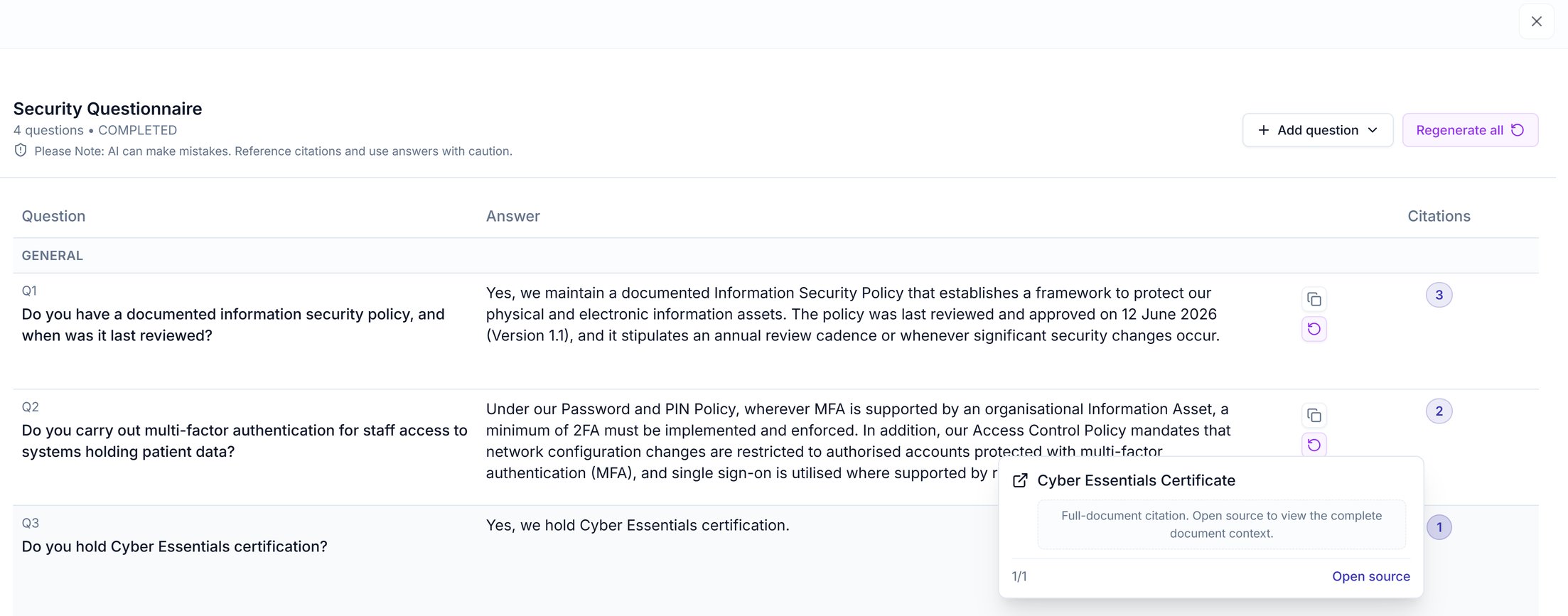
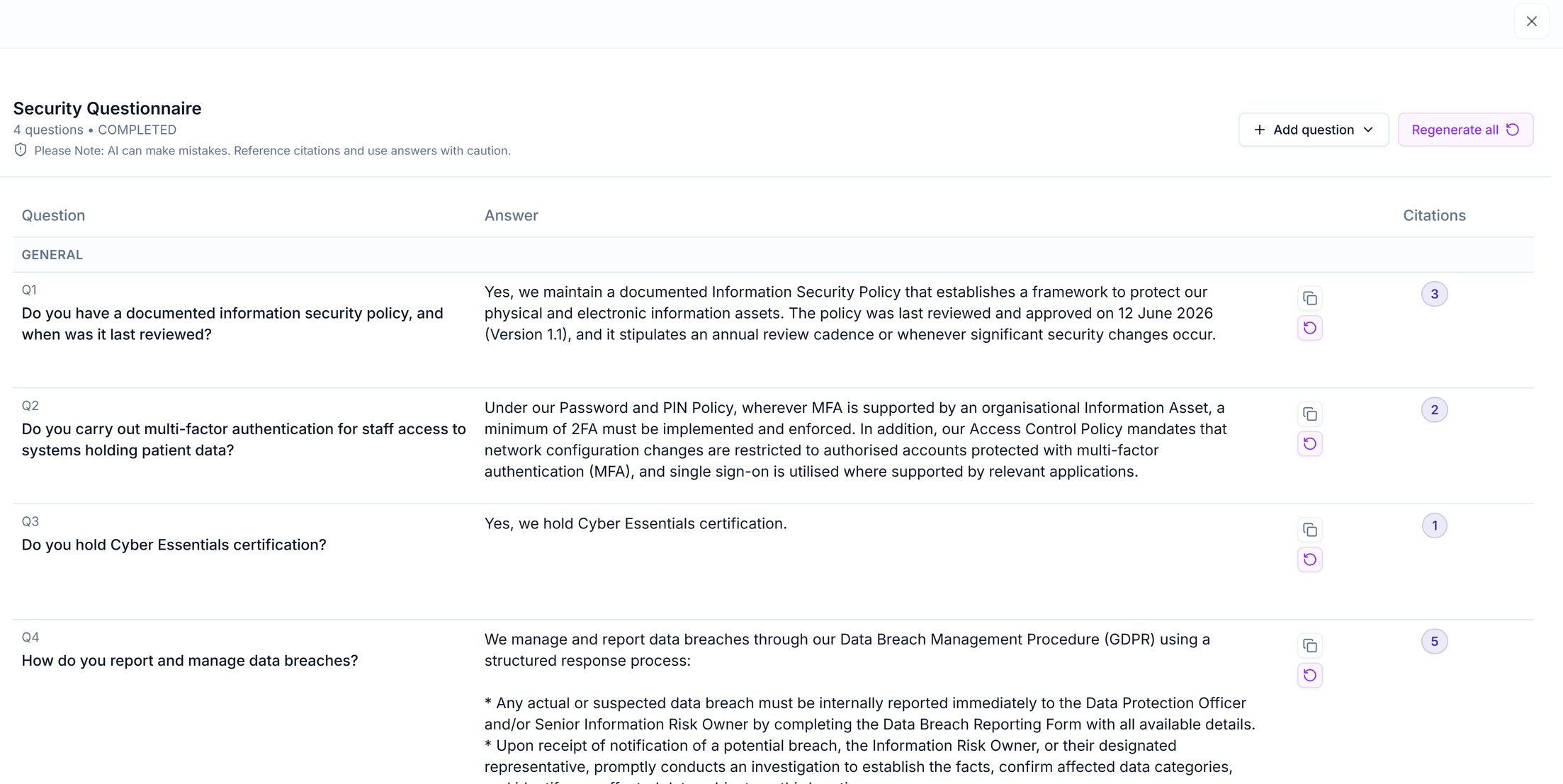 Click a *Citations* number to see the answer's source documents:
* Click **Open source** to read it beside the questionnaire, with the cited passages highlighted and a list of citations to jump between.
* Use **Open in editor** to go to the document and **Back to questionnaire** to return.
* A web link citation opens with an **Open Link in New Tab** button instead.
Click a *Citations* number to see the answer's source documents:
* Click **Open source** to read it beside the questionnaire, with the cited passages highlighted and a list of citations to jump between.
* Use **Open in editor** to go to the document and **Back to questionnaire** to return.
* A web link citation opens with an **Open Link in New Tab** button instead.
 Use the tools below, then copy the answers into the customer's form or reply.
## Work on the answers
| To do this | Do this |
| - | - |
| Copy one answer | Click the copy button beside it. |
| Redraft one answer | Click the regenerate button beside it. |
| Redraft every answer | Click **Regenerate all**. |
| Change an answer by hand | Click the answer text and type, and your change is saved. |
| Add a question the customer asked later | Click **Add question**, type the question and click **Add question** again: the assistant drafts the answer straight away, as *Auto-answer after add* is ticked by default. |
In **Add question**, the *Section* list files the question under a section, or *General* if you have none.
To return to a questionnaire, open its chat from **Chat History** and click **Open questionnaire**. Your edits and added questions are kept.
## When an answer is weak
Answers can only cite what's in your workspace, so keep your policies and evidence up to date.
* **No source found:** the answer reads "Information not found in your Assuric workspace." with no citations. The policy or evidence isn't in Assuric yet: add it, then click the answer's regenerate button.
* **Source doesn't back the answer:** read the source, then edit or regenerate the answer.
AI can make mistakes, and a questionnaire answer is a statement to a customer, so you're accountable for what you submit. Check each one against its source, especially dates, certifications and anything about how you handle patient data.
## For the DSPT
The same mode drafts answers for the NHS Data Security and Protection Toolkit (DSPT), with these differences:
* **Start from the home page:** click **Complete** on the *Complete your DSPT assessment* prompt, which shows on your home page only while your DSPT submission is due for renewal. The assistant opens with the DSPT questionnaire already loaded, so there's nothing to paste or upload.
* **Asking in the chat:** this doesn't start the assessment.
* In **Auto** mode, "Help me complete my DSPT assessment" returns where you stand (progress, requirements met, outstanding tasks) and the steps to submit.
* In **Questionnaire Assistant** mode, it asks you to upload the file or paste the questions.
* **Copy the answers into the portal:** the DSPT has no API, so for each answer, click the copy button and paste it into the matching question in the [DSPT portal](https://www.dsptoolkit.nhs.uk/Account/Login).
## Related articles
The DSPT's categories, requirements and yearly versioning.
The other modes, sources and settings.
This documentation is built and hosted on [Mintlify](https://mintlify.com), a developer documentation platform.
Use the tools below, then copy the answers into the customer's form or reply.
## Work on the answers
| To do this | Do this |
| - | - |
| Copy one answer | Click the copy button beside it. |
| Redraft one answer | Click the regenerate button beside it. |
| Redraft every answer | Click **Regenerate all**. |
| Change an answer by hand | Click the answer text and type, and your change is saved. |
| Add a question the customer asked later | Click **Add question**, type the question and click **Add question** again: the assistant drafts the answer straight away, as *Auto-answer after add* is ticked by default. |
In **Add question**, the *Section* list files the question under a section, or *General* if you have none.
To return to a questionnaire, open its chat from **Chat History** and click **Open questionnaire**. Your edits and added questions are kept.
## When an answer is weak
Answers can only cite what's in your workspace, so keep your policies and evidence up to date.
* **No source found:** the answer reads "Information not found in your Assuric workspace." with no citations. The policy or evidence isn't in Assuric yet: add it, then click the answer's regenerate button.
* **Source doesn't back the answer:** read the source, then edit or regenerate the answer.
AI can make mistakes, and a questionnaire answer is a statement to a customer, so you're accountable for what you submit. Check each one against its source, especially dates, certifications and anything about how you handle patient data.
## For the DSPT
The same mode drafts answers for the NHS Data Security and Protection Toolkit (DSPT), with these differences:
* **Start from the home page:** click **Complete** on the *Complete your DSPT assessment* prompt, which shows on your home page only while your DSPT submission is due for renewal. The assistant opens with the DSPT questionnaire already loaded, so there's nothing to paste or upload.
* **Asking in the chat:** this doesn't start the assessment.
* In **Auto** mode, "Help me complete my DSPT assessment" returns where you stand (progress, requirements met, outstanding tasks) and the steps to submit.
* In **Questionnaire Assistant** mode, it asks you to upload the file or paste the questions.
* **Copy the answers into the portal:** the DSPT has no API, so for each answer, click the copy button and paste it into the matching question in the [DSPT portal](https://www.dsptoolkit.nhs.uk/Account/Login).
## Related articles
The DSPT's categories, requirements and yearly versioning.
The other modes, sources and settings.
This documentation is built and hosted on [Mintlify](https://mintlify.com), a developer documentation platform.